To install an EA on MT5 desktop, put the EA under MQL5\Experts, compile the main .mq5 file if supplied, and attach it from Navigator to a chart. Trading also requires permission at both the platform and EA levels. Start on a demo account with the EA's intended symbol and inputs.
This guide covers the Windows desktop terminal. Installation makes the software available; it does not establish whether the strategy works. The steps below follow MetaQuotes documentation checked on October 9, 2026.
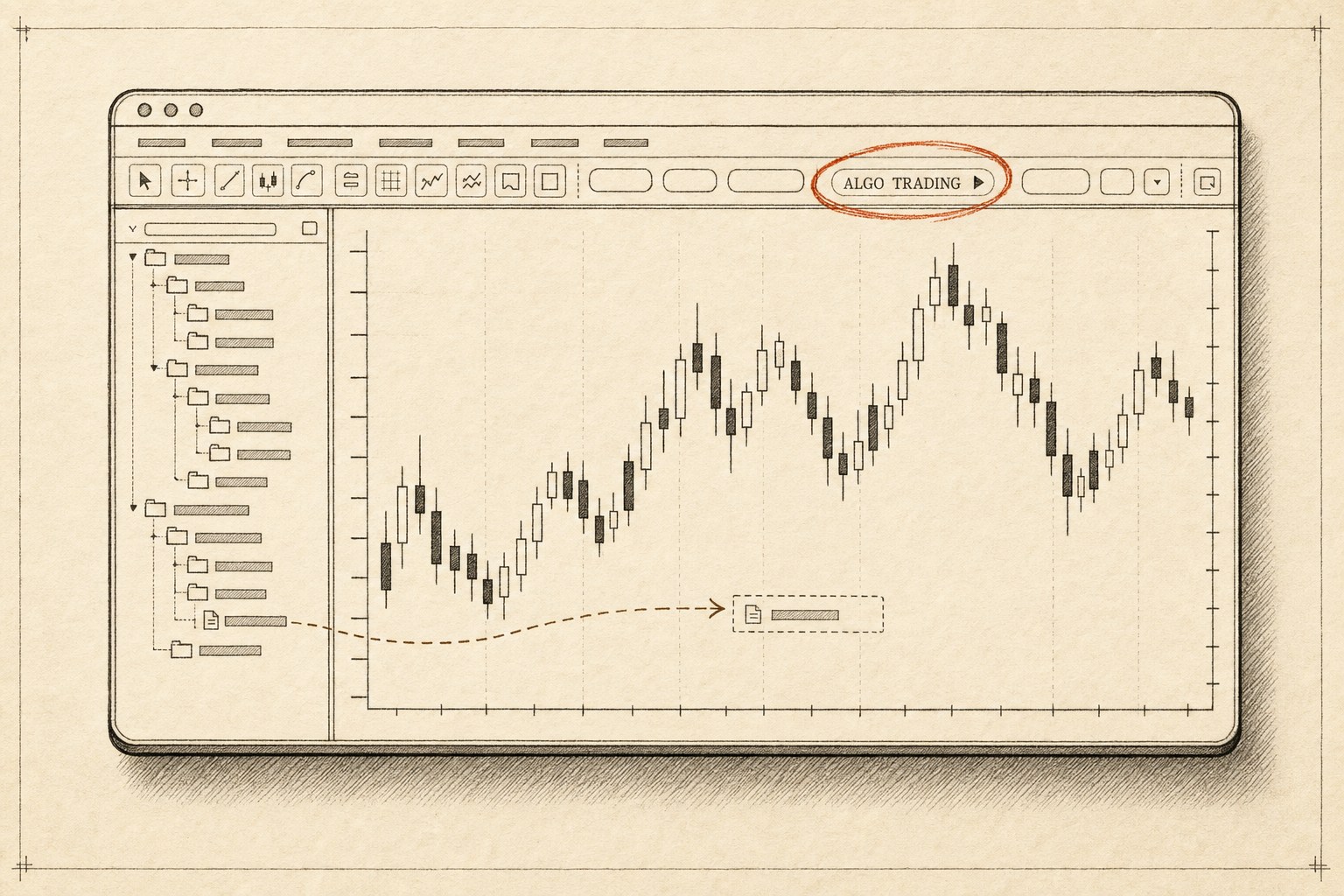
A simulated walkthrough of the Windows desktop terminal, not a screen recording. Menu names can differ slightly between MT5 builds.
Read as text
- 1. Open the data folder: File → Open Data Folder.
- 2. Paste the .ex5 into Experts: MQL5 → Experts (subfolders are fine).
- 3. Refresh Navigator: Navigator → Expert Advisors → Refresh.
- 4. Drag it onto a chart: Inputs, then Common → Allow Algo Trading.
- 5. Turn on Algo Trading: Toolbar button (older builds: AutoTrading).
- The EA's name and icon appear at the chart's upper right. An .ex5 is already compiled: nothing to build.
How this window was chosen: Steps, folders and keys from MetaQuotes' MT5 help on Expert Advisors, attaching them to charts and Market purchases, checked 2026-10-09. Newer builds label the toolbar button Algo Trading and the EA's checkbox Allow Algo Trading; older help pages say AutoTrading.
Where do EA files go in MT5?
Use the data folder of the MT5 terminal you actually opened:
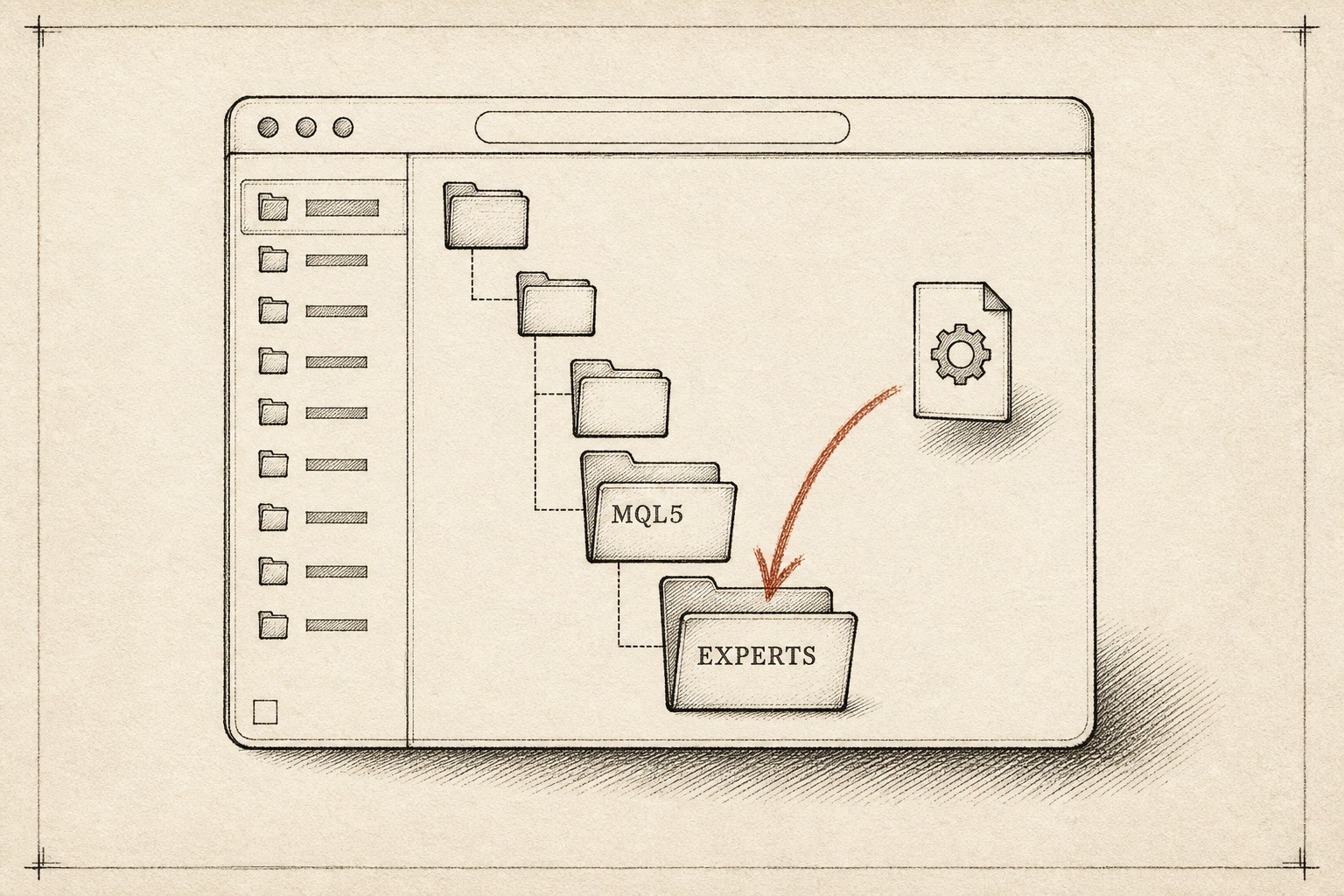
- Choose File → Open Data Folder, then open MQL5 → Experts.
- Extract the package and place the EA there. Subfolders inside Experts are supported; keep the supplied folder structure instead of flattening everything into one directory.
- If you received source, compile it as described below. In MT5's Navigator → Expert Advisors, refresh and expand the relevant folder to find the executable.
MetaQuotes explicitly documents EA folders, subfolders and source-file installation. A missing EA is a reason to check the terminal, path and compiled file, not evidence that subfolders are invalid.
How do I attach the EA to a chart?
Drag the EA from Navigator onto the intended chart, or double-click it with that chart selected. Review Inputs and the EA's trading permission before clicking OK. Its name and status icon should appear at the chart's upper right.
Only one EA runs per chart; attaching another replaces the first. MetaQuotes explains attachment, inputs and trading permissions.
If a package lists dependencies, follow its installation instructions. Enable DLL imports only for a trusted EA that requires them; it is not a universal installation step.
How do I load the supplied settings preset?
A .set file contains input settings, not the EA itself. Install the EX5 or compile the MQ5 first. Then open the EA's properties, choose Inputs → Load, select its preset and review the displayed values before pressing OK. Use Save to keep the settings you actually tested; Reset restores defaults. MetaQuotes documents loading and saving input presets, checked 2026-10-15.
For example, a package containing ExampleEA.ex5 and ExampleEA-demo.set has two different jobs: the EX5 goes under MQL5\Experts; the preset is loaded through Inputs after selecting that EA. These are illustrative filenames. A preset name does not establish that its settings suit your EA version, symbol or account, and loading it does not grant trading permission.
Before a demo run, keep a small installation record:
| Check | Evidence to keep |
|---|---|
| Correct program | Terminal data-folder path, EA filename and version shown in Common |
| Correct configuration | Chart symbol/timeframe and the actual Inputs values after loading the preset |
| Started successfully | Chart name/status icon plus any initialization messages in Experts and Journal |
| Trading permitted | Platform and EA permission states, checked separately from attachment |
An EA can keep processing ticks while Algo Trading is disabled; that switch blocks its trade requests rather than stopping the program. This lets you distinguish a loaded program from permission to place orders. It is not proof of an entry signal or a successful order. See MetaQuotes' OnTick reference, checked 2026-10-15.
Bought it on the MQL5 Market?
Don't copy files: a Market EA installs itself. After you buy it in the terminal, it downloads to MQL5\Experts\Market and appears in Navigator under Market → My Purchases; drag it onto a chart as above.
On another computer, sign in to your MQL5 account under Tools → Options → Community, then press Install next to the product under Market → Purchased. Each new computer uses one of the product's activations, at least five per purchase, MetaQuotes says. MetaQuotes: buying from the Market.
Why isn't my EA trading?
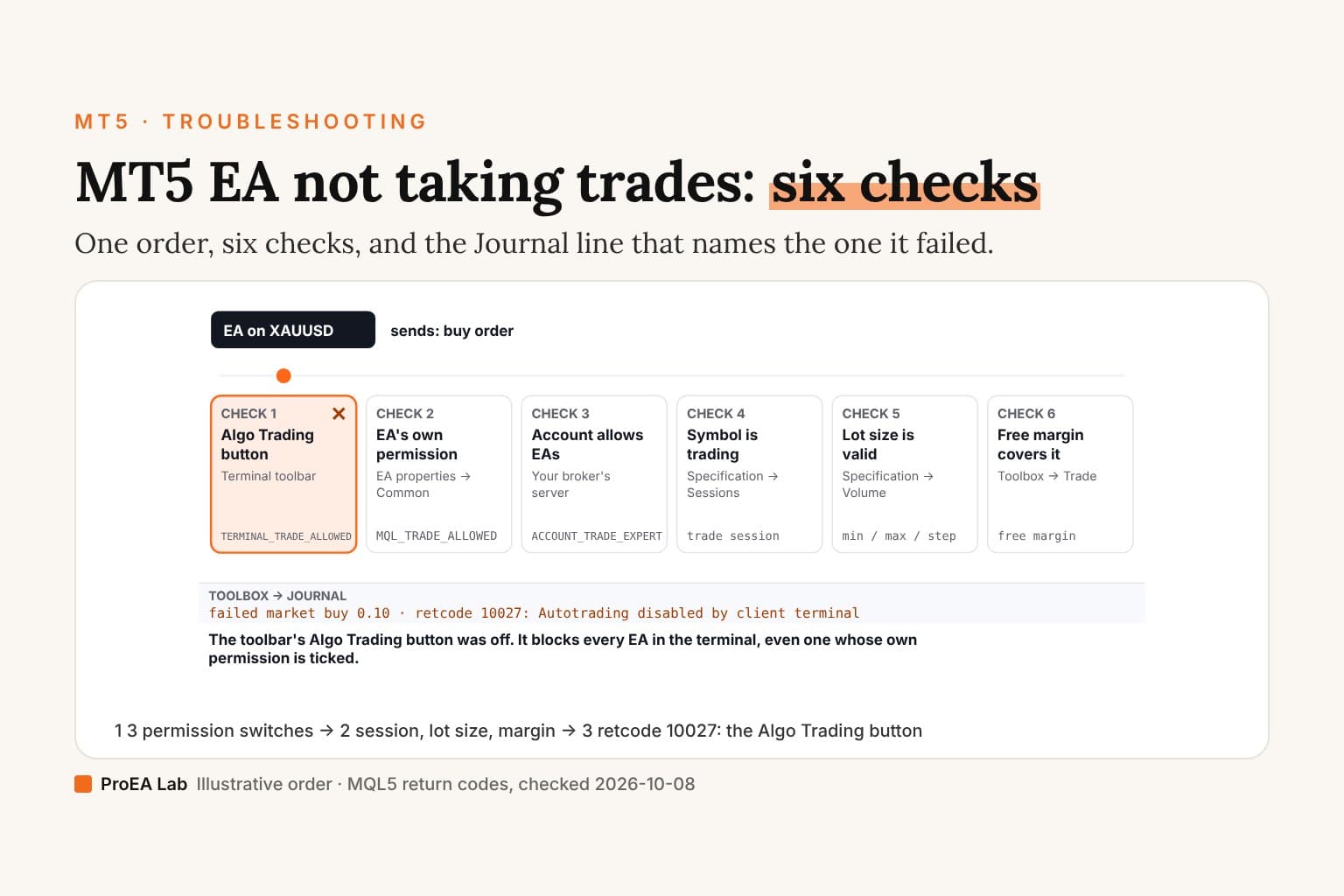
No trades can mean disabled permissions, a rejected order or simply no entry signal. Check the evidence before changing strategy settings (the Journal's return codes are decoded in MT5 EA not taking trades):
- Permissions. Check the toolbar's Algo Trading / AutoTrading control and the EA's own permission. Either can block automated orders; do not assume the setting from its default or from attachment alone.
- Logs. Read Toolbox → Experts for EA messages and Journal for platform and trading events. Save the exact error, symbol and time when investigating. These are the two logs described in MetaQuotes' logging guide.
- Broker sessions and contract settings. In Market Watch, right-click the symbol and open Specification. Check its trading sessions, permitted volume and margin conditions. Forex and XAUUSD schedules depend on the broker and symbol; a quiet weekend does not prove the EA is working. MetaQuotes documents these specification fields.
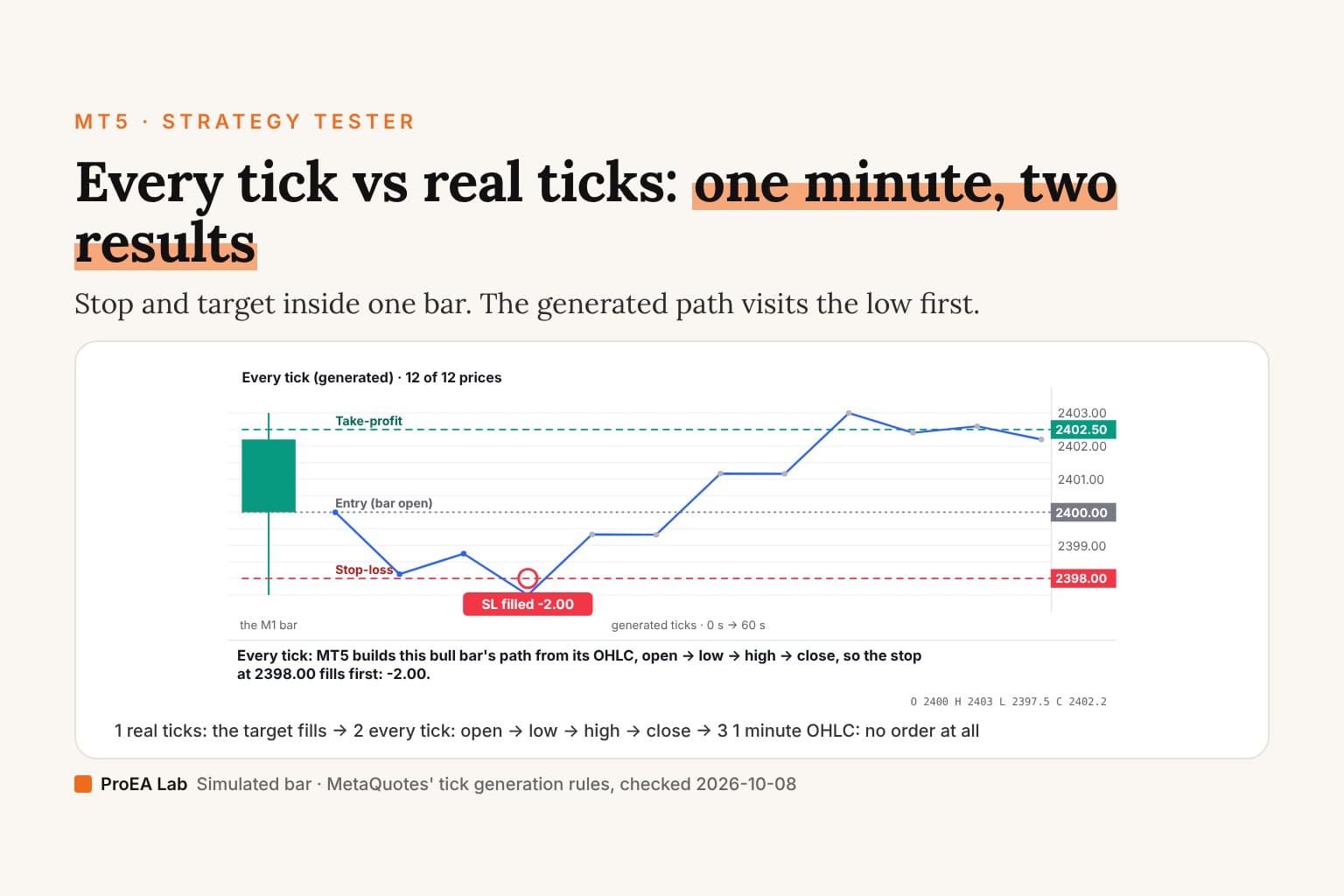
- Entry conditions. Compare the EA's documented symbol, timeframe and filters with your inputs. If there is no qualifying setup, enabling trading will not create one. Use the MT5 backtest guide to inspect its behavior on historical data.
.ex5 or .mq5 — which did you get?
An .ex5 is an executable; an .mq5 is source code. An EX5 does not need you to compile it, though its package may still require supporting files. For source:
- Press F4 from MT5 to open MetaEditor.
- Open the EA's main MQ5 file or project, then press F7.
- Inspect the Errors tab. Compilation errors prevent a new executable; review warnings too. After a successful build, return to MT5 and refresh Navigator.
MetaQuotes' compilation guide explains the output and diagnostics. Compiling an include file alone does not produce the main EA.
If an include file is missing, restore it to the path expected by the source. Angle-bracket includes resolve under MQL5\Include; quoted includes resolve relative to the source file. Moving files can therefore break dependencies. The MQL5 include reference describes the distinction.
ProEA EAs include MQ5 source for inspection and modification. Readable code helps explain behavior; it does not establish profitability. Whether an EA is worth running at all is a separate question: do forex EAs actually work?

After testing the installation on demo, export the MT5 trade history and review those trades in a journal. Record the EA version, inputs and test period so the next change has something concrete to compare against.
Use this animation on your site.
Frequently asked questions
Where do I put an EA file in MT5?
In the terminal's own data folder: File → Open Data Folder → MQL5 → Experts. Subfolders inside Experts are fine. Then right-click Expert Advisors in Navigator and choose Refresh.
Why doesn't my EA show up in Navigator?
Usually it's in another terminal's data folder, or it's .mq5 source: source files never show in Navigator. Open the .mq5 in MetaEditor (F4) and compile it (F7); the .ex5 it builds is what appears.
How do I install an EA bought on the MQL5 Market?
Buy it in the terminal and it downloads itself to MQL5 → Experts → Market, listed in Navigator under Market. On another computer, sign in to your MQL5 account and press Install under Market → Purchased; each new computer uses an activation.
How do I know the EA is running?
Its name and an icon appear in the chart's upper-right corner. Both the toolbar's Algo Trading button and the EA's own Allow Algo Trading box must be on for it to trade.
Do I need to compile an .ex5 file?
No. An .ex5 is already compiled and runs as it is. Only .mq5 source needs MetaEditor: press F4 to open it and F7 to build the .ex5.