To export MT5 trade history on desktop, open Toolbox → History, right-click the trade list, choose a date range, then select Report and save an HTML statement. For spreadsheet analysis, use the Open XML/Excel option where offered. The newer visual report has a separate HTML/PDF export, explained below.
Your trade history is the most honest dataset you own. Export the history available on your account, then check the date range and trade count before importing it into a journal. These instructions use the desktop terminal; the web terminal and Mac get their own sections below.
Already have a statement? Open the free MT5 report analyzer to check supported HTML/CSV postings, separate cash movements and inspect realized balance drawdown in your browser. Start with the matching synthetic HTML and CSV check to reconcile entry commissions, fees and cash movements before using your own report. Check parsing diagnostics and enter the balance immediately before your imported window. Report contents stay on your device.
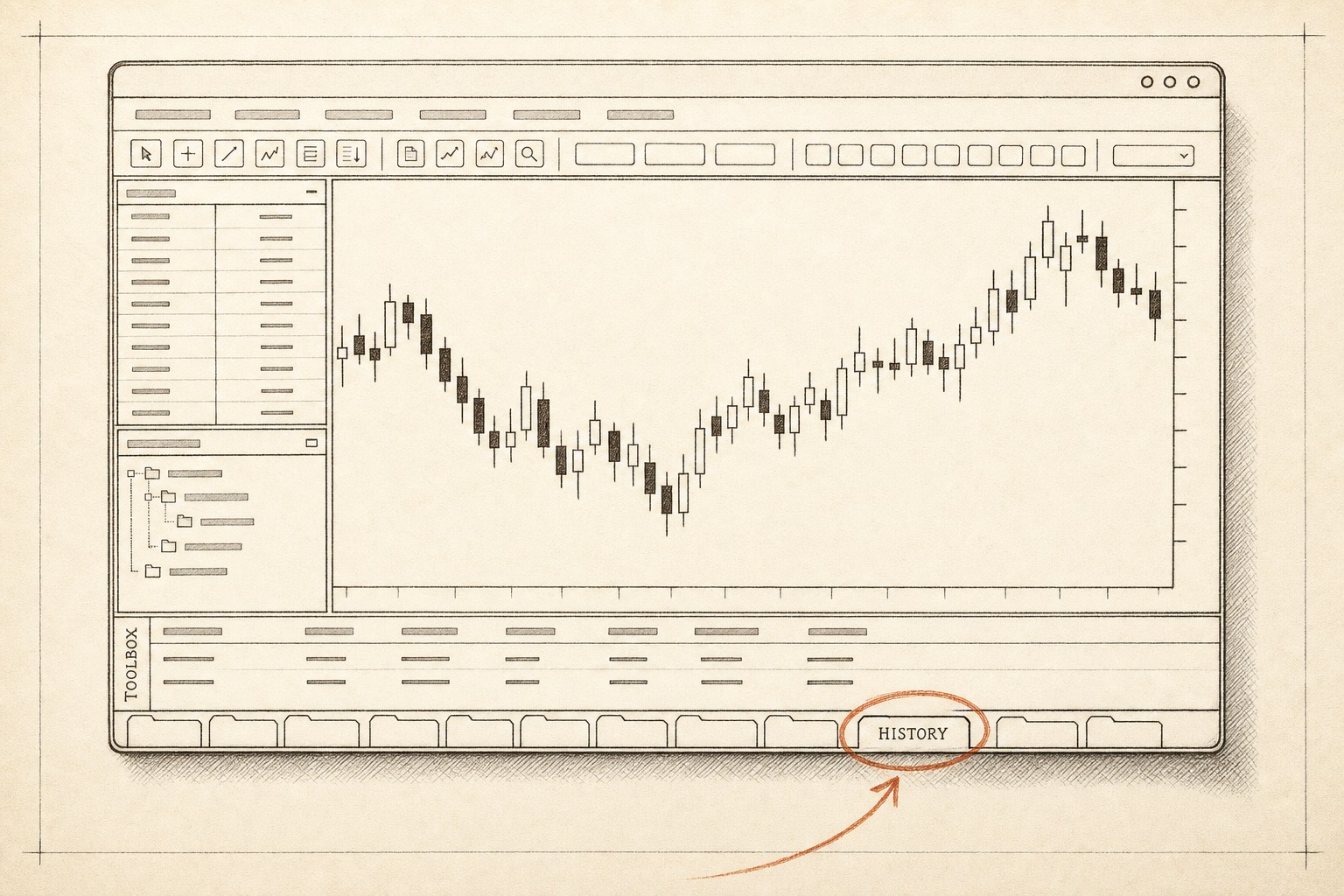
How do I export trade history from MT5?
The two-minute version:
- Open the Toolbox panel — press Ctrl+T if it isn't visible (View → Toolbox).
- Click the History tab along the Toolbox's bottom edge.
- Right-click anywhere in the trade list and pick the period first — Last month, Last 3 months, or Custom period for exact dates.
- Right-click again and choose Report → HTML to save the account statement. If your build offers Open XML (.xlsx), choose that for Excel instead.
MetaQuotes documents the History → Report statement export. Its release history records the Open XML spreadsheet format; use the options actually shown in your terminal.
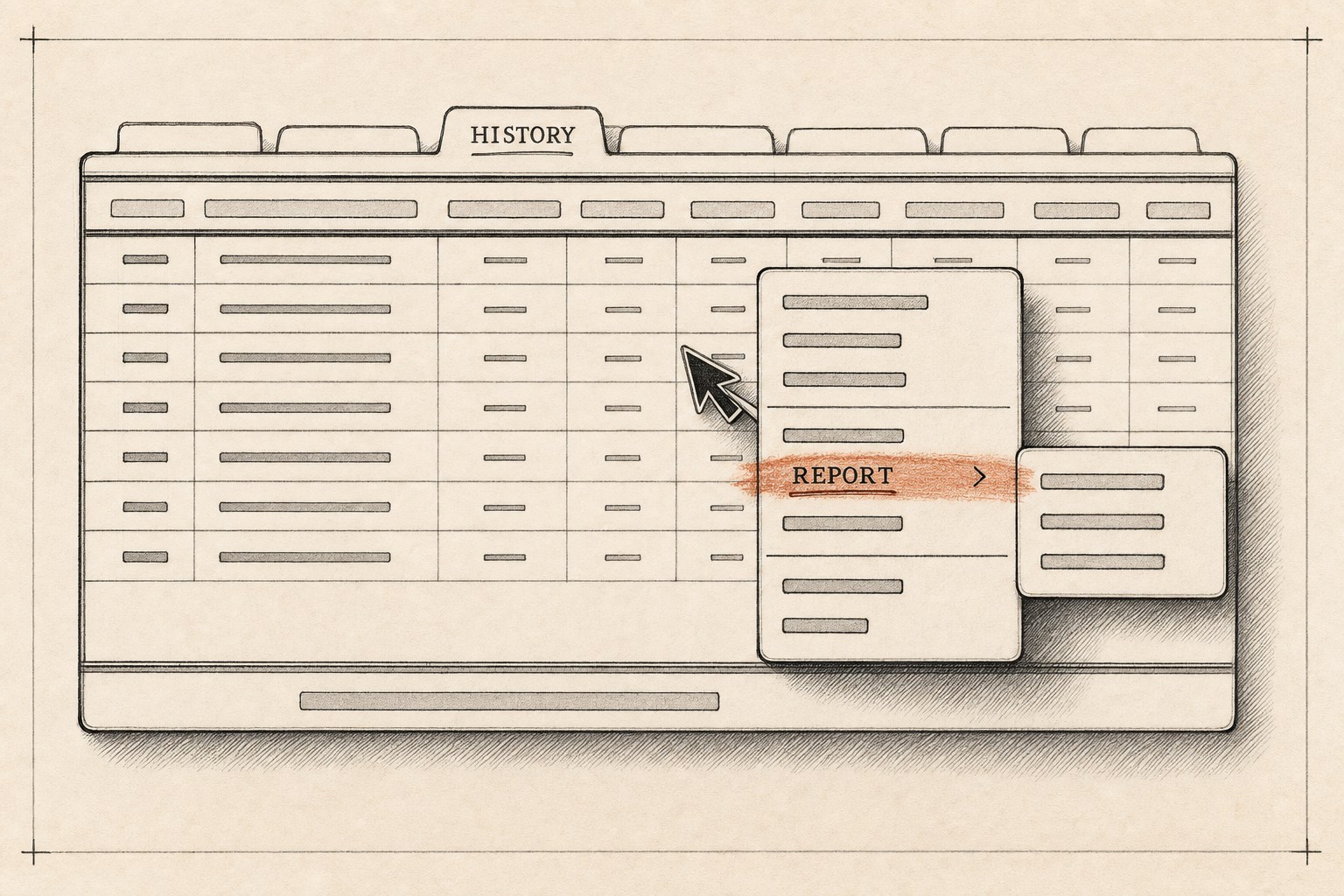
For journal import, use the statement format your importer supports and check that its trade rows are present. MT5 statements contain order/deal details and financial results for the selected period; a visual summary is a different export. The XLSX version is useful for spreadsheet analysis.
Check the saved report before importing it
Open the exported file and check these three things against the terminal:
- Account and currency: the report header should identify the account you intended to export and its deposit currency.
- Dates: check the first and last relevant deal timestamps against the period you selected. A report cannot recover records that are unavailable on the account.
- What a row means: an order is a request, a deal is an execution, and a position can combine several related deals. Do not expect those row counts to match.
For example, one position opened with one deal and closed with two partial exits has three deals but one position. That difference alone does not mean trades are missing. MetaQuotes documents the separate orders, deals and position views and the blocks in an account statement.
There is also a date-range trap in the positions view: MetaQuotes says a position opened before the selected period and closed after its end is not included in that view. Check the underlying deals and widen the period when you need the full position history. This is why checking a saved file's actual rows is more reliable than comparing two unlabeled “trade counts.”
After checking the account, dates and row types, use the local analyzer's HTML/CSV reconciliation example to see how entry commissions, fees and cash movements affect the imported totals. Keep the original export so you can compare any conversion with it.
How do I save an MT5 report as PDF?
Open Report → Overview from the history context menu, or View → Reports. This opens MT5's newer visual report, whose save controls offer HTML or PDF. It is separate from the classic trade-history statement and is useful for reviewing or sharing a summary. A journal that expects the classic HTML statement may not accept this PDF or the newer HTML layout. MetaQuotes: visual trading report.
One habit worth forming: archive a statement covering your available history. If older trades are missing even after selecting All history or a custom period, ask your broker for the missing statement; an export can only contain the records available to the terminal.

Can I export history from the MT5 web terminal?
If your web terminal shows no export option, log in to the desktop terminal with the same account and export from there. MetaQuotes documents the statement export for the desktop terminal (History → Report), and its build 4150 release notes added HTML and PDF saving to the desktop report. We found no MetaQuotes documentation of a statement export inside the web terminal. If your broker's web version offers one, use it.
Your trade history is kept on your broker's server rather than in a browser tab, so a desktop terminal logged in to the same account shows the records available on that account. No computer with MT5 on it? Ask your broker for a statement, or use the read-only investor login described below.
How do I export MT5 history on a Mac?
The steps are the same as on Windows, because MetaQuotes' macOS installer runs the standard MT5 terminal inside Wine. The official macOS installation guide describes the installer setting up Wine and then installing MetaTrader inside it, with macOS Catalina (10.15.7) as the minimum and support for Apple processors from M1 on. Toolbox → History → right-click → Report works as in the steps above.
Two Mac-specific notes. The Save dialog is a Windows-style dialog, because the terminal runs inside Wine, so note which folder you picked. And once you have the file, the MT5 report analyzer runs in your browser, so it works on a Mac with nothing extra to install.
How do I export from MT4?
Same idea, older furniture:
- Ctrl+T opens the Terminal panel.
- Open the Account History tab.
- Right-click → set the period (All History or Custom Period).
- Right-click → Save as Detailed Report to save HTML with additional summary statistics. Save as Report also includes trade details; choose the version requested by your importer. MetaQuotes: MT4 account history and reports.
What about CSV?
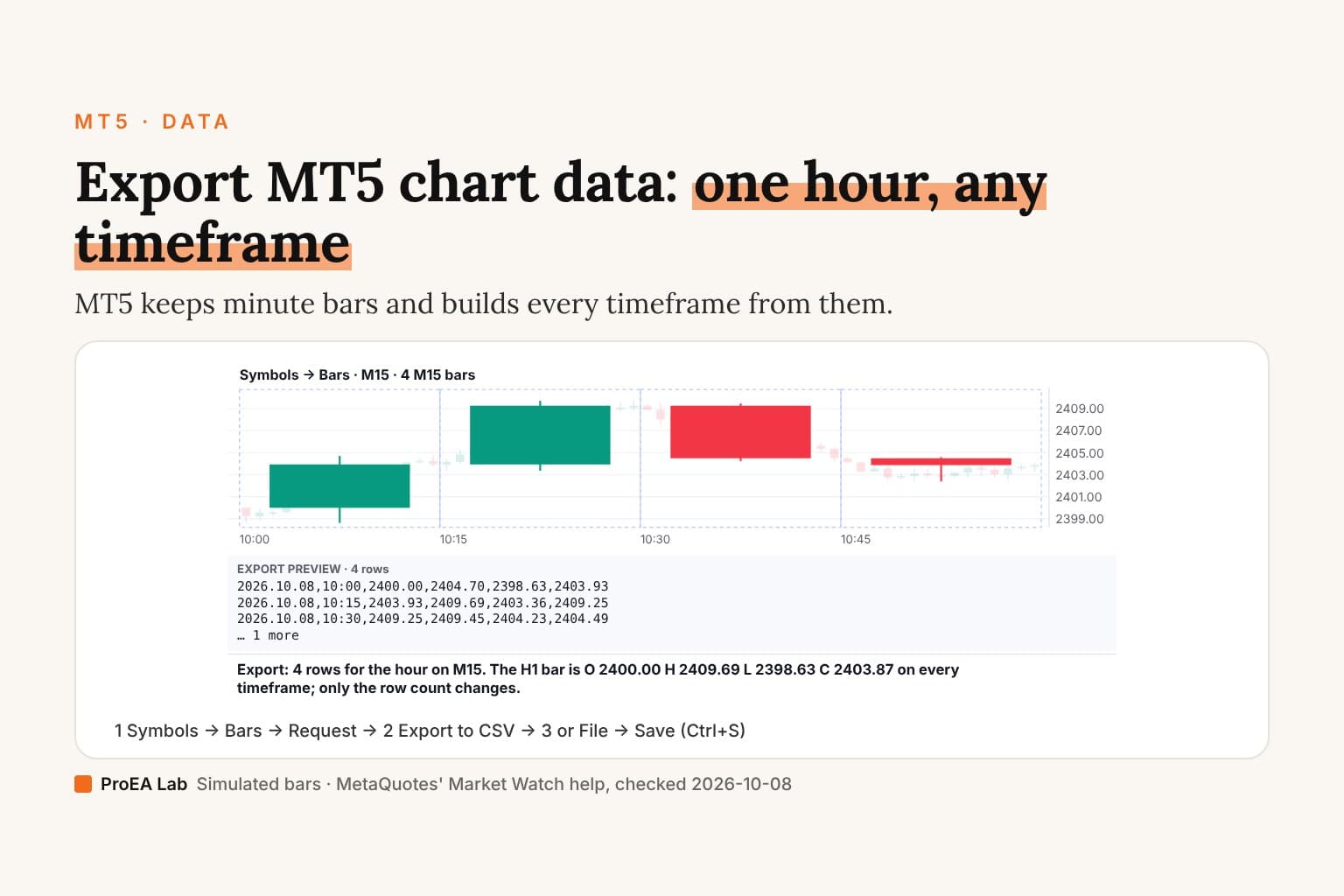
For the report routes above, use HTML or the offered spreadsheet format first. If a tool requires CSV, open the XLSX or import the HTML table in a spreadsheet and save the trade table as CSV. Check the importer's required columns, date format, time zone and decimal separators; renaming an .html file to .csv does not convert it. Price bars and ticks, rather than trades, come from a different window: export MT5 chart data.
The no-export route: a read-only investor login
MT5 supports an investor password for read-only account access without trading. Some MT4/MT5 sync services use investor access to read account history without a manual export. Check which connection method your journal supports, and never supply the master password for this read-only route.
Two honest cautions. Set the investor password yourself (your broker's client portal or MT5's Options dialog) rather than reusing anything, and treat it like the read-only key it is — revocable any time by changing it. And know what sync covers at the tool you're using: TradeLens Cloud, for example, syncs closed trades only via this route, while the $47 download skips sync entirely and imports the reports from this guide.
What to do with the file
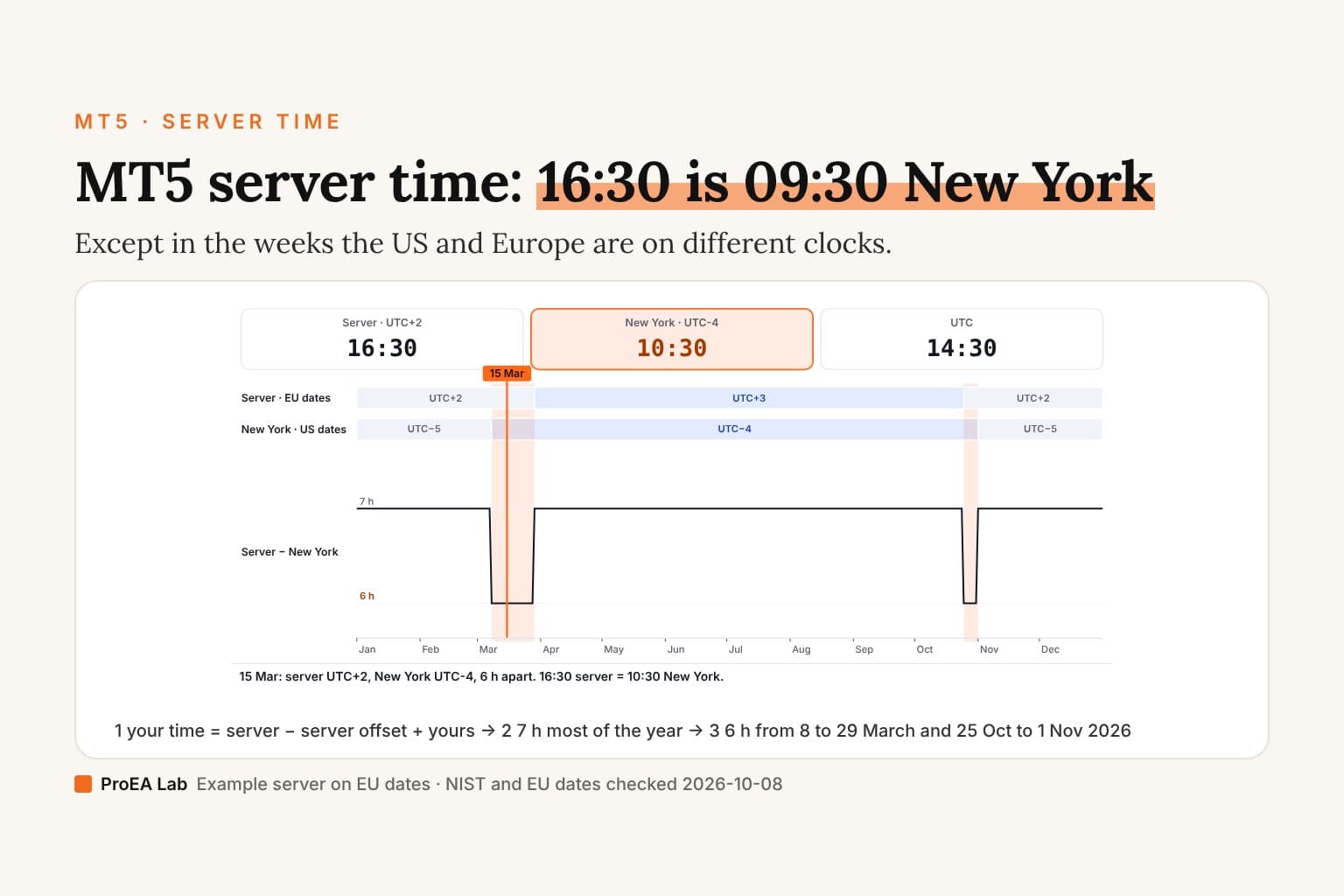
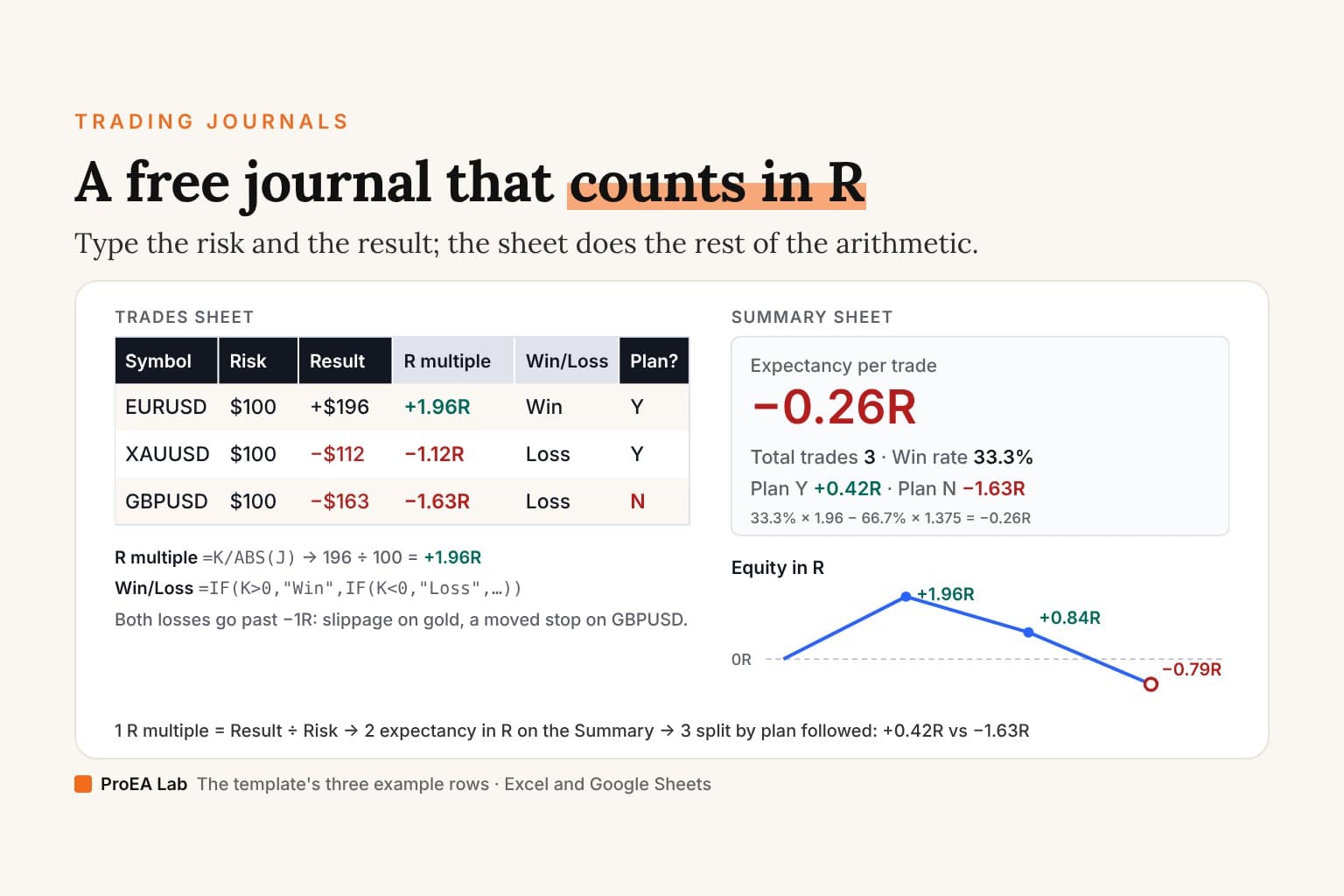
An export nobody reads is a receipt in a drawer. The point of the history is the questions it can answer: which setup actually pays you, which session bleeds, what your real R multiples look like after costs. That's a journal's job — import the report, and let the columns argue with your memory. Every time in the file is on your broker's server clock: convert MT5 server time before you read any session statistic.
Your broker's record doesn't negotiate. Export it before your memory edits the story.