A simulated sketch of the layout, not a screenshot: rows are blank bars with no real trades, only the controls this page names are labeled, and the web terminal's layout is simplified.
Read as text
- 1. Open the Toolbox: Ctrl+T.
- 2. Click the History tab: the Toolbox's bottom edge.
- 3. Pick the period: right-click → All History or Custom Period.
- 4. Save it if you need a file: right-click → Report.
- On a Mac, MetaQuotes' installer runs this Windows terminal inside Wine, so look for the same Toolbox.
How this window was chosen: Places and control names from MetaQuotes' MT5 help for the desktop terminal, the web terminal and the mobile apps, checked 2026-10-17. Menus can differ slightly between builds and brokers.
Where is trade history in the MT5 desktop terminal?
It's the History tab of the Toolbox. MetaQuotes' help on trading history says: "Open the "History" tab of the Toolbox window." If the Toolbox isn't on screen, Ctrl+T opens and closes it (MT5 hotkeys). The History tab is one of the tabs along the Toolbox's bottom edge.

Right-click anywhere in the list for everything else. In MetaQuotes' own screenshot of that menu, checked 2026-10-17:
- The period: All History, Last 3 Months, Last Month or Custom Period.
- The view: Positions, Deals, Orders, or Orders & Deals as a tree.
- Filters: Symbols, to show one instrument, and Volumes, to switch between lots and units.
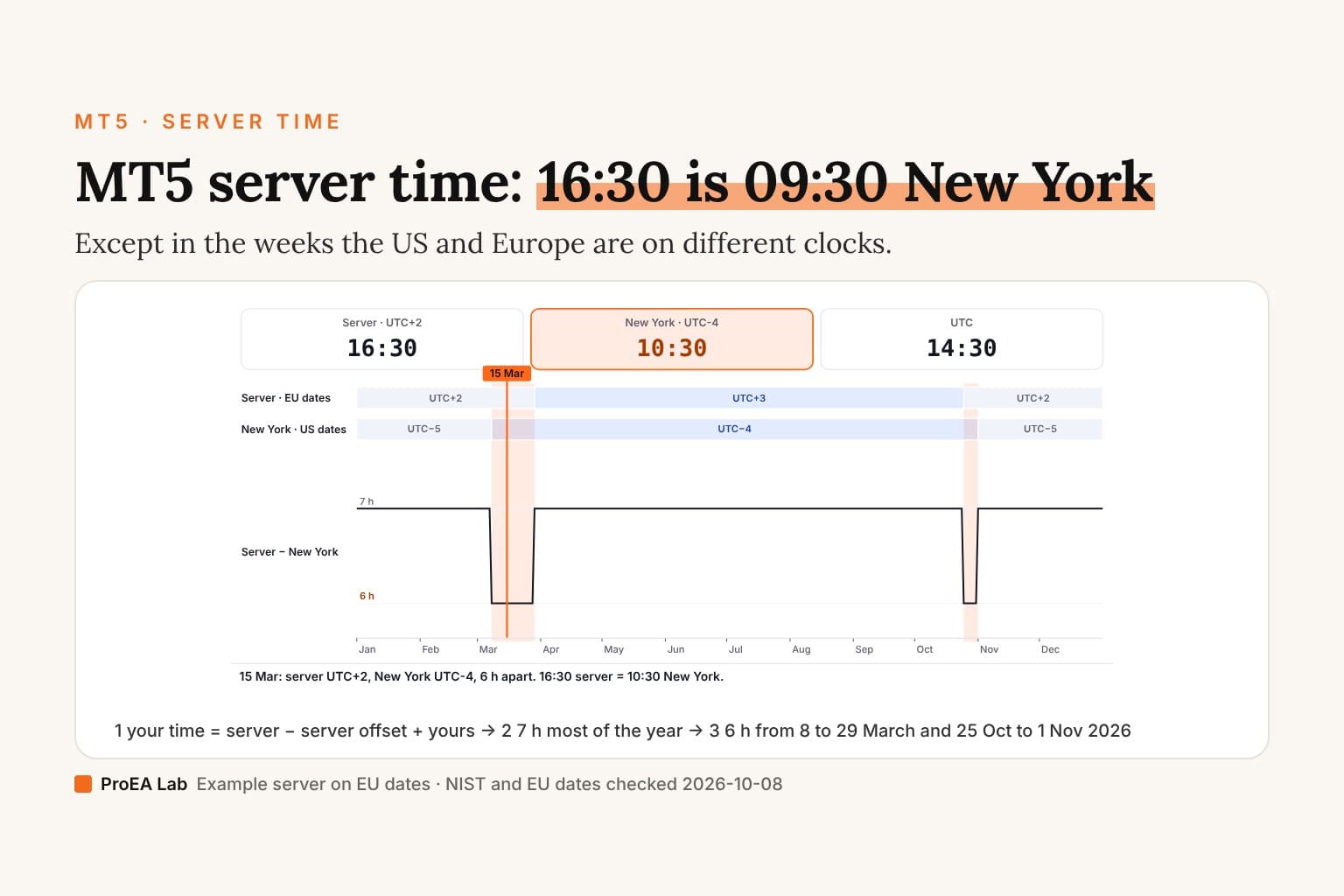
Every time in the list is your broker's server time, not yours. If a trade seems to sit on the wrong day, convert MT5 server time first.
On a Mac, MetaQuotes documents no separate history screen: its macOS installer runs the Windows terminal inside Wine, so you should find the same Toolbox and the same tab.
Why is my MT5 history empty or short?
Check the period first, then the account. Each of these comes from MetaQuotes' help.
- The period is too short. The list shows only the period you picked. Right-click and choose All History.
- A symbol filter is on. Symbols in the right-click menu narrows the list to one instrument.
- You're in the Positions view. A position opened before the period starts and closed after it ends is left out: "this position will not be included in the report", in MetaQuotes' words. Widen the period or switch to Deals.
- You're logged in to another account. History belongs to one account. The help on reports says to switch to the other account and reopen it.
- The demo account expired. Once a demo account is deleted on the broker's server, "its trading history cannot be viewed" (account management).
How far back All History goes isn't something MetaQuotes states. It's whatever the server returns for the account.
Where is trade history in the MT5 web terminal?
Open its History tab and pick the period from its list, which includes a Custom Period. MetaQuotes' release notes for web terminal build 3950 record "a custom period for displaying trading history". MetaQuotes publishes no guide to the web terminal itself; the menu names in its own code list Positions, Deals and Orders for the history, like the desktop.
Which web terminal you open matters. MetaQuotes' own copy at web.metatrader.app runs demo accounts only; for a real account you use your broker's copy, because "each web terminal is assigned to a specific broker and is located on its domain" (MetaQuotes).
Saving it is the catch. MetaQuotes documents no way to export history from the web terminal. We also checked the code of MetaQuotes' own web terminal (build 6272, 2026-10-17) and found no report command; the only file exports are a chart screenshot and the Journal's log. If you need a file, log in to the same account in the desktop terminal, or in the iPhone app, below.
Where is trade history in the MT5 phone app?
On iPhone and iPad, History is in the bottom panel. On Android, it's in the side panel. Both show Orders, Deals and Positions.
- iPhone and iPad (MetaQuotes help): tap the settings icon to choose the period, one of the presets or your own From and To dates, then Done. For a file, the trade report help says to tap the period icon, choose the period, then Create a trade report; at the end of the report, the share icon offers Save as PDF.
- Android (MetaQuotes help): open History from the app's side panel, pick a preset period or tap Select period, and sort by symbol, ticket, profit or time. MetaQuotes documents no trade report on Android, so use the desktop terminal for a file.
How do I get the history out as a file?
On the desktop, right-click the History list and choose Report. MetaQuotes documents two kinds: the newer visual report, which saves as HTML or PDF, and the classic statement, which your build may also offer as Open XML for Excel. The export guide walks through each format, plus MT4 and CSV.
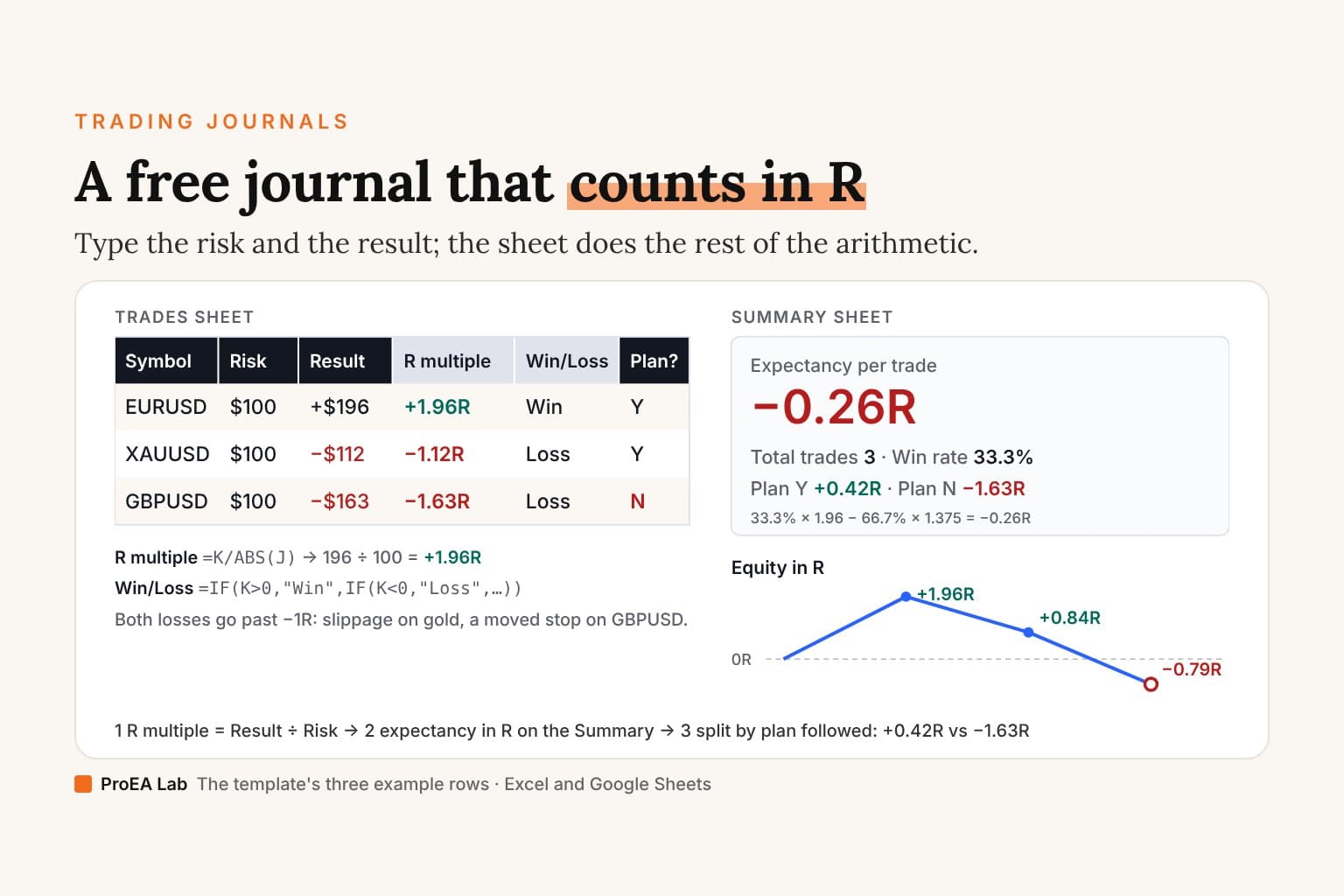
On the iPhone, Create a trade report → Save as PDF gives you a report to review or share. The MT5 report analyzer accepts supported English table-based HTML or the CSV format shown in its import instructions; it cannot import that PDF or an XLSX file. Use the desktop statement route above for the analyzer, or enter closed trades manually in the free trading journal template.
What is the History Center in MT5?
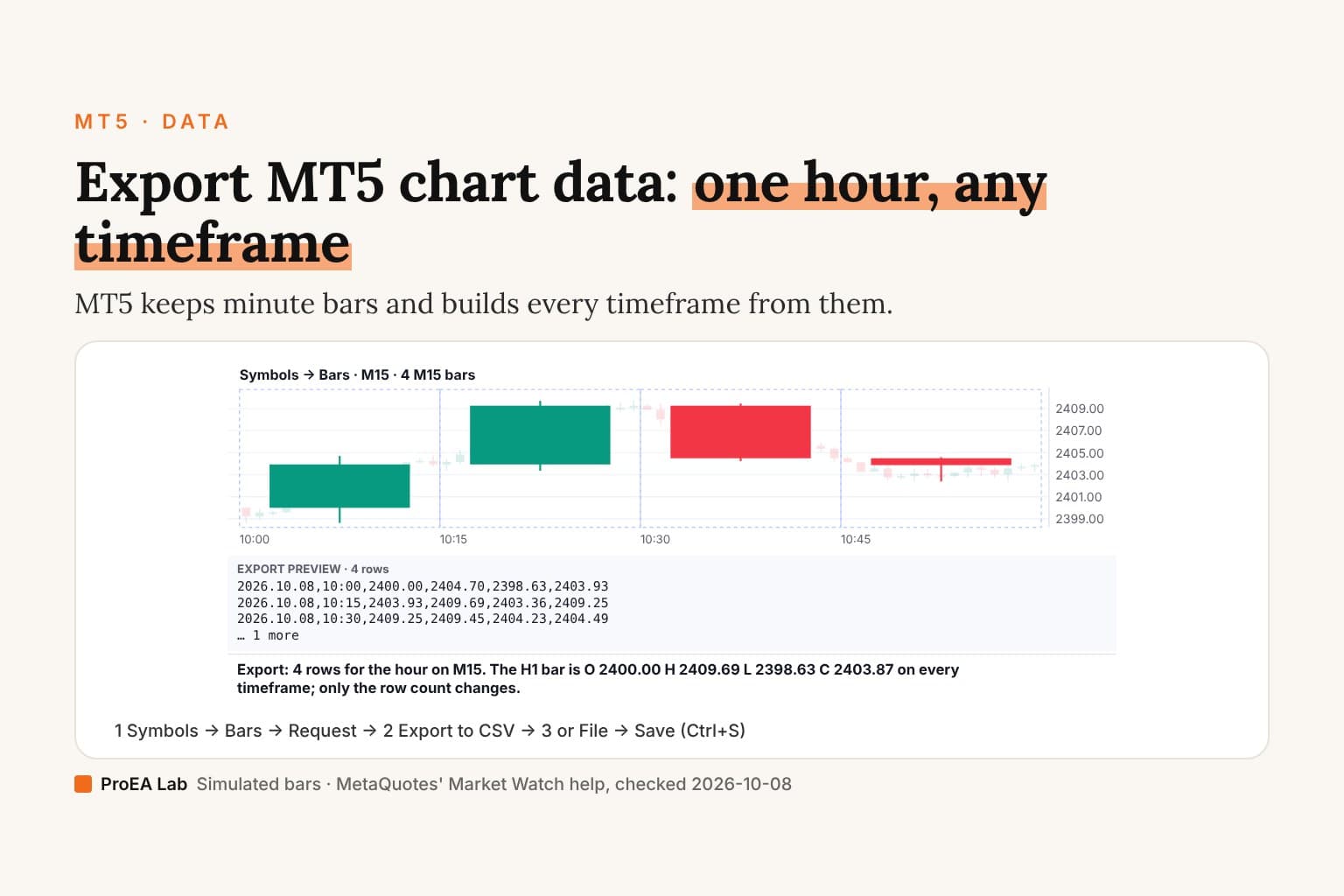
MT5 doesn't have one. History Center is MetaTrader 4's window for price data, opened with F2 (MT4 help). In MT5, F2 opens the Task Manager. Price bars and ticks live in the Symbols window instead: Market Watch's context menu, the Bars or Ticks tab, Request, then Export to a CSV file (MT5 help). That's price data, not your trades; export MT5 chart data covers it step by step.
Where we stand
We sell TradeLens, a trade journal that imports the MT5 statement this page helps you find. You don't need it to read your history: the History tab, a saved report and a spreadsheet get you most of the way.
Use this animation on your site.
Frequently asked questions
Where is trade history in MT5?
In the desktop terminal it is the History tab of the Toolbox window. Press Ctrl+T if the Toolbox isn't showing, then click History along its bottom edge. The phone apps and the web terminal have their own History view.
Why is my MT5 trade history empty?
Usually the period is too short or a symbol filter is on: right-click the history and choose All History. Also check that the terminal is logged in to the account the trades were made on, because history belongs to one account.
How do I see my whole MT5 history?
Right-click the list on the History tab and choose All History, or Custom Period with your own start and end dates.
Can I export history from the MT5 web terminal?
MetaQuotes documents no history export for the web terminal, and we found no report command in it. Log in to the same account in the desktop terminal and use Report, or use Create a trade report in the iPhone app.
Where is history in the MT5 phone app?
On iPhone and iPad, History is in the bottom panel; tap the settings icon to change the period. On Android, open History from the side panel. Both show Orders, Deals and Positions.
What is the History Center in MT5?
There isn't one. History Center is MetaTrader 4's window for price data; in MT5, F2 opens the Task Manager instead, and price bars and ticks are in the Symbols window.