We sell Advanced Volume Profile, a paid Pine indicator. Everything below about TradingView's own tools comes from its help center and pricing page, read on 2026-10-20, and from what tradingview.com/chart showed us signed out that day.
Which volume profile tools does TradingView have?
Eight, counting the indicator and the drawing tool that share the fixed range name, plus a chart type. TradingView's basic concepts article says the feature "is available as a chart type, indicators, and drawing tools." Older guides may send you to the wrong menu: the indicators "have moved to a separate tab in the Built-ins section" (help). In the dialog we saw, that tab is called Profiles.
| Tool | Where it is | Bars it covers | Plan |
|---|---|---|---|
| Fixed range volume profile, drawing tool | Left toolbar, Forecasting and measurement tools | Between two points you click | Free account |
| Anchored volume profile, drawing tool | Same group | From the bar you click to the last bar | Free account |
| Fixed range volume profile, indicator | Indicators, Technicals, Profiles | Between two bars you set | Essential and up |
| Visible range volume profile | Profiles tab | The part of the chart on screen | Essential and up |
| Session volume profile | Profiles tab | Each session or sub-session | Essential and up |
| Session volume profile HD | Profiles tab | Each session, detail set by zoom | Essential and up |
| Periodic volume profile | Profiles tab | Each period you set | Essential and up |
| Auto anchored volume profile | Profiles tab | From an anchor it picks, or one you choose | Essential and up |
| Session volume profile, chart type | Chart type menu, top toolbar | Each session, as the chart itself | Not on Basic; Essential recommended |
The plan column comes from the pricing page for the indicators and from TradingView's own sign-in prompts for the rest, which we didn't test signed in (next section). The Profiles tab also lists Time price opportunity and Session time price opportunity, which are a separate feature: the pricing page ticks them only for Premium and Ultimate.
How do I add volume profile on TradingView?
Draw it with the Fixed range tool, which TradingView offers with a free account; on Essential or higher, you can also add any of the six indicators. The steps on a computer:
The drawing tool
- Open the left toolbar's Forecasting and measurement tools group. Hover the icons to read their names. Under Volume-based it lists Anchored VWAP, Fixed range volume profile and Anchored volume profile.
- Choose Fixed range volume profile and click where your range starts. TradingView's drawing tool help calls this the first point.
- Click where the range ends. The profile appears over those bars.
Anchored volume profile takes one click: it covers the bars "from the manually selected starting point to the end of the available bars" (help). If the left toolbar is missing, you may have hidden it; TradingView's help says to "click the profile icon in the top left corner and set to display it again."
An indicator
- Click Indicators on the top toolbar. Its tooltip reads "Indicators, metrics, and strategies" and gives / as the keyboard shortcut.
- Open Technicals, then the Profiles tab, or start typing the name. The help puts it this way: "start typing the name of the indicator and then click on the indicator".
- Click the profile you want. Its inputs, such as Rows Layout, Row Size and Value Area Volume, are in the indicator's settings.
The chart type
Open "the chart type menu on the upper toolbar, and select 'Session volume profile'", then adjust it from Settings on the same toolbar, on the Symbol tab (help). The help describes it as "visualizing each trading session as a vertical volume profile".
On a phone or tablet
We found no TradingView help steps for volume profile in its iOS or Android apps, and we haven't tested the apps. We loaded tradingview.com/chart in an emulated iPhone browser, signed out, on 2026-10-20. The left toolbar was the same, and the Indicators button sat at the top, partly off the right edge. A quick tap on the forecasting group's icon picked the tool it showed, Long position; pressing and holding it opened the group's list, with Fixed range volume profile and Anchored volume profile under Volume-based. We didn't check a tablet.
Is volume profile free on TradingView?
TradingView's own sign-up prompt offers the two drawing tools with a free account; the six indicators and the chart type need a paid plan. On the pricing page the row "Orderflow: Volume Profile indicators" has a cross for Basic and a tick for every paid plan, while "110+ smart drawing tools" is ticked for all five:
| Plan | Volume Profile indicators | Historical bars | Indicators per chart |
|---|---|---|---|
| Basic (free) | No | 5K | 2 |
| Essential | Yes | 10K | 5 |
| Plus | Yes | 10K | 10 |
| Premium | Yes | 20K | 25 |
| Ultimate | Yes | 40K | 50 |
We left prices out. Read from Thailand, the page showed us figures labeled "Special price", a promotion, and what you see may differ.
What we saw signed out on 2026-10-20 fits the table. Clicking each of the six indicators in the Profiles tab opened the same box, titled Volume Profile, that crossed out Basic under "After sign in" and ticked Essential under "Recommended". Choosing the Session volume profile chart type opened the same kind of box. Drawing with Fixed range volume profile opened a different one: "Join for free to access fixed range volume profile and every other drawing tool." That box names whichever tool you pick. An older TradingView post from November 17, 2020 introduced that drawing tool as "free and open to everyone". We didn't sign in to try it on a Basic account.
Historical bars matter for the session and periodic profiles, which reach back as far as your plan's bars allow (see below). And Basic's 2 indicators per chart are the limit any Pine volume profile you add has to fit in.
Fixed range, session or visible range: which one?
Pick the one whose bars match your question. Each covers a different stretch of the chart, and the levels move with it.
- Fixed range for one stretch you choose, such as a move, a range or a news day. It stays on those bars. On the indicator, Extend Right keeps building it "including all historical candles and all new emerging candles to the right of the second coordinate" (help).
- Visible range for what's on screen. It "calculates the volume profile within the visible range of prices" (help), so it changes when you scroll or zoom.
- Session for one profile per trading day. The Sessions input builds one for the whole day by default (All), one each for pre-market, market and post-market (Each), one of those three alone, or a Custom window with its own time zone (help).
- Session HD for the same sessions with automatic detail: "When fewer bars appear on the chart, more levels are displayed", which is why it has no Rows Layout or Row Size (help).
- Periodic for one profile per period you set: a number plus Bar, Minute, Hour, Day, Week or Month (help).
- Auto anchored for a profile from a starting point the indicator picks. On Auto it anchors at the session on intraday charts, the month on 1D, the quarter from 2D to 10D, the year from 11D to 60D and the decade above 61D. You can also anchor it at the highest high, lowest low or highest volume within a Length of bars you set, or at the last earnings, dividend or split (help).
What are POC, VAH and VAL on TradingView?
The POC is the busiest price level, and VAH and VAL are the top and bottom of the value area around it. TradingView's definitions, from the basic concepts article:
- Point of control (POC): "The price level for the time period with the highest traded volume."
- Value area (VA): "The range of price levels in which the specified percentage of all volume was traded during the time period. Typically, this percentage is set to 70%, however, it is up to the trader's discretion." The input is called Value Area Volume.
- Value area high and low (VAH, VAL): the highest and lowest price levels within the value area.
Each row's volume is also split up and down by the bars' direction: "If the bar closes above or equal to its open, this counts as an up bar, otherwise it's a down bar." The Style tab adds a Developing POC and Developing VA, which show how the two moved while the session was trading.
The same article calls volume profile "a reactive tool, meaning it shows you what already happened rather than predicting what's coming next." Whether price goes back to yesterday's POC is a different question, and the one our volume profile study tests.
How does TradingView calculate the value area?
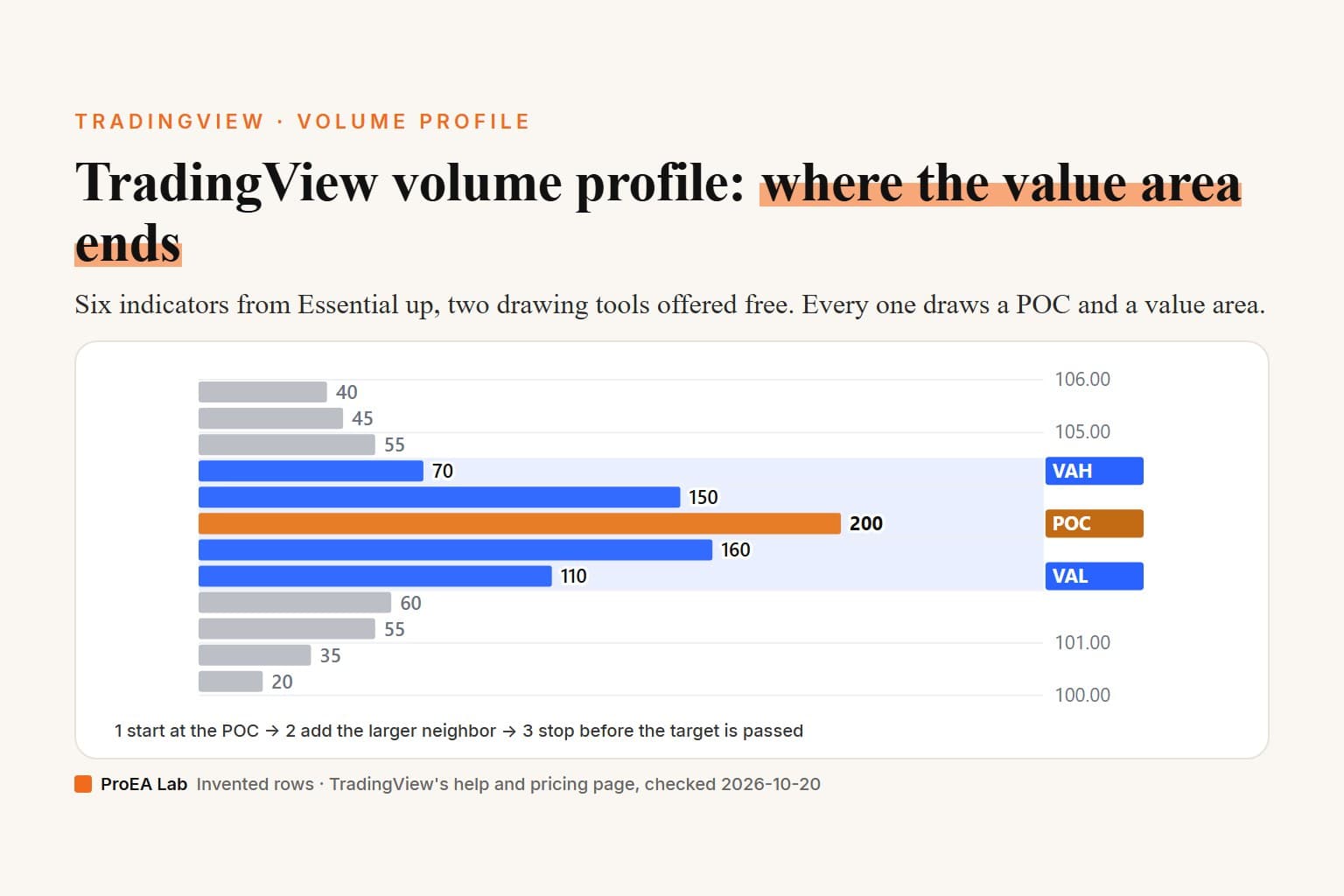
From the POC outward, one row at a time, trying the larger neighbor first and stopping before a row that would pass the target. The steps in TradingView's help, shortened:
- Multiply the profile's total volume by the percentage, 70% by default. That's the target.
- Start with the POC row, "the row with the highest total volume".
- Compare the next row above with the next row below, and try the larger one.
- "If adding it does not exceed the remaining target volume, include it". "If it would exceed the target, stop — the value area is complete."
- Next time, compare the row beyond the one just added with the row still waiting on the other side, and repeat.
Ties have their own rule: "If the two candidate rows have equal volumes, choose the row closer to the POC. If the distances are equal, choose the row above the POC." The highest row in becomes the VAH and the lowest the VAL.
Read literally, step 4 means the value area can hold less than the percentage you set. A row that would take the total past 70% stays out, even when the smaller row on the other side would have fit (pick Two peaks in the check below to see it). Scripts that keep adding rows until the target is reached or passed, our Volume Profile Lite among them, can show a wider value area on the same rows. We followed the help as written; we haven't compared these steps with the built-in indicator's output on a chart.
POC 103.00–103.50 · value area rows 102.00–104.50
The value area holds 690 of 1,000, 69%, against a 70% target. The next row would have passed the target, so it stays out, as TradingView's help describes. Its highest row (VAH) is 104.00–104.50, its lowest (VAL) 102.00–102.50.
Count that row's 60 too, as scripts that keep adding rows until the target is reached or passed do, and the value area would hold 750, 75%.
Volume per row, top row first. Each row is 0.50 tall and named by its low price; the larger row size adds them in pairs.
The three profiles are invented. The steps are the ones TradingView's help lists under "Calculating value area", read on 2026-10-20, followed as written; we haven't compared them with the built-in indicator's output on a chart. Where the help is silent the check makes its own call: when two rows tie for the most volume it takes the higher one as the POC, when one side runs out of rows it tries the other alone, and it stops once the target is met exactly, so empty rows past that point stay out. Volumes and the percentage count as whole numbers.
Read as text
- Start at the POC, the 103.00–103.50 row with 200. Target: 70% of 1,000 = 700.
- The row above (103.50–104.00) holds 150, the row below (102.50–103.00) holds 160: the row below is larger. Added: 360 in, 36%.
- The row above (103.50–104.00) holds 150, the row below (102.00–102.50) holds 110: the row above is larger. Added: 510 in, 51%.
- The row above (104.00–104.50) holds 70, the row below (102.00–102.50) holds 110: the row below is larger. Added: 620 in, 62%.
- The row above (104.00–104.50) holds 70, the row below (101.50–102.00) holds 60: the row above is larger. Added: 690 in, 69%.
- The row above (104.50–105.00) holds 55, the row below (101.50–102.00) holds 60: the row below is larger. Adding its 60 would make 750, past the 700 target, so the steps stop at 690, 69%.
POC 103.00–103.50 · value area rows 102.00–104.50. The value area holds 690 of 1,000, 69%, against a 70% target. The next row would have passed the target, so it stays out, as TradingView's help describes. Its highest row (VAH) is 104.00–104.50, its lowest (VAL) 102.00–102.50.
Source: TradingView, Volume profile indicators: basic concepts.
On the One peak profile at 70%, the steps stop at 690 of 1,000, or 69%. The next row holds 60, and 750 would pass the 700 target. Set the row size to 1.00 and the same volume ends at 620, or 62%, because each row now holds more. The check makes three calls the help doesn't: if two rows tie for the most volume it takes the higher one as the POC, when one side runs out of rows it tries the other alone, and it stops once the target is met exactly, so empty rows past that point stay out.
Which settings change the POC and value area?
Five things move them; the first two are settings you change.
- Rows Layout and Row Size. With Number of Rows, Row Size is the row count, and TradingView rounds each row to whole ticks, so "the total number of rows may exceed what is specified". The help's example: a profile 100 ticks tall with Row Size 30 gets 3 ticks per row and 34 rows. With Ticks Per Row, Row Size is each row's height in ticks (help). Bigger rows pool more volume, which changes where the POC and the value area's edges land, as the check's row size shows. We found no published default or maximum for Row Size.
- Value Area Volume. The percentage the value area aims for.
- The bars underneath. Volume profiles are built "using data from lower timeframes for the same symbol." Fixed range, visible range and auto anchored take the first timeframe in TradingView's list, from 1 minute up to 1D, that gives fewer than 5,000 bars for the range; futures and spread charts use one step below the chart's timeframe instead, and seconds charts always use 1-second data (help). Deep in history, where no lower timeframe data exists, fixed range falls back to the chart's own timeframe.
- What volume means on the symbol. TradingView uses trade volume for stocks, "Tick volume for indices, forex, and crypto CFDs", which "indicates the number of price updates", and base or quote volume for crypto.
- The chart type. On Heikin Ashi, Renko, Line break, Kagi, Point and figure and Range charts, "the volume data will also be distorted," the help warns.
Why is my volume profile missing or different?
Check your plan and how far back the chart goes first. What to look at:
- Basic plan. Signed out, each of the six indicators and the chart type opened an upgrade box naming Essential, as the pricing page has it; the drawing tool's prompt asked only for a free account.
- Older sessions are blank. Session and periodic profiles get your plan's historical bars times a depth ratio of lower-timeframe bars. TradingView's example: on a 60-minute chart a Premium user's 20,000 bars become 60,000 10-minute bars, enough for profiles over the last 10,000 bars. The total of histogram rows "is always under 6,000", so at 100 rows a profile the indicator draws no more than 60 profiles. Profiles also stop at the end of each year and start again in the new one.
- Bar Replay is on. The Fixed range volume profile drawing tool is "inactive during replay" (Bar Replay guide).
- A non-standard chart type, from the list above.
- Another script disagrees. Different rows, a different percentage, different bars underneath or a different value-area rule all move the levels. Match the settings before you compare numbers.
What TradingView's volume profiles don't do
They don't show you their code, and the indicators aren't part of Basic. TradingView says "our Volume Profiles and Chart Pattern scripts do not use Pine Script™; their source code is thus unavailable" (help). You can't read how they split a bar's volume across rows or change the value-area rule. The volume profile help pages we read also don't describe feeding the POC or VAH into another script, or alerting on them.
They do plenty, though. Each row can show total volume, up and down volume or their delta. The session and periodic profiles can extend the POC, VAH and VAL lines to the right "until it crosses any bar", and the developing POC and value area show how a session's levels moved.
What our Advanced Volume Profile does instead, from its product page:
- The full Pine v6 source, 12 files, plus an AI-agent kit, so you can read the binning and value-area math and change it.
- It runs on Basic. The product page says "Basic supports the chart display within its limits", with one indicator slot open for it.
- Expose plots makes POC, VAH, VAL and ΔPOC available as an input source for your own scripts, with four level-cross alerts. Running those alerts needs a paid plan with technical-alert capacity.
- A Delta POC, an absorption flag where high volume meets near-zero delta, and a Co-Pilot panel that reads the profile back in plain English.
- Two engines: Fast spreads each bar's volume on any chart; Accurate pulls 1-minute intrabar volume.
Its limits, in the product page's words: "it's an approximation, not exchange tick data", and "Delta is inferred from bar direction, not true bid/ask order flow." Like AVP's Accurate engine, TradingView's built-ins are built from lower-timeframe bars, so neither reads the exchange tape.
Where we stand
We sell Advanced Volume Profile and some of the Pine desks in our library, and a TradingView how-to is a fair place to say what the built-ins already do well. For this page we read TradingView's volume profile help pages and pricing page on 2026-10-20 and opened the chart signed out, in a desktop browser and an emulated iPhone browser. We didn't sign in, so we haven't used the indicators on a paid plan or the drawing tool on Basic. We didn't test the iOS or Android apps, and we haven't compared the check with TradingView's built-in output. We aren't affiliated with TradingView.
Frequently asked questions
How do I add volume profile on TradingView?
For the drawing tool, open the Forecasting and measurement tools group on the chart's left toolbar, choose Fixed range volume profile, then click where the range starts and where it ends. For an indicator, click Indicators on the top toolbar, open Technicals, then the Profiles tab, and click the volume profile you want.
Is volume profile free on TradingView?
Partly. TradingView's pricing page leaves the Volume Profile indicators out of the free Basic plan and includes them from Essential up. The drawing tools are different: signed out, TradingView asked us to join for free to access fixed range volume profile and every other drawing tool. We didn't sign in to confirm it on a Basic account.
What is the difference between fixed range and visible range volume profile?
Fixed range covers the bars between two points you set, and the indicator's Extend Right can carry it on to new bars. Visible range covers whatever part of the chart is on screen, so it changes when you scroll or zoom.
What is the difference between Session volume profile and Session volume profile HD?
Both build a profile for each session or sub-session. HD changes its level of detail as you zoom, and it has no Rows Layout or Row Size inputs. In TradingView's words, when fewer bars appear on the chart, more levels are displayed.
How does TradingView calculate the value area?
Its help starts at the POC, the row with the most volume, compares the next row above with the next row below, and tries the larger one. A row that would take the total past the target, 70% by default, isn't added and the value area is complete. Equal rows go to the one closer to the POC, then to the one above.
What do POC, VAH and VAL mean on TradingView?
The POC, point of control, is the price level with the highest traded volume in the period. The value area is the range holding the chosen share of the volume, and VAH and VAL are its highest and lowest price levels.
Can you use volume profile in the TradingView app?
We found no TradingView help steps for volume profile in its apps, and we haven't tested the iOS or Android apps. In an emulated phone browser, signed out, the chart had the same left toolbar and the Indicators button at the top. Pressing and holding the forecasting group's icon opened its list, with both volume profile drawing tools under Volume-based.