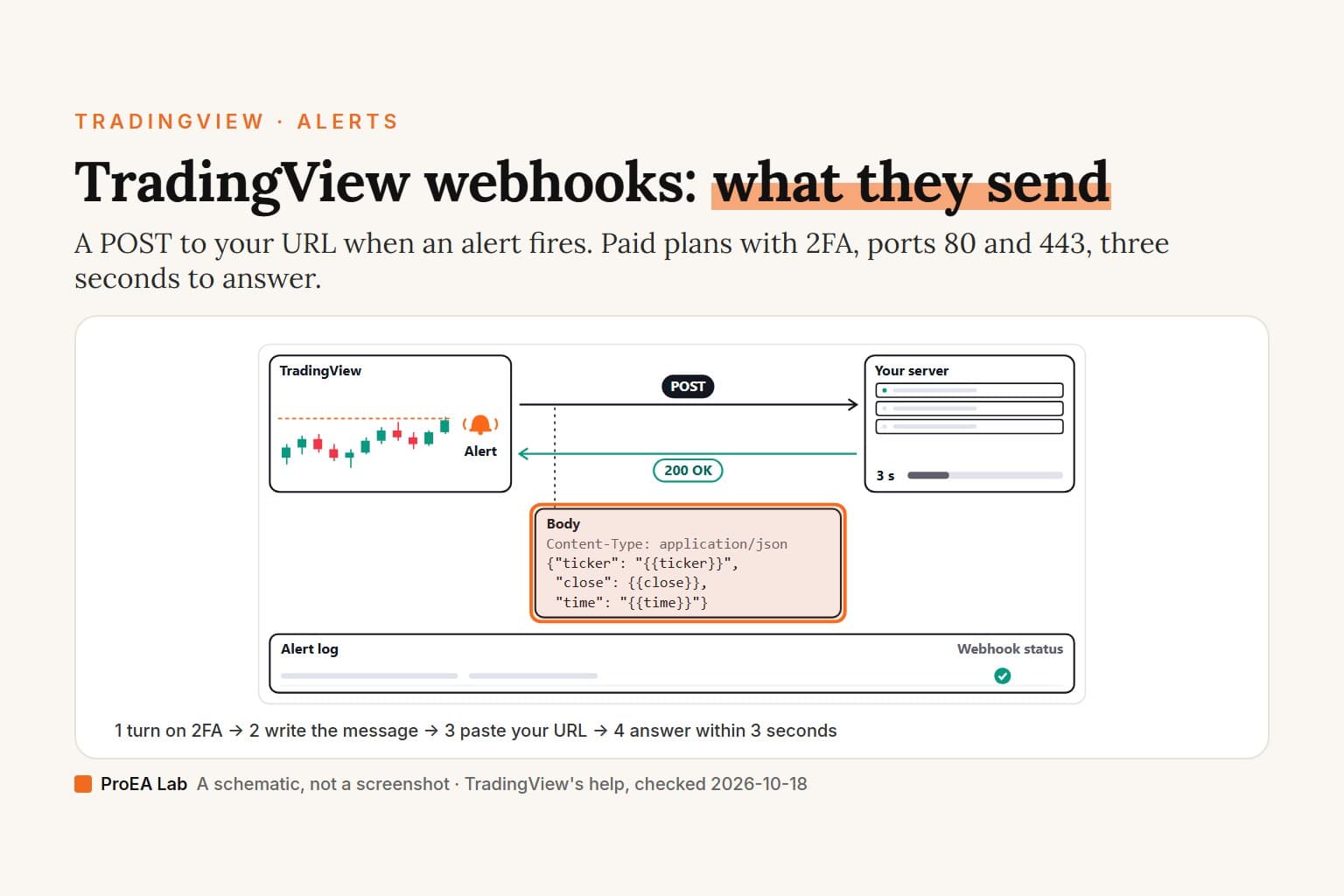
application/json, anything else as text/plain. You need a paid plan, Essential or higher, and two-factor authentication. TradingView sends from four IP addresses, only to ports 80 and 443, and cancels the request if your server takes longer than three seconds.
We read TradingView's eight webhook help articles, its alert and 2FA guides, its pricing page and the Pine Script alerts FAQ on 2026-10-18. Our own account is on the free Basic plan, which has no webhooks, so nothing below is a webhook we received from TradingView.
A simulated schematic, not a screenshot: no tickers or prices, the waits are shortened, and the 200 is the answer we recommend, since TradingView names no success code. We haven't received a real TradingView webhook.
Read as text
- 1. The alert fires: its condition is met on TradingView.
- 2. TradingView POSTs the message: to your URL, on port 80 or 443.
- 3. Your server answers 200: inside 3 seconds.
- 4. Check the alert log: the Webhook status column.
- Valid JSON goes out as application/json, anything else as text/plain. Placeholders fill in when it fires.
How this window was chosen: The request, the ports, the three-second limit, the resend rule and the alert log's Webhook status column from TradingView's help center on webhooks, read 2026-10-18.
What does a TradingView webhook send?
One POST request per alert trigger, to the URL you entered, with the alert's message as the whole body. TradingView's setup article describes three parts:
- Method: POST, sent "as soon as the alert is triggered".
- Body: "the alert message in the body of the request", with any placeholders filled in.
- Content type: "If the alert message is valid JSON, the request will include an "application/json" content-type header. Otherwise, the request will use "text/plain"." Plain text is the default, because an untouched alert message is a sentence.
These are the two requests the same article shows, written as cURL commands (TradingView's examples, not requests we sent):
curl -H 'Content-Type: application/json; charset=utf-8' -d '{"text": "BTCUSD Greater Than 9000"}' -X POST https://hooks.slack.com/services/T00000000/B00000000/XXXXXXXXXXXXXXXXXXXXXXXX
curl -H 'Content-Type: text/plain; charset=utf-8' -d 'BTCUSD Greater Than 9000' -X POST https://webhook.site/test
Nothing else is documented. None of the eight articles in TradingView's Webhooks usage folder mentions a signature header, a shared secret or a way to add headers of your own.
Which TradingView plan has webhooks?
Essential, Plus, Premium and Ultimate. The free Basic plan doesn't have them. The compare table on TradingView's pricing page, read on 2026-10-18, ticks "Webhook notifications" for the four paid plans and crosses it out for Basic:
| Basic | Essential | Plus | Premium | Ultimate | |
|---|---|---|---|---|---|
| Webhook notifications | No | Yes | Yes | Yes | Yes |
| Active price alerts | 3 | 20 | 100 | 400 | 1,000 |
| Active technical alerts | None | 20 | 100 | 400 | 1,000 |
| Longest alert | 1 month | 2 months | 2 months | Open-ended | Open-ended |
TradingView's launch post from August 2019 said the same: "Feature available to paid users only." We left prices out. The cards were marked "Special price" when we read them, and TradingView adds sales tax in some countries, so check the page from where you live. The paid plans carry a "Try free" button, but TradingView doesn't say whether a free trial of a paid plan includes webhooks, and we haven't tried one. If you later move to a lower plan, "all active alerts will be automatically stopped" (downgrade help), and webhooks aren't within Basic's limits. For what else each plan allows, our indicator limit page has the per-chart counts.
Why does TradingView require 2FA for webhooks?
TradingView gives one line of reason: "For your data protection, webhook alerts are only allowed when 2-factor authentication is enabled." The rule is strict enough that TradingView's own MCP server can't create webhook alerts, because the 2FA check "isn't available for MCP connections yet" (MCP docs; our TradingView MCP page covers that server).
To turn it on, per How to configure 2FA:
- Open your profile's Account Settings and go to the "Privacy and Security" tab.
- Click "Enable" in the authentication app field. TradingView prefers the app to SMS, because "SMS messages may not reach certain countries and can be delayed." If you signed up with Google or another social login, set a password first with "Reset".
- Type the code TradingView emails you, scan the QR code with an authenticator app, and enter the app's code.
- Save the backup codes, then click "I saved the codes." They're your only way back in if you lose the phone, and TradingView "cannot recover your account if you lose access to your 2FA codes."
How to set up a TradingView webhook alert
On a computer, the webhook is one setting in the alert dialog's Notifications tab. The steps, from TradingView's alert setup help, its alert settings guide and the Pine docs' alerts FAQ:
- Turn on two-factor authentication (above).
- Open a chart and press Alt + A (⌥ + A on a Mac), or click the Create alert button on the top toolbar. Our guide to setting alerts walks through the rest of the dialog.
- Set the Condition and the Trigger: only once, every time, once per bar close, or once per minute.
- Click Message and write the body, as plain text or as JSON with placeholders (next sections).
- In the "Notifications" tab, select "Webhook URL" and paste your URL.
- Create the alert. When it fires, look at the "Webhook status" column in the alert log.
Three details catch people. Alert presets save every notification setting except one: "Webhook URLs are NOT saved in presets" (alert presets), so paste the URL again each time. An alert also keeps the script settings it was created with: a changed indicator input doesn't reach it, and a strategy alert runs "a copy of the strategy" on TradingView's servers, so delete the alert and create a new one after any change (strategy alerts). And if the alert itself never fires, the webhook never goes out; our alert troubleshooting covers why that happens.
On a phone or tablet, we can't give you steps. TradingView says its alerts work on the web, desktop and mobile apps, but none of its webhook articles describes the setting in the iOS or Android app, and we haven't tested it. Set the webhook from a computer's browser.
What URL do you put in a TradingView webhook?
The address of whatever should receive the alert: a Slack or Discord webhook, an automation service, or your own server. TradingView refuses some addresses, per its webhook articles:
- Ports 80 and 443 only. The setup article says "only ports 80 and 443 are accepted", and "Requests for the URLs with any other port number will automatically be rejected" (port help), so an example address with
example.com:8443in it won't work. - No IPv6. "IPv6 isn't currently supported for webhooks", so the host needs an IPv4 address.
- No localhost or private addresses. The webhook errors list names "localhost or internal IP is used" and URLs that resolve "to a private or internal IP address". A server on your own computer needs a public URL in front of it.
- No passwords in it. TradingView asks you not to put "login credentials or passwords in the webhook URL and webhook message" (credentials help).
For chat apps the body has to match their format. Slack "only accepts JSON data" with a "text" key, {"text":"BTCUSD Greater Than 9000"} in TradingView's Slack article, and Discord wants a "content" key (Discord article); our Discord builder writes and checks that body. Telegram is harder: the Pine docs suggest an intermediary service that reformats the request for Telegram's bot API, and the Telegram builder shows the chat_id and text it needs.
TradingView webhook JSON: writing the message
Write valid JSON with double quotes, and TradingView sends it as application/json. One single quote in the wrong place and it goes as text/plain, which a receiver that only takes JSON, like Slack, won't accept. The Pine docs put it this way: "ensure the keys and values intended as strings in the JSON-formatted text use double quotes, not single quotes." An example message (ours, built on the Pine docs' own pattern):
{"ticker": "{{ticker}}", "close": {{close}}, "time": "{{time}}"}
TradingView fills in the placeholders when the alert fires. The ones a webhook body usually needs, from its placeholder list:
| Placeholder | What it becomes |
|---|---|
{{ticker}} | The symbol's ticker, such as AAPL or BTCUSD |
{{exchange}} | The exchange; for delayed symbols it ends in _DL or _DLY |
{{close}}, {{open}}, {{high}}, {{low}}, {{volume}} | The values of the bar the alert fired on |
{{time}} | That bar's time in UTC, written like 2019-08-27T09:56:00Z |
{{timenow}} | When the alert fired, to the nearest second |
{{interval}} | The chart's timeframe |
{{plot_0}} to {{plot_19}}, or {{plot("Name")}} | An indicator's plotted values |
{{strategy.order.action}}, {{strategy.order.contracts}}, {{strategy.order.price}}, {{strategy.market_position}} | The order and position; strategy alerts only |
{{strategy.order.alert_message}} | The alert_message text the strategy's order call set; strategy alerts only |
A simple price alert is "always calculated on 1-minute bars", so in one, {{close}} is the close of a 1-minute bar and {{interval}} always returns 1, as it does on any alert made on a Range chart. In Pine, alertcondition() messages take placeholders, but the alert() function "does not process placeholders"; build that string in code with str.tostring() instead. Strategies can carry a message per order: set alert_message in the order call and put its placeholder, the table's last row, in the alert.
There's a size cap. The Message box takes 4,000 characters, a message from alert() or alert_message takes 40,960, and "the same limits apply to the request body size" (size limits). An emoji counts as several characters.
TradingView webhook IP addresses, ports and HTTPS
TradingView sends webhooks from four IPv4 addresses, and only to ports 80 and 443. The list, from the webhook setup article:
52.89.214.238
34.212.75.30
54.218.53.128
52.32.178.7
Allowlist them if your firewall or host blocks unknown senders. TradingView doesn't say whether the list changes or how it would announce a change, so check the article again before you lock a firewall to it.
Over HTTPS there's one more check. "When sending a request, the webhook server also sends an SSL certificate to the specified URL. With this certificate, you can verify that the request was actually sent by the TradingView server" (webhook authentication). You turn the check on in your own server; nothing changes on TradingView's side. The certificate's subject is O = TradingView, Inc., CN = webhook-server@tradingview.com, in Westerville, Ohio, US. With no signature header documented, the IP list and this certificate are the only ways TradingView gives you to tell its requests from anyone else's. We haven't configured the certificate check ourselves.
Timeouts, retries and the alert log
Answer within three seconds, or TradingView cancels the request. "If a remote server takes longer than three seconds to process a request, the request will be cancelled." Everything else TradingView documents about delivery:
- Resends. "If the receiving application returns an HTTP response status code between 500 and 599 (except for status code 504) when sending a webhook, the notification will be sent again after 5 seconds. There can be a total of 3 such resends." That's 4 sends at most for one trigger (resubmission). A 504 is the one 5xx answer that isn't resent, and nothing documents a resend after a timeout or a 4xx.
- What counts as a failure. The errors list counts 3xx, 4xx and 5xx answers as errors, a redirect to a login page among them. It doesn't name the code TradingView wants back. A plain
200 OKis what we'd send. - Duplicates. If your server can act and then still answer 500, the resend arrives as a second copy of the same alert. Make your handler safe to run twice.
- Alert log. Delivery shows in the "Webhook status" column of the alert log. The log drops triggers older than 30 days and keeps at most the last 100 of each alert; its cleanup runs daily at 21:00 UTC (log cleanup): 5:00 p.m. in New York and 10:00 p.m. in London until the clocks change (October 25 in London, November 1 in New York), then 4:00 p.m. and 9:00 p.m. Export it to CSV first if you need older records; the CSV's times are in UTC (alert time zones).
- Too many triggers. An alert that fires more than 15 times in 3 minutes stops (alert stopped).
- Notification schedules. Outside a schedule's hours, push, email, webhook and the other channels "will be completely blocked", though the trigger still lands in the log (notification schedule). The default is 24/7.
Use itReply 200 at once, then do the slow work.
Watch outA server that thinks for more than three seconds loses the request.
Can you trade automatically with TradingView webhooks?
TradingView's help center says its alerts aren't built for it: "Our alerts are not designed for automated trading." That's the first line of its credentials article. Its blog still writes to automated traders: a July 7, 2026 post on notification schedules told them to keep their alerts on a 24/7 schedule "to avoid interrupting execution". Put the rules above together and you have the failure points: a reply slower than three seconds, a schedule that mutes the webhook, an alert that stops after 15 triggers in 3 minutes, a resend that duplicates an order, and a strategy alert still running the old copy after an edit. A webhook delivers a message. Whether the message is worth trading on is a separate question, and backtesting the strategy is where that starts.
How to test a TradingView webhook
Point the alert at a request-inspection URL first, fire it once, and read exactly what arrived. TradingView's own plain-text example posts to webhook.site, one of several request-bin services; we aren't affiliated with any of them.
- Open a test URL on such a service and paste it into the alert's "Webhook URL" box.
- Make the alert fire soon. The Pine docs' Discord demo uses a test condition,
alertcondition(true, ...), that "fires immediately" with the frequency set to "Only Once". - Read the request: the method should be POST, and the content type should be
application/jsonif you wrote JSON. If it saystext/plain, your JSON isn't valid. - Check the "Webhook status" column in the alert log, then swap in your real URL.
The Pine docs suggest two cheaper checks before that: send the alert to your email to see the message, and paste the message into a JSON validator. Our TradingView webhook JSON builder does the second with the placeholders in: it marks a text placeholder outside quotes, curly quotes and trailing commas on their line, and writes the Pine alert_message code for the same message.
Your server has 3 seconds to answer, so rehearse it before the real thing with TradingView's sample request. This is an example receiver in Node.js that answers at once and does its work afterwards:
// Example only: a bare receiver that answers TradingView fast and does the work after.
import http from "node:http";

// accepts a POST from anyone: allowlist TradingView's four IPs at your proxy or firewall
http.createServer((req, res) => {
  if (req.method !== "POST" || req.url !== "/tv-hook") return res.writeHead(404).end();
  let body = "";
  req.setEncoding("utf8"); // keeps a character split across two chunks whole
  req.on("data", (chunk) => {
    body += chunk;
    if (body.length > 64000) req.destroy(); // TradingView's longest message is 40,960 characters
  });
  req.on("end", () => {
    res.writeHead(200).end("ok"); // reply first: TradingView gives up after 3 seconds
    const json = (req.headers["content-type"] ?? "").startsWith("application/json");
    let alert = body;
    if (json) try { alert = JSON.parse(body); } catch { return; }
    setImmediate(() => console.log(json ? "json" : "text", alert)); // your slow work goes here
  });
}).listen(8080, "127.0.0.1"); // only a proxy on this machine reaches it: put HTTPS on port 443 in front (TradingView accepts only 80 and 443)
On 2026-10-18 we ran this on our own machine and posted TradingView's two sample requests at it with cURL, to 127.0.0.1:8080. Both got a 200 in under 2 milliseconds, and it logged the JSON one as an object and the plain one as text. A body with a 3-byte character split across two writes arrived whole, and a 70,000-character body was cut off with no reply. That tests the example; it isn't a TradingView delivery, which needs a public address on port 80 or 443 and a paid plan.
Where we stand
Our TradingView account is on the free Basic plan, which has no webhooks, so we haven't set one up or received one. Everything about TradingView's side of the request comes from its help center, pricing page and Pine docs, read on 2026-10-18. The one thing we ran is the example receiver above, on our own machine. We sell Pine v6 indicators as source code, not a webhook relay or a trading bot.
We aren't affiliated with TradingView.
Use this animation on your site.
Frequently asked questions
What is a TradingView webhook?
An HTTP POST request that TradingView sends to a URL you enter when an alert fires. The body is the alert's message. If the message is valid JSON, the request has an application/json content type; otherwise it's text/plain.
Which TradingView plan has webhooks?
Essential, Plus, Premium and Ultimate. TradingView's pricing page ticks Webhook notifications for the four paid plans and crosses it out for the free Basic plan, checked 2026-10-18. You also need two-factor authentication turned on.
Why does TradingView need 2FA for webhooks?
TradingView's help says only: "For your data protection, webhook alerts are only allowed when 2-factor authentication is enabled." Turn it on in your profile's Account Settings, on the Privacy and Security tab.
What IP addresses does TradingView send webhooks from?
Four, per TradingView's help: 52.89.214.238, 34.212.75.30, 54.218.53.128 and 52.32.178.7. Allowlist them if your firewall blocks unknown senders. IPv6 isn't supported.
Which ports can a TradingView webhook URL use?
Only 80 and 443. TradingView rejects a URL with any other port number.
How long does TradingView wait for my server?
Three seconds. If your server takes longer, TradingView cancels the request. If it answers with a status from 500 to 599, other than 504, TradingView sends the alert again after 5 seconds, up to 3 more times.
How do I send JSON in a TradingView webhook?
Type valid JSON into the alert's Message box, with double quotes around keys and text values. Placeholders such as {{ticker}} and {{close}} are filled in when the alert fires. Valid JSON goes out as application/json; anything else goes as text/plain.
Can I set up a TradingView webhook in the mobile app?
TradingView's help doesn't give a webhook step for the iOS or Android app, and we haven't tested one. Set the webhook from a computer's browser, in the alert dialog's Notifications tab.