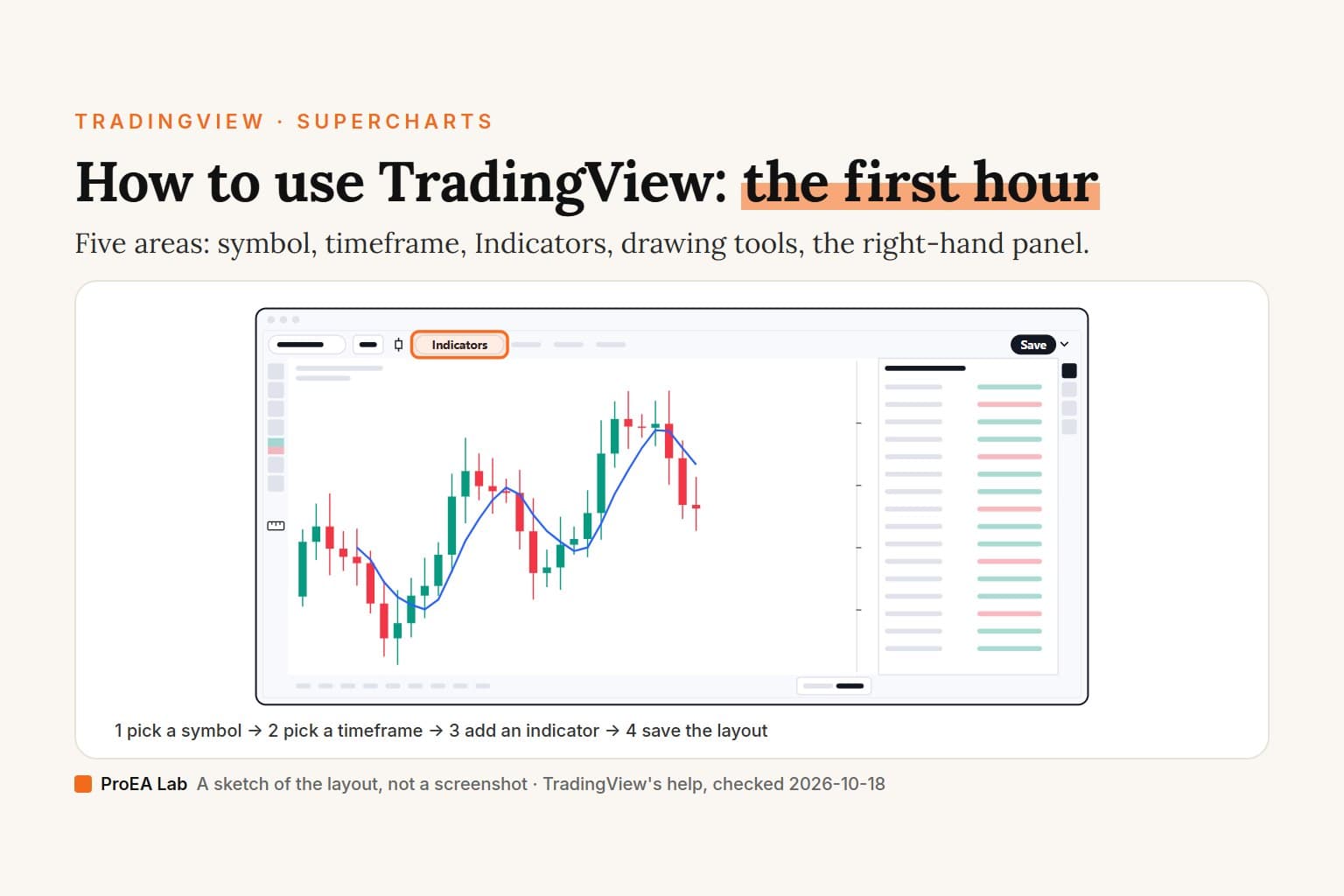
A TradingView watchlist is a list of symbols in the panel on the chart's right toolbar, each with its last price and change. To make one, open that panel, click the list's name, pick Create new list… and add symbols with the + button. The free Basic plan holds 1 list of up to 30 symbols; paid plans hold as many lists as you like, of 1,000 symbols each. Checked against TradingView's help and pricing page on 2026-10-18.
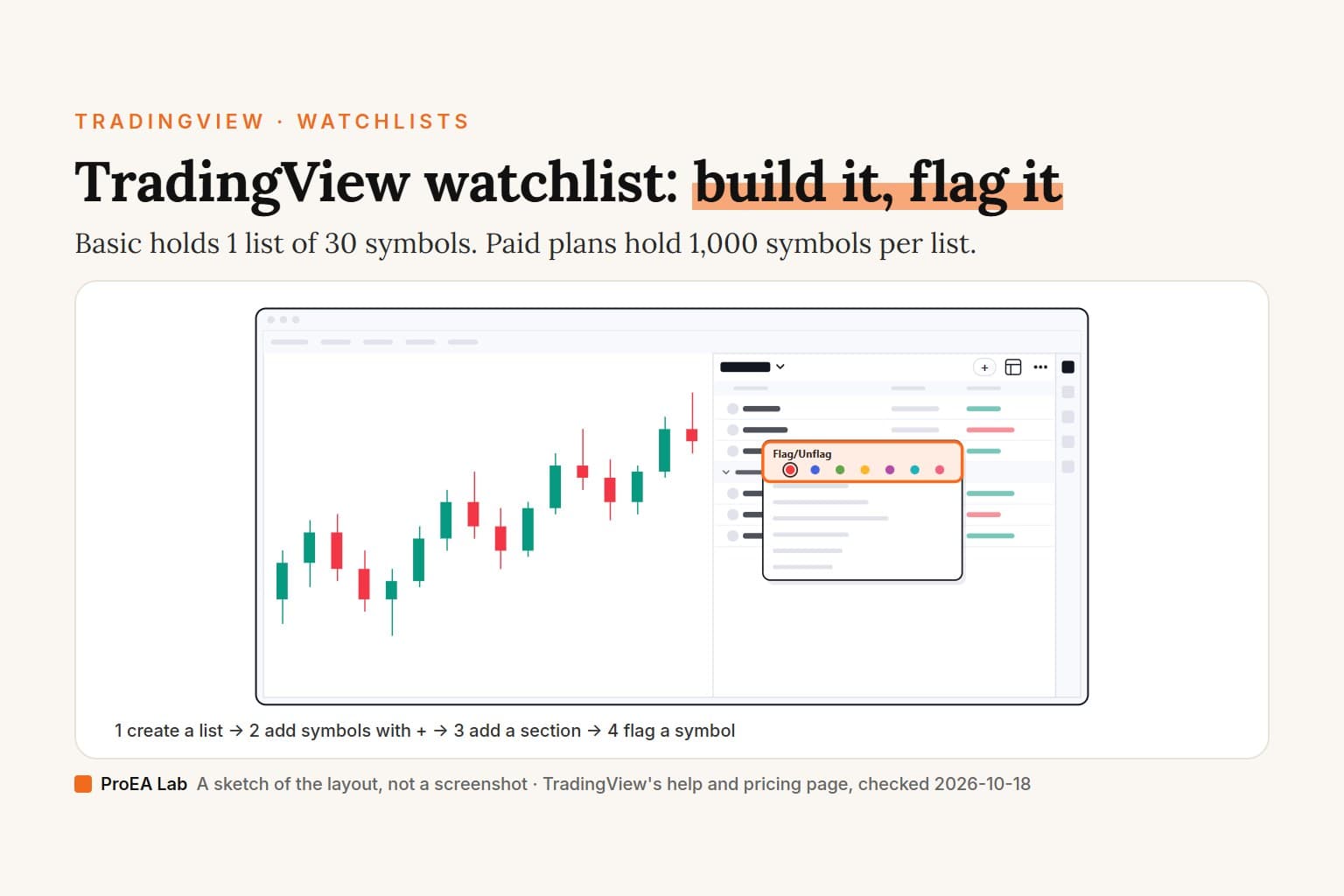
A simulated sketch of the layout, not a screenshot: no tickers or prices, and nothing here was tested signed in; it assumes an uploaded list opens on screen.
Read as text
- 1. Create a list: the list's name, then Create new list….
- 2. Add symbols: the + at the top of the panel.
- 3. Add a section: right-click a symbol, Add section.
- 4. Flag a symbol: right-click it, Flag/Unflag, a color.
- Basic holds 1 list of 30 symbols, with 1 flag color. Paid plans: no limit on lists, 1,000 symbols each, 7 colors.
How this window was chosen: Places and control names from TradingView's help center on watchlists and our signed-out look at the chart; plan limits from its pricing page; all on 2026-10-18. TradingView moves its controls between versions.
How do I create a watchlist on TradingView?
Open the Watchlist panel, click the list's name and pick Create new list…. The steps on a computer, from TradingView's watchlist guide and what we saw on tradingview.com/chart:
- Open a chart (Supercharts) and click the top icon on the right toolbar. Its label is Watchlist, details, and news; the help calls it "the Watchlist icon on the right-hand toolbar".
- Click the list's name at the top of the panel. A menu opens.
- Pick Create new list… to "start a fresh watchlist from scratch". Rename in the same menu changes its name later.
- Add symbols, as the next section shows.
Signed out, the panel was already open with a list called Watchlist, split into sections such as INDICES, STOCKS and FUTURES. On the free Basic plan that one list is all you get: the pricing page gives Basic 1 watchlist. Signed out, Create new list… didn't make a list: it opened a "Multiple watchlists" upgrade box that marks Basic with a cross and recommends Essential. So on Basic, expect step 3 to end in that box. We didn't sign in to a Basic account to compare.
Lists belong to your account, not to a chart. TradingView calls them "separate widgets that are account-wide, not belonging to a particular chart or layout" (layouts and watchlists), so switching layouts keeps the same lists. If the panel shows only a symbol's details, the list is "most likely minimized. Just drag it down" (help).
To delete a list, pick Open list… in the same menu or press Shift + W, hover over the list's title and click its remove button (delete help). Clear list empties a list without deleting it.
How do I add symbols to a watchlist?
Click + at the top of the panel, search, and click the plus next to each symbol you want. New symbols "will appear at the bottom of your watchlist", and you can drag them into any section (watchlist guide). Four other routes:
- Alt + W (⌥ W on a Mac) adds the symbol on your chart to the open list (shortcut help).
- Right-click a symbol in the list and choose Add symbol. An older TradingView post, from January 22, 2021, described this as adding symbols at that point in the list. Signed out, the same menu also had Add … to watchlist, with a submenu of your lists and Create new list….
- From a screen. Build a screen in the TradingView screener, select rows with Shift or Ctrl, right-click and choose Add Selected Symbols To Watchlist. "Selected symbols will be added to your new list" (screener to watchlist).
- From a hotlist. Hotlists are TradingView's ready-made lists of stocks that are moving: volume gainers, and gainers and losers by percent change, range and gap. Open them with Open list… in the name menu or Shift + W, and "duplicate the hotlist and use it as a template" (hotlists help). The pricing page ticks hotlists on every plan.
Basic stops at 30 symbols a list. Paid plans allow 1,000, and the help puts the ceiling the same way: a watchlist "can contain no more than 1000 symbols" (help).
How do I organize a watchlist: sections, sorting and columns?
A section is a divider you add from a symbol's right-click menu; sorting and columns are set at the top of the panel.
Sections. Right-click the symbol that should start the new section and choose Add section; the divider goes in above it (sections help). The list's name menu has Add section too. "You can rename, move, or remove these dividers at any time" (watchlist guide). An older TradingView post, from November 3, 2020, said sorting then "takes place within sections"; today's help doesn't repeat it, so check it on your own list.
Sorting. Click a column's name, such as Last or Chg%. If you sort by accident, "click the round arrow button to bring the previous symbols order back". Do it before you edit the list, because adding, removing or moving symbols "update the sort state and cause the new order to be saved" (sort help).
Columns. For us, signed out, the three-dot Settings button at the top right of the panel opened a menu with Table view, the columns Last, Change, Change %, Volume and Extended Hours, and a choice of Logo, Symbol and Name for each row. That's the whole set: "it is not possible to add any columns other than the ones that are already available", and TradingView points you to the screener for more (columns help). Change and Change % are measured "from the previous daily bar", on a 1D interval by default (help).
Click any symbol and its details open under the list. The right-click menu's Add note for … keeps "a private text note for the symbol" (watchlist guide).
How do I flag a symbol in a TradingView watchlist?
Right-click the symbol, choose Flag/Unflag and pick a color. Signed out, that menu item showed the shortcut Alt + ↵ (Alt + Enter) and a row of 7 color dots. The chart's legend also has a Flag symbol button beside the symbol's name.
How many colors you get depends on the plan: the pricing page lists "Flagged symbols colors" as 1 on Basic and 7 on every paid plan. We saw the dots signed out, not on a Basic account, so we can't tell you which color Basic keeps.
Flagged symbols collect in flagged lists, and the help says three things about them:
- "The Red list is a default item and can not be deleted" (help).
- Any other flagged list "will be automatically deleted once all its content is cleared" (help).
- Symbols you flag in the screener are "added to the Flagged List in the Watchlist automatically" (help).
A flag works across tools. In the screener's Watchlist filter, "all of your colored and custom watchlists are available", so a flag color can feed a screen (scan a list). An older post, from October 29, 2018, offered 5 colors, each with its own list; today's pricing page gives the paid plans 7 and Basic 1.
How do I import or export a TradingView watchlist?
Export from the Advanced view with Download list as TXT; import from the list's name menu with Upload list…. The steps, from TradingView's import and export help:
- Export. Open the list, click Advanced view at the top of the panel, then the download icon whose tooltip reads Download list as TXT. The advanced view help calls the same button Export list and says the file holds "the names of watchlist sections and tickers".
- Import. Click the list's name and choose Upload list…, then pick your file.
The file rule is short: "The input file must be in the .txt format and symbols should have the exchange prefix and comma separated." A two-symbol example, written by us: NASDAQ:AAPL,OANDA:EURUSD. The help doesn't say how a section is written in the file, and we couldn't export one to look.
The pricing page ticks Import/export for Essential, Plus, Premium and Ultimate, and not for Basic. Signed out, clicking Download list as TXT gave us no file: an upgrade box opened instead, offering "import/export functionality with one of our upgraded plans" and marking Essential as Recommended. Signed out, Upload list… opened the same upgrade box, so we couldn't import a file or see whether the uploaded list opens on screen; the film assumes it does. The help articles don't mention plans at all.
How do I share a TradingView watchlist?
Turn on the Share list switch. Signed out, we found it in two places: at the top of the list's name menu, and at the top right of the Advanced view. TradingView's sharing help points to the second: "open the list's advanced view mode and then click to share it on your social networks."
Whoever gets the link sees the list "on a separate page, in the same way it looks when you're in advanced mode", for as long as sharing stays on. They "can also copy the list to themselves, so that they can work on it on their own." We didn't switch sharing on, so we can't show the link or say which plans allow it; the pricing page has no row for sharing.
TradingView watchlist limits by plan
Basic gets one list of 30 symbols; every paid plan gets as many lists as you like, of 1,000 symbols each. From the watchlist, alert and screener rows of TradingView's pricing page, read 2026-10-18:
| Basic | Essential | Plus | Premium | Ultimate | |
|---|---|---|---|---|---|
| Watchlists | 1 | No limit | No limit | No limit | No limit |
| Symbols per watchlist | 30 | 1,000 | 1,000 | 1,000 | 1,000 |
| Flag colors | 1 | 7 | 7 | 7 | 7 |
| Import and export | No | Yes | Yes | Yes | Yes |
| Custom columns and sorting | Yes | Yes | Yes | Yes | Yes |
| Active watchlist alerts | No | No | No | 2 | 15 |
"No limit" is our reading of the infinity sign the page shows in that row. Hotlists and watchlists as screener filters are ticked on all five plans.
The help and the pricing page put the symbol limit differently. The pricing page caps Basic at 30 symbols, while the help's "no more than 1000 symbols" names no plan. We take the pricing page as the rule for Basic and the help as the ceiling for the paid plans.
Can you set an alert on a whole watchlist?
Yes, on Premium or Ultimate: click the list's name and choose Add alert on the list…. The help gives a second route, the Symbols dropdown in the usual Create alert dialog. One watchlist alert watches every symbol in the list. Per TradingView's watchlist alerts help:
- Each symbol is checked on its own, and "these alerts trigger individually whenever the specified condition is met".
- The alert keeps running until it "has been triggered for all symbols in the list".
- It follows the list: a symbol you add later is covered, and one you remove isn't.
Premium allows 2 active watchlist alerts and Ultimate 15. The plan cards show 0 for Essential and Plus, and the table gives Basic none. If one stays silent, our alert troubleshooting covers the usual causes.
Is the watchlist in the TradingView app?
TradingView says your watchlists sync between web, mobile and desktop, but we found no help-center article on building or editing a list in the phone app. The pricing page promises "synced layouts, watchlists, settings, and more", whether "you're using web, mobile, or desktop apps". The only app article we found covers the iOS home-screen Watchlist widget (widget help); none shows how to build or edit a list in the app, and we didn't test the app, so we give no tap path.
A phone's browser didn't help either. In an emulated phone-sized browser, signed out, the chart page had no right toolbar and so no watchlist button. On a computer, TradingView Desktop has the panel too, and since version 3.2.0 (June 3, 2026, rolling out gradually) "every tab now remembers the Watchlist along with its width and height" (release notes).
AI assistants can reach your lists too. TradingView's official MCP server can "create or rename" watchlists and "add or remove symbols", while watchlist alerts "cannot be created or edited through MCP" (MCP help). MCP access "is included in Essential and all higher plans", per the same page, and our TradingView MCP guide covers how to connect it.
A watchlist decides what you look at each day. Whether a symbol on it is worth trading is a separate question, and the list can't answer it.Where we stand
Our TradingView account is on the free Basic plan. For this page we looked at the chart signed out on 2026-10-18 and took everything else from TradingView's own help and pricing pages. We didn't sign in to create a second list, import, export, share, flag on a Basic account or set a watchlist alert, and we didn't open the mobile app. We sell Pine v6 indicators; none of the steps here needs one.
We aren't affiliated with TradingView.
Use this animation on your site.
Frequently asked questions
How do I create a watchlist on TradingView?
On a chart, open the Watchlist panel from the top icon on the right toolbar, click the list's name and pick Create new list…, then add symbols with the + button or Alt + W. The free Basic plan holds 1 watchlist, so a second list needs a paid plan.
How many watchlists can you have on TradingView for free?
One. TradingView's pricing page, read 2026-10-18, gives Basic 1 watchlist of up to 30 symbols and 1 flag color. Essential, Plus, Premium and Ultimate show no limit on the number of lists, 1,000 symbols per list and 7 flag colors.
How many symbols can a TradingView watchlist hold?
Up to 1,000 on a paid plan and 30 on Basic, according to the pricing page. TradingView's help says a watchlist can contain no more than 1000 symbols, without naming a plan.
How do I import a watchlist into TradingView?
Click the list's name and choose Upload list…, then pick a .txt file in which every symbol carries its exchange prefix and the symbols are separated by commas, for example NASDAQ:AAPL,OANDA:EURUSD. The pricing page ticks import and export for the paid plans only.
How do I export a TradingView watchlist?
Open the list, click Advanced view at the top of the panel, then Download list as TXT. TradingView says the file holds the list's section names and tickers. Signed out, that button opened an upgrade box for us, and the pricing page doesn't tick import and export for Basic.
How do I share a TradingView watchlist?
Turn on the Share list switch, which sits in the list's name menu and at the top of the Advanced view. People with the link see the list on its own page and can copy it, until you switch sharing off. We didn't share a list ourselves, so we can't say which plans allow sharing.
Can I set an alert on a whole watchlist?
Yes, on Premium (2 active watchlist alerts) and Ultimate (15). Click the list's name and choose Add alert on the list…. The alert checks each symbol on its own and follows the symbols you add or remove later.
How do I delete a watchlist on TradingView?
Click the list's name and choose Open list…, or press Shift + W, then hover over the list and click its remove button. The Red flagged list can't be deleted, and other flagged lists disappear once they're empty.