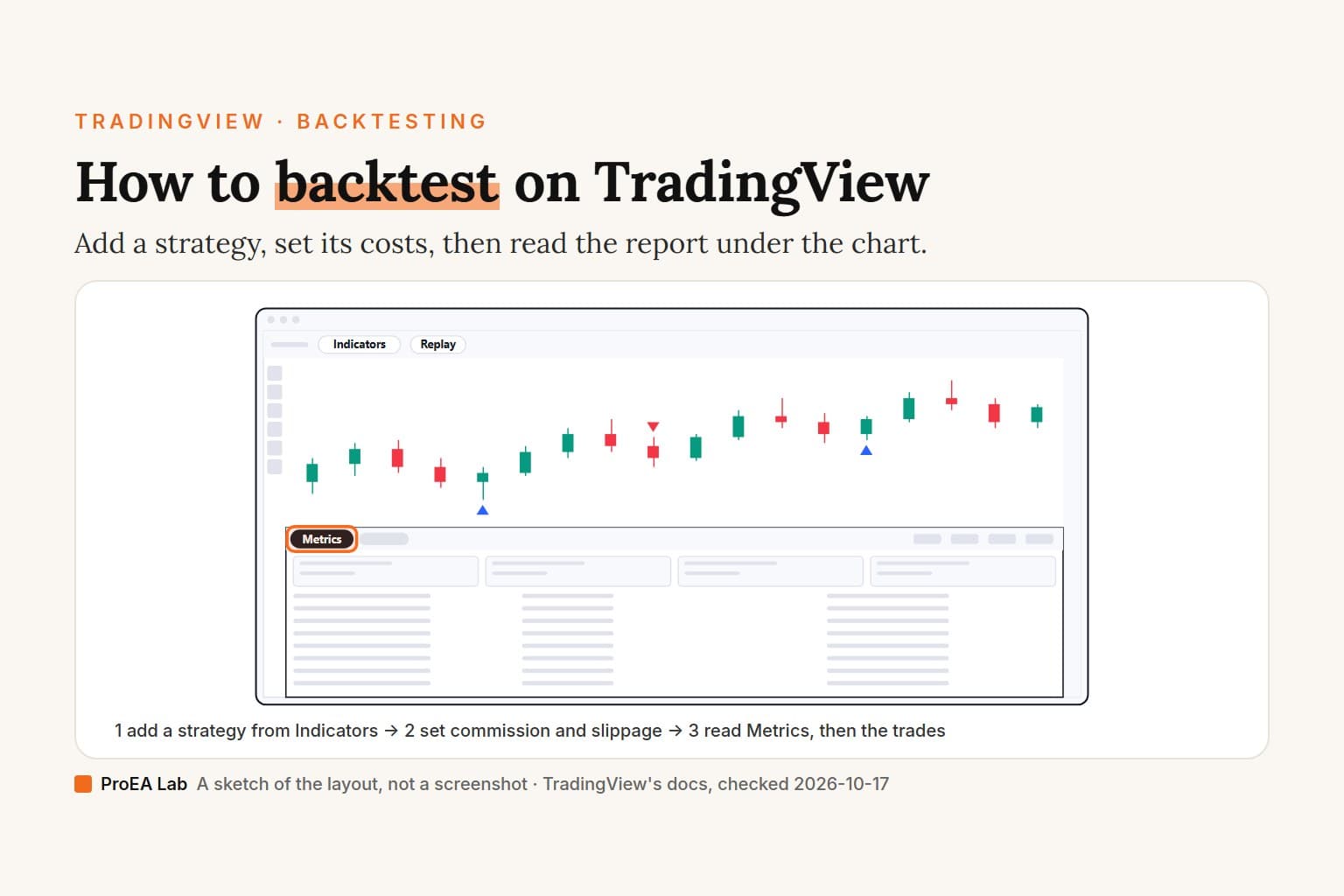
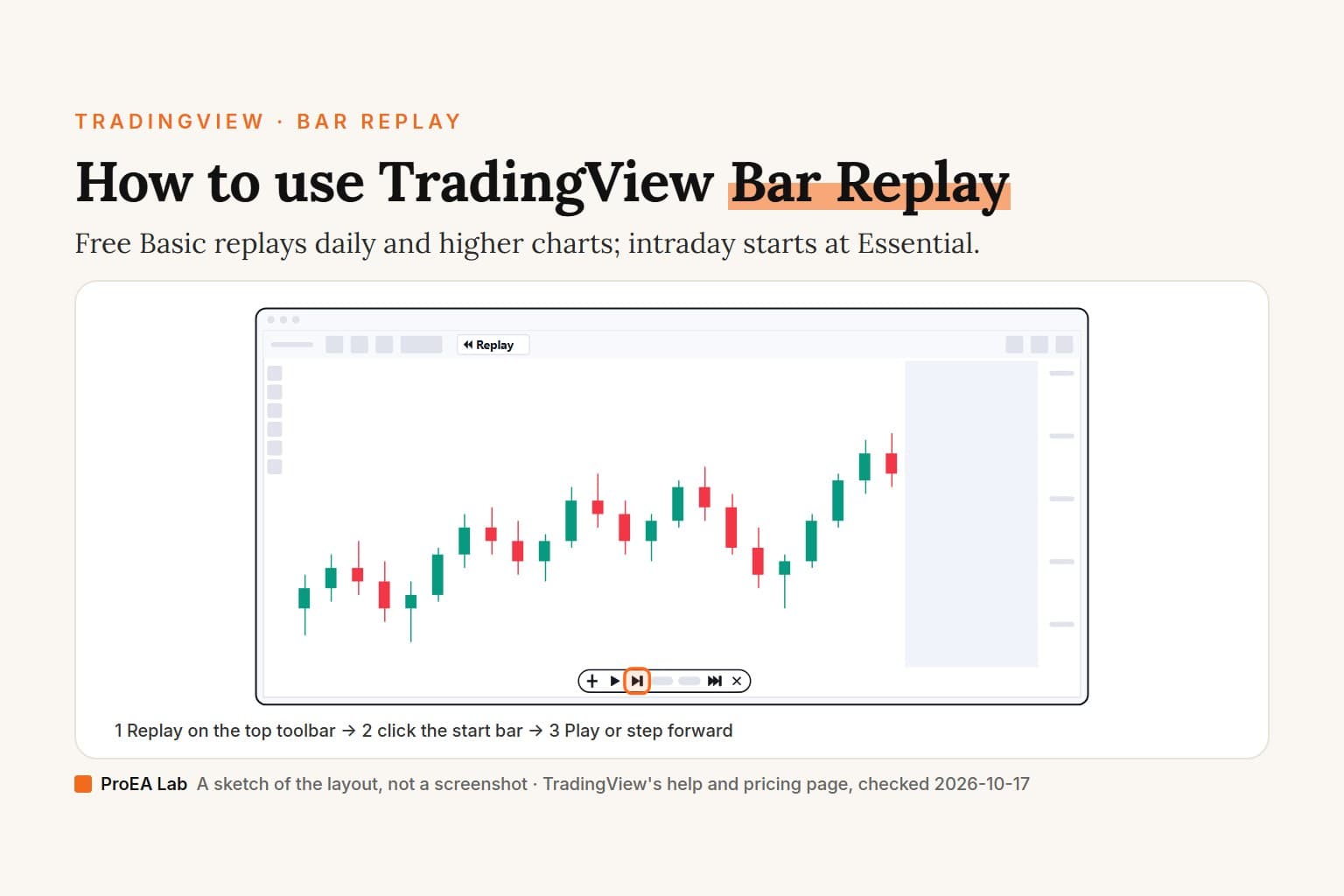
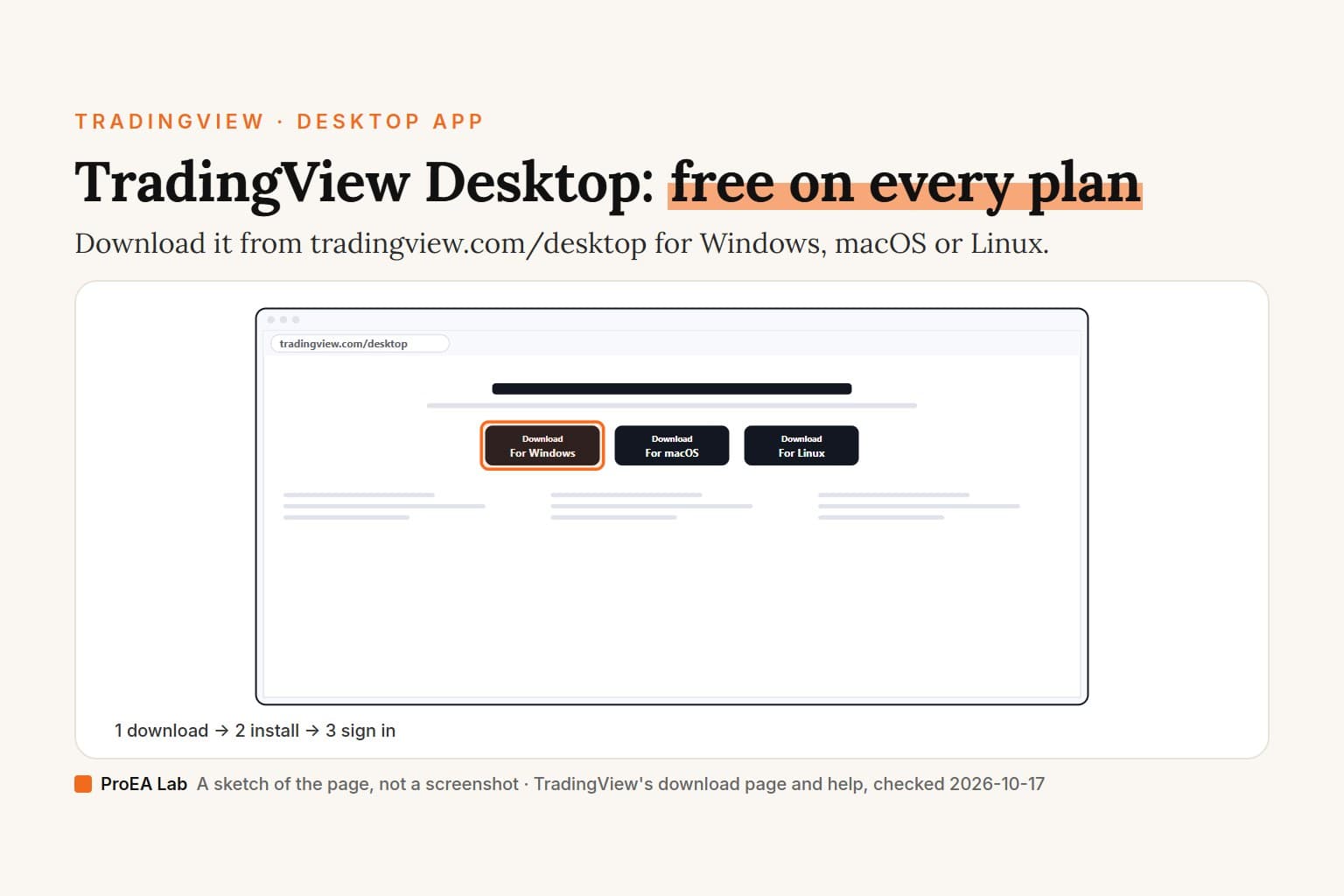
A simulated sketch of the layout, not a screenshot: names, prices, levels and dates are blank bars, and only the controls this page names are labeled. We didn't sign in to create an alert.
Read as text
- 1. Open Create alert: Alt+A, or Alert on the top toolbar.
- 2. Set the condition: Price, Crossing, then the level.
- 3. Choose the trigger: price alerts offer Once only or Every time.
- 4. Set the expiration: a date, or Open-ended on Premium and Ultimate.
- 5. Tick notifications, then Create: app, email, webhook and more.
- A mark sits at the level and the alert is listed as Active. It counts as a price alert, the kind the free Basic plan has.
How this window was chosen: Field names and trigger choices from TradingView's help center on alerts and the English text its chart loads for the alert dialog, both read on 2026-10-18. TradingView moves its controls between versions.
What we checked, 2026-10-18: TradingView's help center on alerts, its pricing page, and the chart at tradingview.com/chart while signed out. There the Alert button sits on the top toolbar, and clicking it opens a sign-up box ("you'll only need a free plan to start"). We didn't sign in, so we haven't created an alert ourselves, and we haven't tested the phone app or the Desktop app.
How do I set an alert on TradingView?
Open the Create alert dialog, set what to watch, how often it may fire and when it ends, pick how you'll hear about it, and click Create. The steps on a computer, in the browser or the Desktop app, from TradingView's alerts introduction and configuration help:
- Open the chart and the symbol. Sign in first. A price alert doesn't depend on the chart's timeframe, but alerts on indicators, drawings and strategies do, so set the interval you want before you start.
- Open Create alert. Any of these works:
- Alt+A on Windows, ⌥+A on a Mac.
- Alert on the top toolbar. Its tooltip reads Create alert.
- Right-click the chart and choose Add alert on…, or right-click a line, a channel or an indicator to aim the alert at it.
- The Plus button that follows your cursor along the price scale, for a quick alert at that price.
- Alerts on the right toolbar, then Create alert.
- Condition. Choose what to watch (the price, or an indicator, strategy or drawing on your chart), then an operator such as Crossing or Greater than, and the value. You can give the condition its own interval, different from the chart's.
- Trigger. How often the alert may fire. The choices depend on the condition; the trigger section below has them.
- Expiration. A date, or Open-ended on Premium and Ultimate.
- Message. Optional. The alert's name (up to 300 characters) and the text you'll receive (up to 4,000), which can carry placeholders such as
{{ticker}}and{{close}}(placeholders help). - Notifications. Tick how you want to be told: in the app, a toast, email, webhook, sound or plain text.
- Click Create.
A mark at the alert's level then appears on the chart, except for Moving alerts, and the alert is listed under Alerts on the right toolbar with a green Active status (manage alerts help). Drag the mark to change the level. When the alert fires, the mark blinks and the firing goes into the Alerts log.
Older help pages call the trigger "Frequency" and the expiration a "Timer". The names above are the ones in TradingView's current configuration help and in the English text its chart loads for the dialog, which we read on 2026-10-18.
Price alert, indicator alert or strategy alert?
TradingView counts two kinds of alert against your plan: price alerts and technical alerts. A price alert compares the symbol's price with a number, using one of five operators: Crossing, Crossing up, Crossing down, Greater than or Less than. Everything else is technical: an alert on an indicator, a strategy, a drawing or a chart pattern, one that uses a Channel or Moving operator, or one with several conditions (alerts by type).
| Alert on | How to start it | Counts as |
|---|---|---|
| The price | Alt+A on the chart, or the price-scale Plus | Price |
| An indicator | Right-click it, Add alert…, or pick it under Condition | Technical |
| A Pine script | Pick it under Condition, then one of its alert conditions, or Any alert() function call | Technical |
| A strategy | Add Alert in the Strategy Tester's menu, or pick it under Condition | Technical |
| A drawing | Right-click a line, channel, rectangle or Anchored VWAP | Technical |
| A watchlist | Add alert on the list… in the watchlist menu | Watchlist |
A strategy alert fires when the strategy's orders fill in real time; orders on historical bars send nothing (strategy alerts). Under Condition you choose Order fills only, alert() function calls only, or both. TradingView stops a script alert that fires more than 15 times in three minutes (alert() alerts).
Indicator, script and strategy alerts keep the settings they were made with (what that means later).
TradingView's price alerts help has a tip for a small plan: instead of an alert on a trendline drawing, put a Crossing price alert at the line's level, and keep your technical alerts for the rest. That fits a horizontal level. A sloping line moves away from a fixed price as the bars go by.
Alert conditions: crossing, greater than and the rest
Crossing fires when the value reaches the level from either side; Greater than and Less than fire only once it's past the level. TradingView lists 13 operators (configuration help, technical alerts):
| Operator | Fires when the value |
|---|---|
| Crossing | reaches the level from either direction |
| Crossing up, Crossing down | reaches the level moving up, or moving down |
| Greater than, Less than | goes past the level; for a price, by at least one minimum tick |
| Entering channel, Exiting channel | reaches the edge of a range on the way in, or on the way out |
| Inside channel, Outside channel | is inside the range, or outside it |
| Moving up, Moving down | rises or falls by an amount within a number of bars |
| Moving up %, Moving down % | the same, in percent |
Crossing up has a catch, in TradingView's own example. With BTC at $105,000 and a Crossing up alert at $100,000, it "triggers only after the price drops below $100,000 and then rises back to that level."
Two more things the dialog can do. On Plus and above, Add condition combines up to five conditions on the same symbol into one alert that fires when all of them are true, and it counts as one technical alert (multi-condition alerts). And there's no alert at a set time: TradingView's workaround is a Vertical Line drawing with the condition "Symbol crosses Vertical Line".
Once per bar close, once only or every time?
The trigger decides how often one alert may fire, and what you can pick depends on what the alert watches. From TradingView's frequency help and its page on the missing Once per bar:
- Price alerts: Once only or Every time. They follow the current price, whatever the chart's timeframe.
- Indicators, drawings, and chart types such as Heikin Ashi or Range: Once only, Once per bar, Once per bar close or Once per minute.
- Strategies: no choice. With order fills in the condition, every fill fires the alert.
- Scripts that use alert(): the script's code sets the frequency, not the dialog.
TradingView's configuration help gives a shorter list, "only once, every time, once per bar close, or once per minute", without saying which alert gets which; the split above is the one its Once per bar page spells out.
What each one does:
- Once only fires the first time the condition is met, then stops. The list shows it as Stopped — Triggered.
- Once per bar fires as soon as the condition is met, at most once per bar.
- Once per bar close fires only when a bar closes with the condition met.
- Once per minute and Every time check the condition every minute and fire whenever it's met.
TradingView's help spells the first one two ways, "Once only" and "Only once". The English text the chart loads for the alert dialog says Once only, so that's the label to look for.
Use itOnce per bar close for a signal you want confirmed by the close.
Watch outOnce per bar can fire on a cross that's gone by the close.
If an alert set up this way stays silent, or fired once and went quiet, TradingView alert not triggering goes through the causes one at a time.
How long do TradingView alerts last?
One month on Basic, two months on Essential and Plus, and no end date on Premium and Ultimate, according to the Alert durations row of TradingView's pricing page on 2026-10-18. In the dialog, set Expiration to a date, or switch on Open-ended if your plan has it.
TradingView's alerts introduction says "The maximum lifetime of a standard alert is two months" and doesn't mention Basic's shorter limit. We go by the pricing table, which names each plan, but we couldn't check it in a signed-in Basic dialog.
A few more rules from the help center:
- Open-ended isn't available for watchlist alerts.
- Even an open-ended alert is switched off once it's more than a year old, hasn't fired for a year and hasn't been edited for a year (expiry help).
- Moving to a cheaper plan stops all your active alerts. You can restart them within the new plan's limits (downgrade help).
- An expired alert shows a red Stopped — Expired status in the list, where you can resume, edit or delete it.
How many alerts can you have on TradingView?
3 active price alerts on the free Basic plan and no technical ones; Essential allows 20 of each, Plus 100, Premium 400 and Ultimate 1,000. All from the pricing page, checked 2026-10-18:
| Plan | Price alerts | Technical alerts | Watchlist alerts | Longest expiration | Webhooks |
|---|---|---|---|---|---|
| Basic | 3 | none | none | 1 month | no |
| Essential | 20 | 20 | none | 2 months | yes |
| Plus | 100 | 100 | none | 2 months | yes |
| Premium | 400 | 400 | 2 | none (Open-ended) | yes |
| Ultimate | 1,000 | 1,000 | 15 | none (Open-ended) | yes |
The limits count active alerts, and each kind has its own: on Premium that's 800 price and technical alerts in all, as TradingView's help on alert limits puts it. Multi-condition alerts start at Plus. A watchlist alert is one alert for a whole list; it fires separately for each symbol and stops only once it has fired for all of them (watchlist alerts).
How do you get TradingView alert notifications?
Tick them under Notifications when you create the alert. The options, by the names in the dialog's English text:
- Notify in app: a push notification in TradingView's mobile app (next section).
- Show toast notification: a pop-up message, even while you're browsing in another tab, if you allow your browser to show TradingView's desktop notifications.
- Send email: to the address in your TradingView profile.
- Webhook URL: an HTTP POST carrying the alert's message to a URL you give, for a bot or a script, on paid plans with 2-factor authentication turned on (webhook help).
- Play sound.
- Send plain text: the alert sent to an alternative email address. TradingView calls it a free way to get text messages on your phone, and notes that some carriers, T-Mobile and Verizon among them, may limit how many you receive (plain text help).
Older help pages call these Notify on App, Show Pop-up and so on; the choices are the same.
Alerts are server-side. "You can close TradingView or exit the chart page and alerts will continue working on your devices", says TradingView's help.
A Notification schedule mutes delivery outside the hours you choose: 24/7 (the default), Weekdays, Standard working hours (Monday to Friday, 09:00 to 18:00) or a Custom schedule, all in your account's own time zone (schedule help). The alert still triggers and still goes into the log. A Once only alert that fires while muted stays active, and fires with a notification the next time its condition is met inside your hours.
Every firing lands in the Alerts log, which exports to CSV. TradingView deletes log entries older than 30 days and keeps only the last 100 per alert (log help), so export it if you want the record. The log shows times in your computer's time zone; the CSV is in UTC.
How do I set alerts in the TradingView mobile app?
TradingView's help doesn't give the taps for creating an alert in the app, and we haven't tested it. What it does document is getting alerts onto your phone (iPhone, Android):
- Install the TradingView app from the App Store or Google Play, and log in to the same account.
- Allow notifications. On an iPhone: Settings, Notifications, TradingView, then Allow Notifications. On Android, turn on push notifications in the app's settings, and "whitelist the app" on the phone, in TradingView's words.
- Tick Notify in app when you create an alert on a computer. Alerts you create in the app have it on by default.
Push notifications work on every plan, Basic included. Because the alert runs on TradingView's servers, one you set at your desk still reaches the phone after you close TradingView there. Two details from the help: a long tap on an alert in the list opens the same menu as a right-click, and on an iPhone the app's Alerts log shows only alerts that arrived as push notifications.
Where we stand
We sell Pine Script indicators as source code in our Pine v6 stack. The alerts a script offers are whatever its author wrote: in an open-source script they are the alertcondition() and alert() calls in the code, and those are what appear under Condition when you pick the script. Read them before you rely on an alert from any script, ours included.
We aren't affiliated with TradingView.
Use this animation on your site.
Frequently asked questions
How do I set an alert on TradingView?
Open the chart, press Alt+A (⌥+A on a Mac) or click Alert on the top toolbar, set the Condition, the Trigger, the Expiration and the Notifications, then click Create. You need a free TradingView account; signed out, the Alert button asks you to join.
How many alerts can I have on TradingView for free?
3 active price alerts on the free Basic plan, and no technical alerts on indicators, strategies or drawings, per TradingView's pricing page on 2026-10-18. Essential allows 20 of each, Plus 100, Premium 400 and Ultimate 1,000.
What is the difference between a price alert and an indicator alert?
A price alert compares the symbol's price with a number using Crossing, Crossing up, Crossing down, Greater than or Less than. An alert on an indicator, a drawing or a strategy, or one that uses a Channel or Moving operator, is a technical alert, and the free Basic plan has none.
What does Once per bar close mean on a TradingView alert?
The alert fires only when a bar closes with the condition met. Once per bar fires as soon as the condition is met, at most once per bar. Plain price alerts offer neither: their choices are Once only and Every time.
How long do TradingView alerts last?
Up to 1 month on Basic and 2 months on Essential and Plus, per the pricing page on 2026-10-18. Premium and Ultimate can set Open-ended alerts that don't expire. TradingView's alerts introduction gives two months as the limit for a standard alert and doesn't mention Basic's shorter one.
Do TradingView alerts work when my computer is off?
Yes. TradingView says all alerts are created and triggered on its servers, and that you can close TradingView or the chart page and they keep working. Tick Notify in app to get them on your phone.
Can I set alerts in the TradingView mobile app?
TradingView's help covers getting alerts on your phone, not the taps for creating one in the app, and we haven't tested the app. Install it, log in, allow notifications, and tick Notify in app on the alert; alerts you create in the app have it on by default.