TradingView Desktop is TradingView's own app for Windows, macOS and Linux, and it costs nothing: download it from tradingview.com/desktop, sign in, and your account and plan come with you. TradingView's pricing page ticks the desktop app on all five plans, the free Basic one included. Our team runs it on Windows on the Basic plan. We read TradingView's help and pricing on 2026-10-17, and the requirements, release notes and pricing rows again on 2026-10-23. The check above reads your system from this browser and gives TradingView's answer for it.
A simulated sketch of the screens, not a screenshot: text is drawn as blank bars, only the names this page prints are labeled, and the Mac and Linux cases follow TradingView's help, not our own install.
Read as text
- 1. Click Download For Windows: tradingview.com/desktop.
- 2. Run TradingView.msix: App Installer installs it.
- 3. Sign in: or Sign in with browser.
- 4. Your charts open in tabs: along the top of the window.
- Every plan can use it, Basic included. Needs Windows 10 or 11 (22H2), 64-bit Intel or AMD; no ARM.
How this window was chosen: Buttons, files and menu names from TradingView's download page and its desktop help, read on 2026-10-17. TradingView moves its controls between versions.
Is TradingView Desktop free?
Yes, on every plan. The pricing page has a Desktop app section with three rows, Desktop experience, Native multi-monitor support and Tab linking by symbol between windows, and all three are ticked for Basic, Essential, Plus, Premium and Ultimate on 2026-10-17, and again on 2026-10-23. A paid plan follows you into the app: a subscription bought on the web "will work perfectly on any device — in browser, mobile and desktop apps. Simply log in to your paid account" (TradingView help).
What changes from plan to plan is the rest of TradingView. Two of its limits matter more in an app built for several windows:
| Plan | Desktop app | Charts per tab | Simultaneous chart connections | Saved chart layouts | Price per month, billed annually |
|---|---|---|---|---|---|
| Basic (free) | Yes | 1 | 2 | 1 | $0 |
| Essential | Yes | 2 | 10 | 5 | $12.95 |
| Plus | Yes | 4 | 20 | 10 | $29.95 |
| Premium | Yes | 8 | 50 | Unlimited | $59.95 |
| Ultimate | Yes | 16 | 200 | Unlimited | $199.95 |
The prices are the page's "special price" on 2026-10-17. Connections are the one to watch. "Each tab in the web version and apps is counted as one connection. Opening one tab in your browser and one in an app counts as two connections", says TradingView's help on chart connections. Go over and "the oldest connection (the earliest opened tab) will get closed". On Basic that means two live chart tabs in total across your browser, the desktop app and the phone app, each holding one chart.
Where do I download TradingView Desktop?
From tradingview.com/desktop. The page has one button per system:
| Your computer | Button | What you get |
|---|---|---|
| Windows | Download For Windows | A file named TradingView.msix |
| macOS | Download For macOS | A file named TradingView.dmg |
| Linux | Download For Linux | A choice of Deb package (a .deb file) or Snap package (TradingView's page on the Snap Store) |
Download it there and nowhere else. TradingView's account-safety help says its platform is available only on its website, its mobile page and that desktop page, and it warns about "Requests to download a "special" app" and search ads marked "Sponsored" that claim to be a partner or distributor.
The phone apps are separate downloads: the App Store (iOS 16.0 or later) and Google Play (Android 8.0 or later), per TradingView.
What are the system requirements?
A 64-bit Intel or AMD computer on Windows 10 or 11 (22H2), any Mac on macOS Monterey or newer, or a 64-bit Linux that installs .deb or snap packages. From TradingView's system requirements:
| System | Versions | Processor | Also |
|---|---|---|---|
| Windows | Windows 10 (version 22H2) or Windows 11 (version 22H2 or newer) | 64-bit Intel or AMD. ARM is not supported | Needs App Installer, which "ships as part of Windows" |
| macOS | Monterey (version 12) or newer, Tahoe (version 26) included | Intel or Apple Silicon (M1, M2 and later) | |
| Linux | Tested on Ubuntu 20.04, 22.04 and 24.04 LTS; "known to work well" on other distributions that take .deb or snap | 64-bit Intel or AMD. ARM is not supported | The snap build "is currently unstable on native Wayland" |
The page lists no RAM, disk space or graphics card. It does name one network limit: "IPv6 is not currently supported. Users on networks that prioritize IPv6 may experience connectivity issues."
Older Macs get stuck rather than locked out. TradingView's release notes say version 2.14.0, on October 20, 2025, dropped macOS Big Sur (version 11): there "the last available app version — 2.13.0 — will continue to work but will no longer receive updates". Catalina and earlier lost updates in February 2025, when version 2.9.5 dropped them. A Windows or Linux laptop with an ARM chip is outside the requirements altogether; the browser version at tradingview.com/chart is the way in there.
How do I install TradingView Desktop?
Download the file for your system, run it, then open TradingView and sign in. We use the app on Windows. The Mac and Linux steps below are TradingView's; we haven't run them.
On Windows
- Open tradingview.com/desktop and click Download For Windows. You get TradingView.msix.
- Run the file. Windows' App Installer does the install.
- Open TradingView from the Start menu and sign in.
If App Installer won't finish, TradingView's PowerShell route installs the same package: open an elevated PowerShell (Start, right-click PowerShell, Run as administrator) and run
add-appxpackage https://tvd-packages.tradingview.com/stable/latest/win32/TradingView.msix
Then look for TradingView in the Start menu. Specific error codes are in the fixes section below.
On a Mac
- Click Download For macOS. You get TradingView.dmg.
- Open it and move the app icon to the Applications folder.
- Open TradingView from Applications and sign in.
TradingView documents step 2 in its update help, where it adds "choose to replace the existing version". A first install has nothing to replace.
On Linux
TradingView's Linux help covers "64-bit Debian-based Linux distributions such as Ubuntu, Mint, etc." with two packages.
- Deb package: click Download For Linux, pick Deb package and double-click the file.
- Snap package: make sure snapd is installed, then run
sudo snap install tradingview, or install it from snapcraft.io/tradingview, which listed version 3.4.1 on 2026-10-17.
If the double-click fails, the help installs the Deb package from TradingView's own repository instead:
wget -O - https://tvd-packages.tradingview.com/keyring.gpg | sudo tee /usr/share/keyrings/tradingview-desktop-archive-keyring.gpg >/dev/null
echo "deb [arch=amd64 signed-by=/usr/share/keyrings/tradingview-desktop-archive-keyring.gpg] https://tvd-packages.tradingview.com/ubuntu/stable jammy multiverse" | sudo tee /etc/apt/sources.list.d/tradingview-desktop.list >/dev/null
sudo apt update
sudo apt install tradingview
On a Wayland desktop, run the snap in an X11 session or force XWayland, as the requirements page advises.
How do I sign in to TradingView Desktop?
Open the app and sign in with your TradingView account; a paid plan needs nothing extra. TradingView's help doesn't walk through the sign-in window. It does document one option on it, Sign in with browser, and one Windows error that comes with it: "Failed to open. Stack unavailable" means "your system has no browser set as the default browser" (help). Open Windows Settings, go to Apps, Default apps, Web browser, pick one, then restart TradingView and sign in again.
To sign out, save your layout changes first, then open any chart tab, click your profile icon in the upper left corner and choose Sign Out (help).
How do I update TradingView Desktop?
It usually updates itself; to check, open the three-dot menu at the top right, then Settings, then the About tab. If an update is waiting, the app installs it, and TradingView says to relaunch afterwards (help). When it doesn't update on its own:
- Windows: download TradingView.msix again from tradingview.com/desktop, run it and click Update.
- Mac: download the installer again, move the app icon to Applications and choose to replace the existing version.
- Linux, Deb:
sudo apt update, thensudo apt --only-upgrade install tradingview. If that doesn't take, remove the app and install it again through the terminal. - Linux, snap:
sudo snap refresh tradingview.
The newest release in TradingView's notes on 2026-10-17 was version 3.4.1, dated September 8, 2026, a fix for a crash when opening PDF earnings reports.
TradingView Desktop vs browser: what does the app add?
The charts are the same; what the app adds is window management. TradingView says the desktop version "provides you with the same functionality as the TradingView web platform. But its app-based nature comes with unique advantages" (what is TradingView Desktop). From that page and the rest of its desktop help:
- More than one window, one per monitor. "You can open as many windows of TradingView Desktop as you need", from the New Window button on the title bar or the app menu (multiple windows). The app reopens them in their places, provided you leave with Quit TradingView in the window title's drop-down menu, or Shift+Ctrl+Q (Cmd+Q on a Mac), rather than closing windows one by one.
- Linked tabs. Give tabs the same color tag and a ticker change in one shows in all of them (symbol syncing). A screener can follow a chart too. Version 2.13.0 added interval syncing, and 3.1.0 added the date range and time.
- A crosshair synced across tabs and windows.
- Tabs that remember. Each tab gets its ticker, interval and active watchlist back when the app starts.
- System extras: native notifications, a theme that follows your system's light or dark mode, tab titles you can rename, pinned tabs, and launch at startup (Windows and macOS steps).
- Links. On Windows, TradingView links from email or a messenger open in the app, not your browser (link handling). The Mac and Linux versions don't do this; copy the link and choose Open link from clipboard on the app menu instead.
- Its own proxy. Settings, Network, Use a proxy server (HTTP or SOCKS5), then Relaunch (proxy help).
Speed is the claim to read carefully. The download page promises "extra power, extra speed and extra flexibility", and we found no test behind it in TradingView's help or release notes. Its release notes show the app is built on Electron (version 41 since app version 3.4.0), and Electron "embeds Chromium and Node.js", so a chart in the app runs on a browser engine bundled with the app.
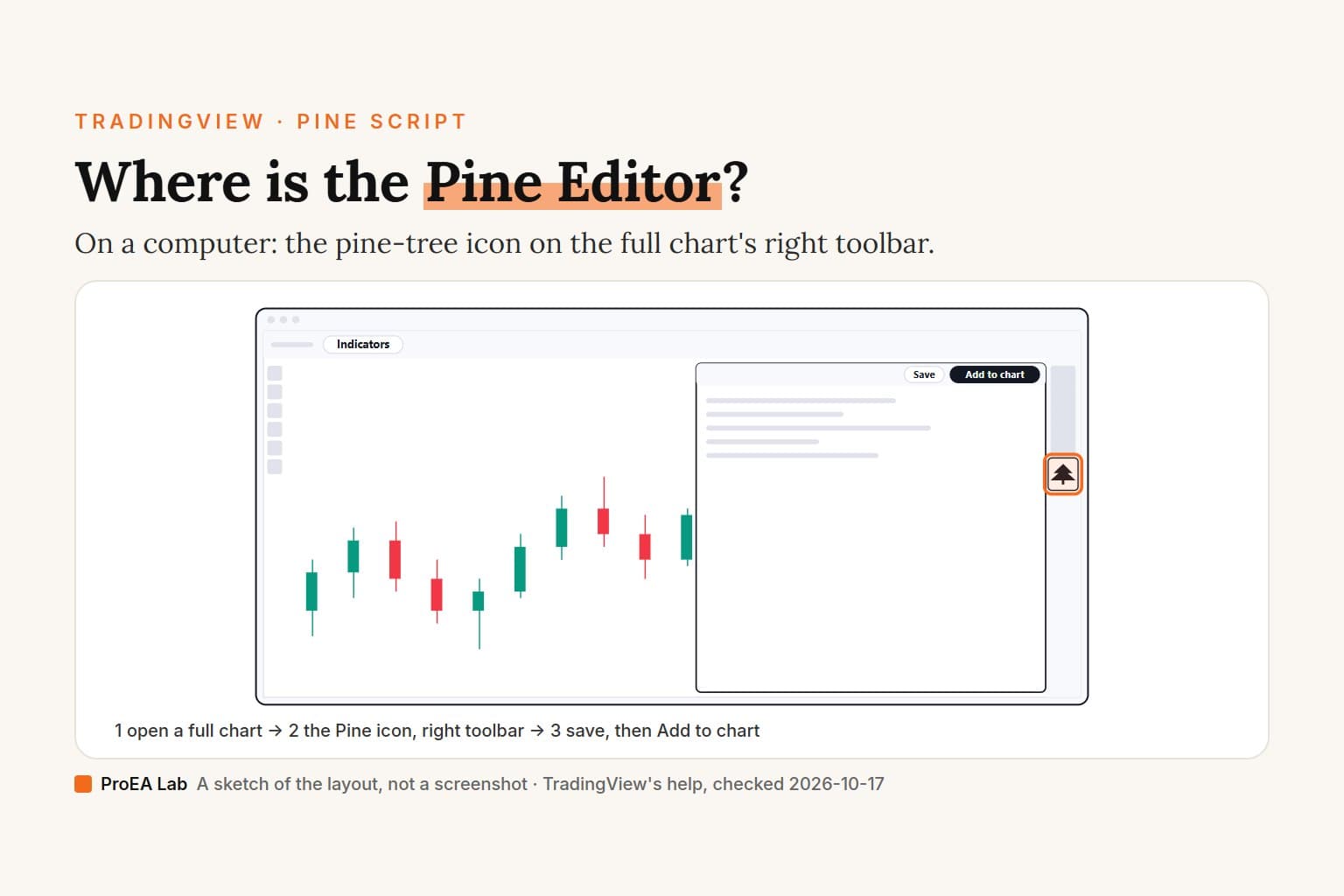
Install the app for a multi-monitor setup. On one screen with one chart, the browser gives you the same charts.The Pine Editor is part of that same functionality (where to find it). Scripts you save in it "are saved on TradingView’s servers" (Pine docs), so a script saved in the browser shows up in the app, and the other way round.
Why is TradingView not loading or opening?
In the app, work through TradingView's list in order: update, clear the cache, then check indicators and security software. In a browser, clear the cache and cookies and try Incognito or another browser. The details, all from TradingView's help.
The app crashes, freezes or slows down
TradingView's help has no article for an app that won't start at all; these fixes need it open. Its article on the "This tab crashed due to an error" message (tab crashes) and its one on high memory and CPU use give these steps:
- Update the app: the three-dot menu at the top right, then Settings, then About.
- Clear the cache: the same menu, Settings, Service, Clear cache. Relaunch.
- Check the indicators. "Tab crashes can be caused by too many resource-intensive indicators on a chart." Turn them all off; if the crashes stop, turn them back on one at a time to find the culprit.
- Check security software: antivirus programs, firewalls, VPN clients or network monitoring tools. Turn them off for a test, and if the app then works, set them to leave it alone.
- Free up the computer: close tabs you don't need and other heavy programs.
- Toggle hardware acceleration: Settings, Service, Disable hardware acceleration, then relaunch. If that makes no difference, switch it back on.
- Reset the app: Settings, Service, Back to defaults. "The app state will be lost, but your saved layouts, changes, and data are stored remotely."
On a Mac, a scaled screen resolution can slow it down; TradingView suggests one labeled "default" or "low resolution". If none of this helps, try the same chart in your web browser before you contact support; TradingView says that helps its support team diagnose the issue.
Windows won't install it
From TradingView's Windows install troubleshooting:
| What you see | TradingView's fix |
|---|---|
| "How do you want to open this file?" | Update Windows; if you can't, get App Installer from the Microsoft Store |
| Error 0x80070490 | Install the Windows update of September 14, 2021 (KB5005565) or newer |
| Error 0x800B010A on Windows 11 | Update App Installer: Microsoft Store, Library, App Installer, Update |
| Error 0x8000ffff, or "Error in parsing the app package" | Install with PowerShell (the command above) |
| Error 0x80092004 | TradingView's article links an MSIX file to install from, which then won't auto-update; that link is version 1.0.3. Today's Download For Windows button gives the current TradingView.msix |
| "Windows cannot install package" (an upgrade over beta.12 or earlier, per the article) | Uninstall the old version, then install the latest |
That page still calls the download TradingView.appinstaller in its first section. The download page and the update help call it TradingView.msix, which is what the button gave on 2026-10-17.
It opens but won't connect
- A tab says the connection closed. You went over your plan's simultaneous chart connections (2 on Basic). Close a tab, or click Restore connection, which closes another tab if you're still over. A multi-chart layout fits more charts into one connection on a paid plan.
- IPv6. The app doesn't support it, so a network that prefers IPv6 can cause trouble.
- A proxy. The app has its own proxy setting, separate from the system's (above).
- TradingView itself. Check status.tradingview.com, TradingView's status page. On 2026-10-17 it read "All systems operational".
TradingView not loading in a browser
For a price scale that shows up blank, the help says to clear the browser cache or try Incognito mode or another browser: "It is most likely that stored cookies or enabled browser extensions are interfering with our website" (price scale help). Its fix for an "Access token has expired" error on a computer is the same: clear the cache and cookies, or use Incognito (help). An "Ad blocker detected" message means something is blocking TradingView's ads, the ones that pay for free charting; the fix is to allow TradingView.com in the blocker, and it adds that "privacy tools, script blockers, or cookie blockers can also interfere". For colored glitches in Chrome, Edge and other Chromium browsers, TradingView suggests updating the browser and, if they stay, switching hardware acceleration off at chrome://settings/system (color glitches).
Where we stand
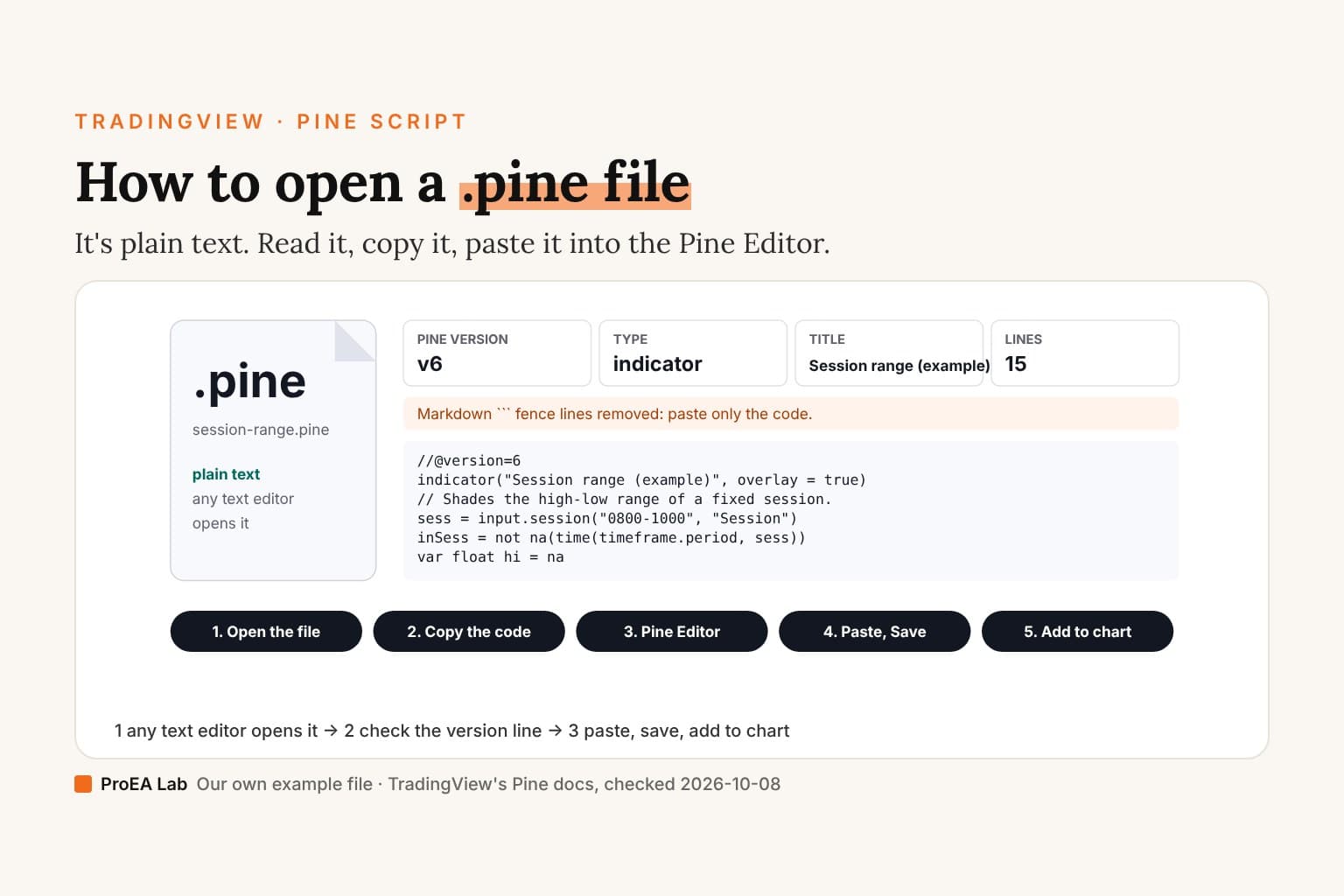
We sell Pine Script indicators as source code. TradingView says the app has the same functionality as the web platform, so installing one of ours follows the Pine Script steps in either: paste the .pine file into the Pine Editor, save, add it to the chart. Each tool in our Pine v6 stack is one script, so it takes one of Basic's 2 indicator slots (limits by plan). Our team runs TradingView Desktop on Windows on the free Basic plan.
We aren't affiliated with TradingView.
Use this animation on your site.
Frequently asked questions
Is TradingView Desktop free?
Yes. The download costs nothing, and TradingView's pricing page ticks Desktop experience, Native multi-monitor support and Tab linking by symbol between windows on all five plans, Basic included, checked 2026-10-17. Your plan's limits come with you: Basic allows 1 chart per tab and 2 simultaneous chart connections.
Where do I download TradingView for PC?
From tradingview.com/desktop. Download For Windows gives a file named TradingView.msix, For macOS gives TradingView.dmg, and For Linux offers a Deb package or a Snap package. TradingView's help lists that page as the only official source of the desktop app.
Does TradingView Desktop work on a Mac?
Yes, on macOS Monterey (version 12) or newer, with an Intel or Apple Silicon chip. Download TradingView.dmg, move the app icon to the Applications folder, then open it and sign in. Big Sur stays on version 2.13.0 without updates. These are TradingView's steps; we haven't installed on a Mac.
What are the system requirements for TradingView Desktop?
Windows 10 (22H2) or Windows 11 (22H2 or newer) on a 64-bit Intel or AMD processor; macOS 12 or newer on Intel or Apple Silicon; a 64-bit Linux that takes .deb or snap packages. ARM isn't supported on Windows or Linux, IPv6 isn't supported, and TradingView publishes no RAM or disk figures.
Is TradingView desktop better than web?
It does the same analysis, in TradingView's words, and adds window handling: windows that reopen where you left them on each monitor, tabs linked by symbol, a crosshair synced across tabs and windows, and native notifications. We found no speed comparison in TradingView's help or release notes, and the app runs on Electron, which carries its own Chromium.
Why is TradingView Desktop not opening or loading?
TradingView's help has no article for an app that won't start at all. For crashes and freezes, follow its order: update the app (the three-dot menu, then Settings, then About), clear its cache (Settings, Service, Clear cache) and relaunch. If a tab still crashes, turn the chart's indicators off and back on one at a time, and check antivirus, firewall or VPN software. Windows install errors have their own fixes.
Why did TradingView close my chart tab?
You opened more chart tabs than your plan's simultaneous chart connections, counted across the browser, the desktop app and the mobile app. Basic allows 2. The oldest tab closes and offers Restore connection, which closes another tab if you are still over the limit.
How do I install TradingView on desktop?
Download the installer from tradingview.com/desktop, run it, then open TradingView and sign in. On Windows you get TradingView.msix, which Windows' App Installer installs; if it won't finish, TradingView's PowerShell route installs the same package. On a Mac, open TradingView.dmg and move the app to Applications. On Linux, TradingView offers a Deb or a Snap package for 64-bit Debian-based distributions.