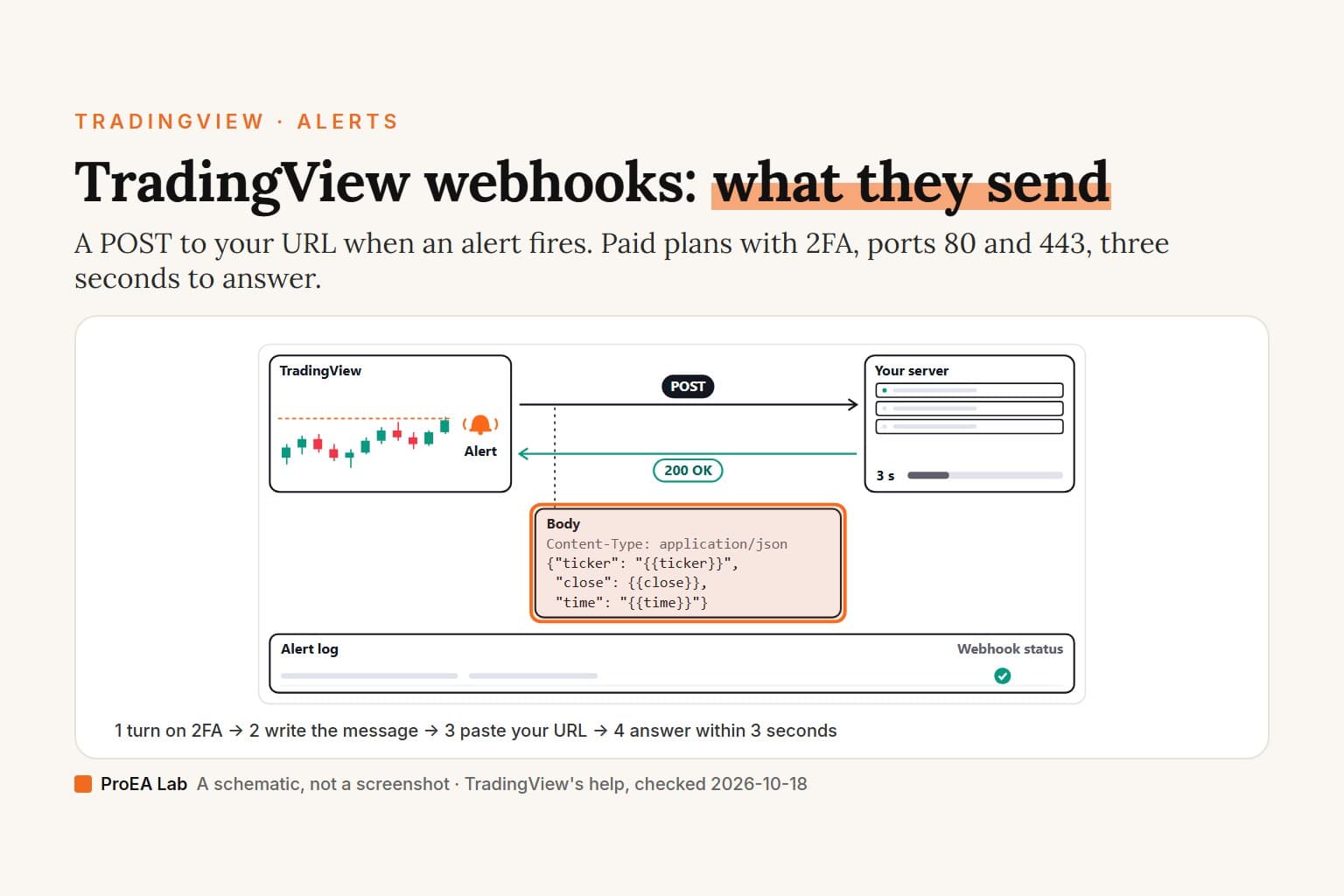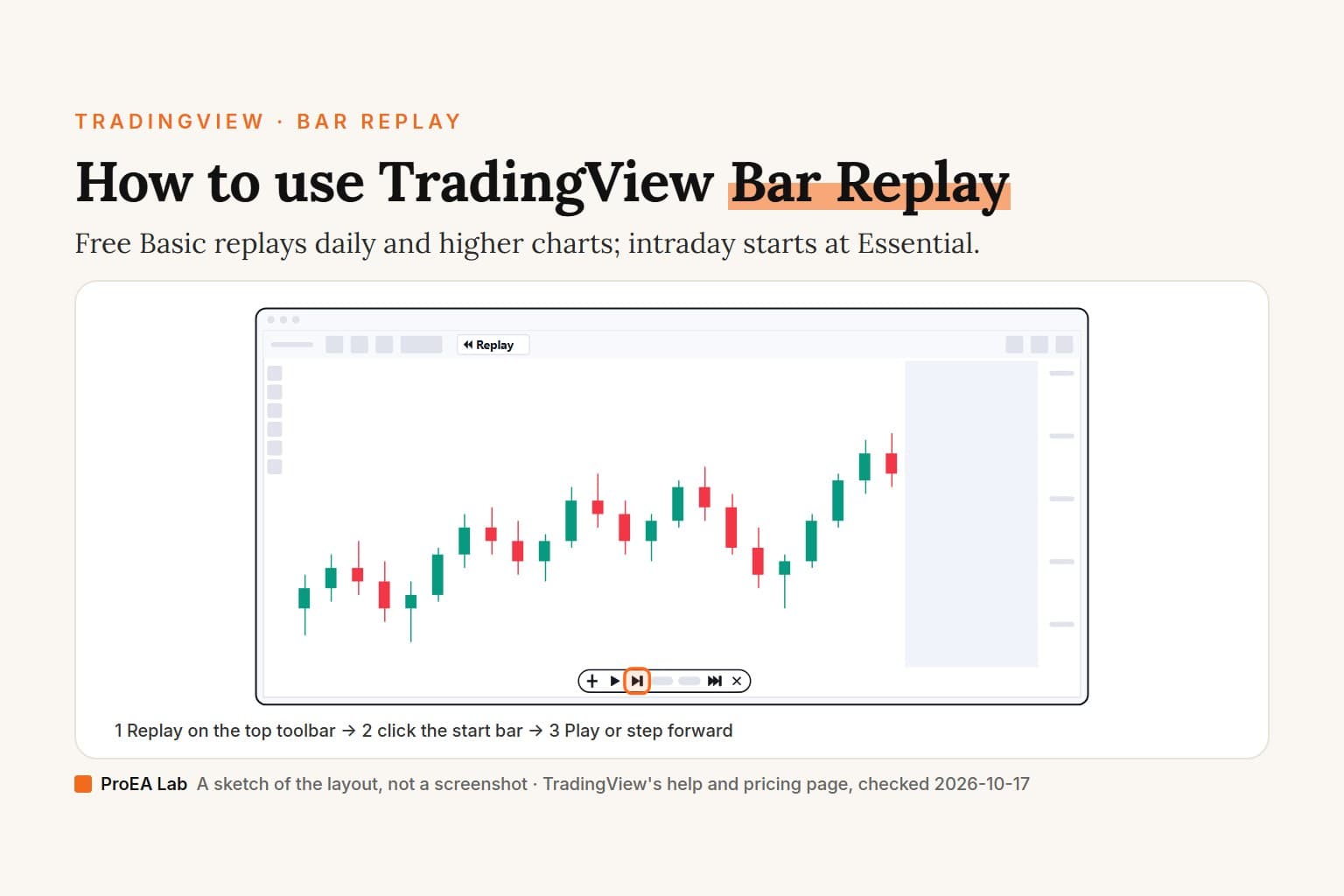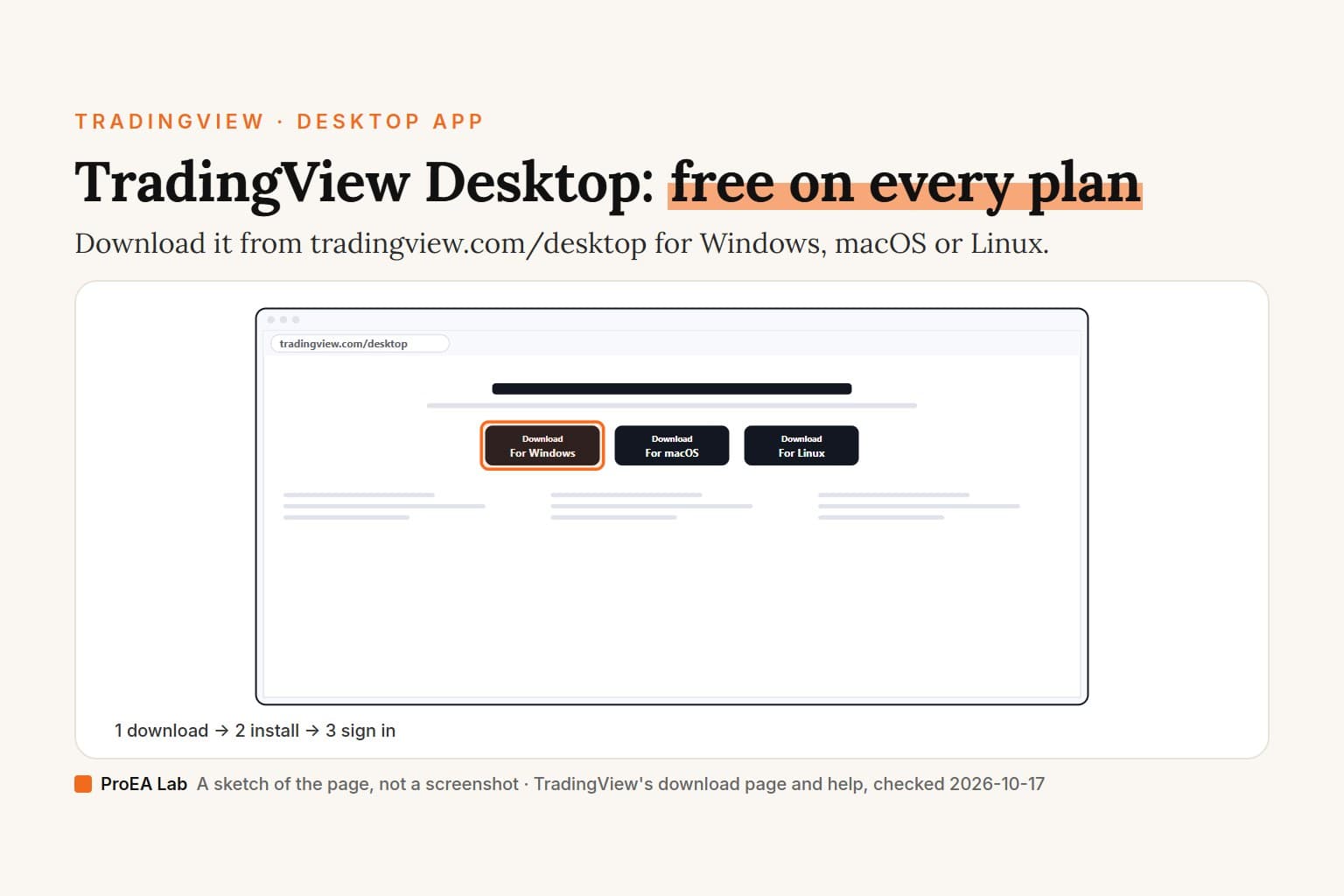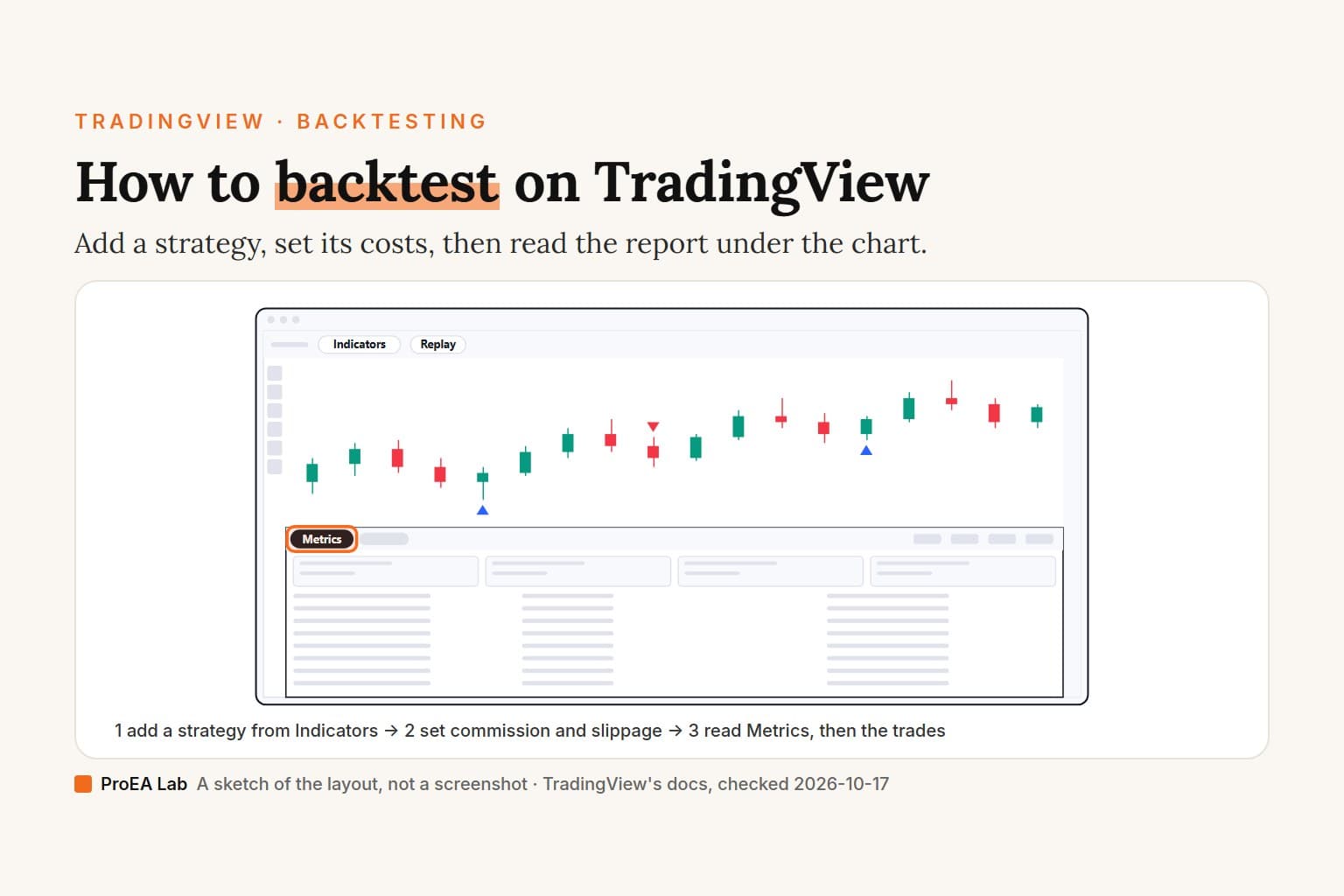
A simulated sketch of the layout, not a screenshot: candles are a fixed shape, the report shows no results, and only the controls this page names are labeled.
Read as text
- 1. Open Indicators: the top toolbar, or press /.
- 2. Pick a strategy: Technicals → Strategies, or Community.
- 3. The report opens: a tab under the chart.
- 4. Set costs first: Settings → Properties.
- 5. Read Metrics, then the trades: the report's tabs.
- On Basic the report covers only the bars loaded on the chart. Deep Backtesting, on Premium and Ultimate, runs on a date range.
How this window was chosen: Places and control names from TradingView's Help Center, Pine Script docs and pricing page, checked 2026-10-17. TradingView renamed several strategy settings in July 2026, so older guides use other names.
How do I backtest a strategy on TradingView?
Add a strategy to a full chart, set its costs, then read the report. TradingView's Help Center guide and the Pine docs on strategies give the same route, read on 2026-10-17:
- Sign in. Any plan works, the free one included. When we tried to add a strategy on tradingview.com/chart while signed out, the chart asked us to join for free first.
- Open the full chart (Supercharts) on the symbol and timeframe you would trade. The report covers this chart's data only, so this choice is part of the test.
- Click Indicators on the top toolbar, or press /. The dialog that opens is called Indicators, metrics, and strategies.
- Pick a strategy. TradingView's own sit under Technicals, in its Strategies list; when we searched for MACD strategy, TradingView's built-in one came up under Technicals. Other traders' strategies are under Community, or open a strategy's page and click Use on chart. Your own script goes on from the Pine Editor with Add to chart (adding Pine Script, step by step).
- The report opens in a tab under the chart, and the strategy's entries and exits appear as markers on the candles.
- Set the costs before you look at a single number. Click the Settings button next to the strategy's name on the chart and open the Properties tab. The settings section below lists what to change.
- Read Metrics, then the list of trades.
No trades at all? TradingView's strategy FAQ lists three usual causes: the initial capital can't cover even one contract or share (raise it in Properties), the script never calls strategy.entry() or strategy.order(), or it hit a runtime error, shown by a red exclamation mark next to its name.
The report shows one strategy at a time, and TradingView's pages disagree on whether you can run two. The Help Center says "Only one strategy can run on a chart at a time"; the Pine docs explain how to pick which strategy the report analyzes when two or more are active on the chart. If you add a second, check which one the report is showing.
Testing an MT5 expert advisor instead? That's a different tester, covered in how to backtest an EA in MT5.
Is it the Strategy Tester or the strategy report?
The same panel under a new name. TradingView's Pine release notes for July 2026 call it "the strategy report interface (formerly known as the Strategy Tester)", and the same update renamed several of its settings. Most tutorials still use the old names, and so do some of TradingView's own help pages:
| Older guides say | Since July 2026 |
|---|---|
| Strategy Tester | strategy report |
| Overview, Performance Summary, List of Trades | Metrics, then a list of trades |
| Using bar magnifier | Bar detalization |
| Verify price for limit orders | Limit order execution |
| Recalculate: after order is filled, on every tick | Script execution |
| Fill orders on bar close | Order execution delay |
| Margin for long and short positions | Long leverage and Short leverage |
The old four tabs (Overview, Performance Summary, List of Trades and Properties) are how the version 5 Pine docs describe the panel. The Help Center's page on strategy properties still listed Bar Magnifier, Margin and Recalculate on 2026-10-17. When your screen and a guide disagree, this is usually why.
How do I read the strategy report?
Start with the Metrics tab, then read the trades one at a time. The Help Center lists what Metrics shows first: an equity chart, a date range, Total P&L, Max drawdown, Profitable trades (the share of closed trades that won), Profit factor (gross profit divided by gross loss), a Buy&hold comparison, and each trade's run-up and drawdown.
The rest of the report goes by different names on two TradingView pages. The Help Center describes Performance analysis, Trades analysis and List of trades. The Pine docs describe two sub-tabs, Metrics and Trades, with Metrics split into Key stats, Return details, Trades analysis, Equity run-ups and drawdowns, and Capital efficiency. Both have a list of every simulated trade with its times, prices, size, profit and running total. We couldn't check which layout a free account gets, because signed out we couldn't load a strategy at all.
What we read, in this order:
- How many trades. A profit factor from 20 trades says very little. TradingView's own FAQ asks for "ideally 100 trades or more"; how many a given strategy needs is the subject of how many trades to test a strategy.
- Max drawdown next to Total P&L. Could you sit through that drop with real money?
- Buy&hold. If holding the symbol did as well, the strategy added risk and fees for nothing.
- The trades themselves. Scroll the list. Find the biggest winner, and see whether a handful of trades made the whole result.
Free accounts get a thinner report. TradingView's pricing page ticks "Basic report metrics" for every plan, and "Advanced report metrics", trade export to CSV and report export to XLSX only from Essential up. It doesn't say which metrics count as basic.
Which settings should I change before trusting a backtest?
Commission and slippage first, because both start at zero. Open the strategy's Settings, then the Properties tab. The script's author sets the starting values in code, so a community strategy can arrive with costs switched off and an order size you would never trade.
| Setting | Starts at | What to set |
|---|---|---|
| Initial capital | 1,000,000 unless the script says otherwise | Your real account size |
| Order size | Whatever the script sets | What you would really trade: a quantity, a cash amount or a percentage of equity |
| Commission | None unless the script sets it | Your broker's fee. TradingView charges it on entries and exits |
| Slippage | 0 ticks | A few ticks. The Help Center says it "can be used to account for the spread" |
| Pyramiding | 1, so no adding to an open position | Higher only if your plan adds to trades |
| Order execution delay | Next bar's open, unless the script sets it | Next bar's open, not None |
| Script execution | Bar close only, unless the script sets it | Bar close only: untick On order fill and On realtime bar tick |
| Bar detalization | The chart's own bars, unless the script sets it | High, if your plan has it (Premium and Ultimate) |
Sources: the Help Center's strategy properties page for the initial capital and what each setting does, the Pine docs' strategies page for the other defaults, and the July 2026 release notes, which say the script's own settings still define what the Script execution menu and the Order execution delay start at.
The delay matters more than it looks. By default a strategy decides at a bar's close and fills at the next bar's open. Setting the delay to none fills on the same closing tick, which TradingView's Help Center says "would not be possible to accomplish in real trading".
Bar detalization deals with what happens inside a bar. Without it, the broker emulator guesses the path: from the open to whichever of the high or low is nearer, then to the other, then to the close. A stop and a target inside the same bar fill in that guessed order. On High, the emulator reads a lower timeframe's bars instead, up to 200,000 of them, and the pricing page ticks this "High detalization of historical bars" for Premium and Ultimate only.
How far back can you backtest on each TradingView plan?
Every plan can run a strategy, but in the regular mode it only covers the bars loaded on the chart. "In the regular mode, the calculation is based on the bars loaded on the chart (the maximum number of intraday bars depends on the TradingView subscription plan)", says TradingView's Help Center. The pricing page, read row by row on 2026-10-17:
| Plan | Historical bars | Deep Backtesting | High bar detalization | Advanced metrics and export | Price |
|---|---|---|---|---|---|
| Basic | 5K | No | No | No | $0 |
| Essential | 10K | No | No | Yes | $12.95 |
| Plus | 10K | No | No | Yes | $29.95 |
| Premium | 20K | Yes | Yes | Yes | $59.95 |
| Ultimate | 40K | Yes | Yes | Yes | $199.95 |
Prices are per month, billed annually.
Our own account is on the free Basic plan. In our earlier checks its Strategy Tester used only the bars loaded on the chart: 1-hour history went back to 2026-01-01, 4-hour to 2024-01-01 and 15-minute to 2026-08-01. There was no Deep Backtesting. A short-timeframe strategy on the free plan gets a few months of data: often too few trades, and only the market of those few months.
Deep Backtesting, on Premium and Ultimate, runs a strategy on "all available historical data for a selected symbol", up to two million bars and one million trades, per the Help Center. Pick a date range at the top of the report and it starts by itself. We haven't used it. TradingView documents three catches:
- The results appear only in the report, never on the chart.
- They can differ from the regular run on the same chart. The calculation starts at the beginning of your range instead of at the chart's first bar, so indicators such as an EMA take different values.
- The regular results move too. TradingView's strategy FAQ warns that the dataset's starting point moves over time, so the results you see today can change. Export the report (Essential and up) when you want a record.
The same FAQ gives one way to stretch a regular backtest without Deep Backtesting: start Bar Replay on the chart's first bar, and the strategy runs on an earlier set of bars. It says this "can be repeated a few times", up to a limit it doesn't state. We haven't tried it.
Manual backtesting: five steps in Bar Replay
Hide the future, advance one replay step at a time, and write every decision down. It tests you as much as the rules, and it works for setups you can't code. The steps, from TradingView's Bar Replay guide:
- Click the replay button on the chart's top toolbar. The help calls it Bar replay and says it "looks like a video rewind button"; on our screen on 2026-10-17 it read Replay.
- Click the bar you want to start from. The cursor becomes a blue line with scissors: the chart is cut there and plays forward from that bar. Random bar starts you somewhere you don't remember, which helps against hindsight.
- Press Play, or Forward to advance one replay step. A step is one chart bar when the replay interval matches the chart interval; the interval help explains how to change it.
- Before each new bar, write down your entry, stop and exit. Record the result when the trade closes.
- Jump to real-time chart ends the session.
Every plan replays daily and higher bars; minute bars start on Essential, with 180 days of 1-minute data. Our Bar Replay guide covers the rest: how far back each plan goes, trading during a replay, and what to check when it won't start. To run the same rules forward on live prices, Paper Trading is free on every plan.
Can I backtest on the TradingView app?
TradingView documents the strategy report for Supercharts, and we found nothing on it for the iPhone or Android app. We haven't tested the phone apps either. Their help covers opening an indicator's settings from the chart legend, which is a long way from a report. TradingView Desktop has the report; it's where we read ours, through the community server in our TradingView MCP write-up. Run backtests on a computer.
Why is my TradingView backtest wrong?
Usually because it knows something live trading won't, or skips a cost live trading charges. These are the six we check, in the order we check them.
It repaints
A strategy set to run On realtime bar tick (formerly On every tick) can't be trusted on history. The Help Center warns that "tick data is lost when the chart is refreshed, so strategies using this option will repaint", and that such strategies "will not show realistic results on historical bars, as they contain no tick data." The same goes for signals from indicators that draw into the past, such as pivots marked on the bar where they formed but confirmed bars later. TradingView's FAQ is blunt: "If strategies repaint, their backtesting results are not reliable." Our repaint audit checks an indicator in twenty minutes.
It looks ahead
The classic leak is request.security() with lookahead = barmerge.lookahead_on and no [1] offset. On historical bars it "will return data from the future", per TradingView's repainting page. The Pine docs also warn that letting some strategies execute again after each fill, the On order fill setting, "can cause lookahead bias on historical bars". More leaks, and a test for each, in look-ahead bias.
It fills where the market wouldn't
Same-bar fills from a zero execution delay, a stop and a target inside one bar filled in a guessed order, a limit order filled the moment price touches it. Each makes the fills a little kinder than a real broker's. The Limit order execution setting's stricter option, "Requested price and 1 tick beyond", helps with the last one. And keep strategies off Heikin Ashi, Renko and other non-standard charts: their prices are synthetic, and running a strategy on one "typically produces unrealistic results", say TradingView's docs.
It trades for free
Commission and slippage start at zero. In TradingView's own example, adding 1% commission per order to a simple strategy left "a significantly reduced net profit". When we measured our own Sweep Desk, its strategy version ran through the Strategy Tester at 0.02% per order and five ticks of slippage. Building that version also turned up seven bugs in our own code, two of which would have flattered the numbers.
It has too few trades
Twenty trades can look brilliant by luck. Take the report's win rate and its average win divided by its average loss, put them in our Monte Carlo simulator, and look at how far apart equally likely outcomes land.
It was tuned to the past
Every input you adjust until the curve looks right makes the backtest describe the past better and the future no better. Fix the rules and inputs before you look, then run them unchanged on other symbols (TradingView's FAQ suggests switching the chart's symbol) and on bars you didn't tune on. Backtest vs reality covers what even a clean curve can't tell you.
Where we stand
We sell Pine Script indicators as source code (our Pine v6 stack), not strategies with a promised equity curve. When we test an idea of our own, it goes through this same report with commission and slippage set, and the six checks above are the ones we run before believing any of it. We aren't affiliated with TradingView.
Use this animation on your site.
Frequently asked questions
How do I open the Strategy Tester in TradingView?
Add a strategy to the chart: click Indicators on the top toolbar or press /, then pick one from Technicals (its Strategies list), Community or your own scripts. The report opens in a tab under the chart. Since July 2026 TradingView calls it the strategy report.
Is backtesting on TradingView free?
Yes. The free Basic plan runs strategies and shows the basic report metrics, per TradingView's pricing page on 2026-10-17. It loads 5K historical bars and has no Deep Backtesting, no advanced metrics and no trade export.
How far back can I backtest on TradingView?
In the regular mode, only as far as the bars loaded on the chart: 5K on Basic, 10K on Essential and Plus, 20K on Premium and 40K on Ultimate. Deep Backtesting, on Premium and Ultimate, runs on a date range of up to two million bars.
Which TradingView plans have Bar Magnifier?
Premium and Ultimate. In July 2026 the Bar Magnifier checkbox became the Bar detalization menu. Its High setting fills orders using lower-timeframe prices, and the pricing page ticks it for those two plans only.
How do I backtest manually on TradingView?
Use Bar Replay: click the replay button on the top toolbar, click the bar to start from, then advance one replay step at a time and log every trade yourself. A step is one chart bar when the replay interval matches the chart interval. Every plan replays daily and higher bars; minute bars start on Essential, with 180 days of 1-minute data.
Why does my TradingView backtest look better than live trading?
The usual causes are repainting, look-ahead in request.security(), fills the market wouldn't give, missing commission and slippage, too few trades and inputs tuned to the past. Each one makes the report look better than live trading will.
Why does my strategy show no trades?
TradingView's FAQ names three common causes: the initial capital is too small for even one contract or share, the script never calls strategy.entry() or strategy.order(), or it hit a runtime error, shown by a red mark next to its name. Raising the capital in Properties fixes the first.