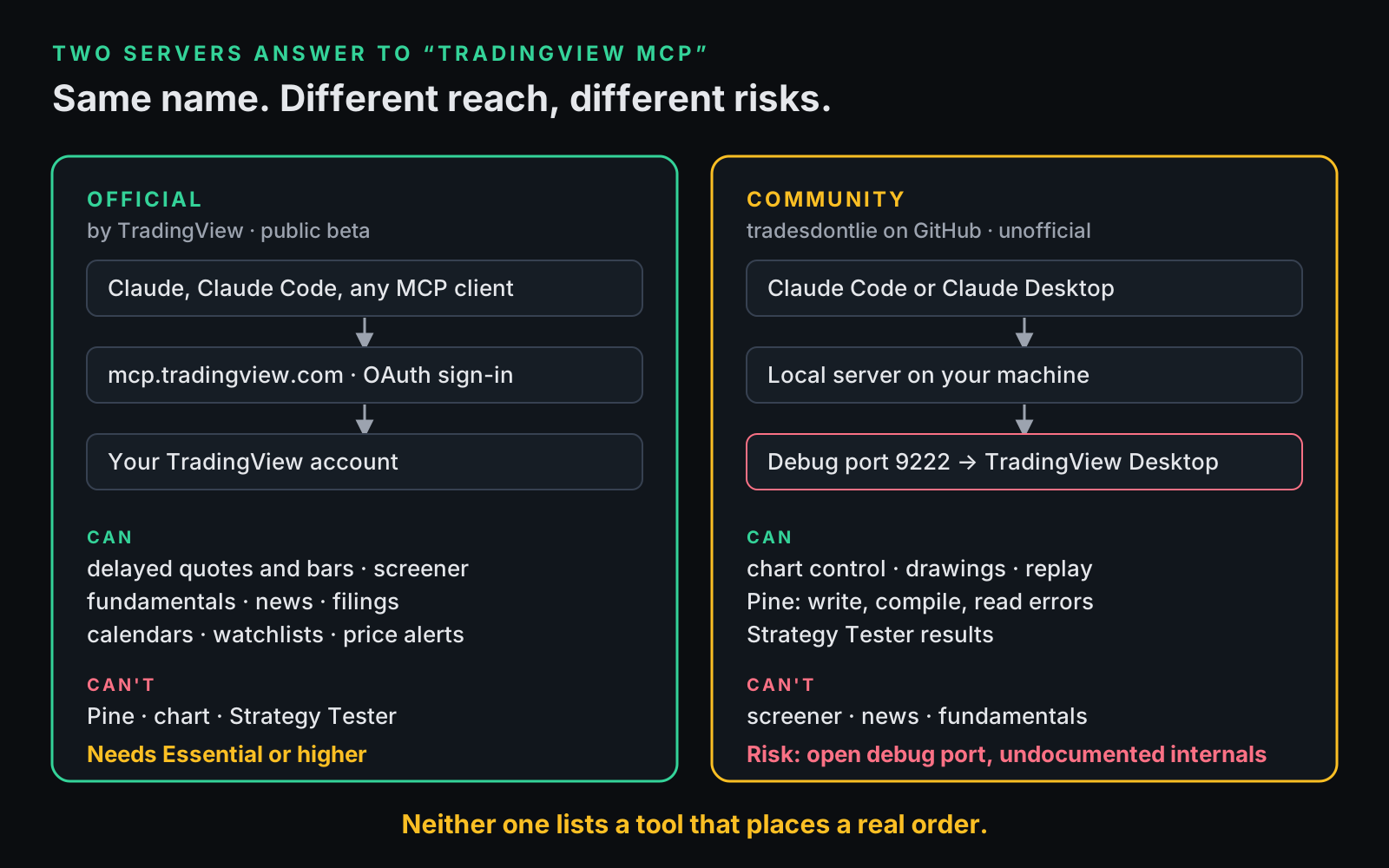
TradingView MCP lets an AI assistant such as Claude work with TradingView through the Model Context Protocol, and two different servers answer to the name. TradingView's official server, in public beta since 16 September 2026, signs in to your account and serves delayed quotes and bars, the screener, fundamentals, news, filings, calendars, watchlists and simple price alerts on Essential plans and up. A community server on GitHub drives the TradingView Desktop app on your own computer instead: it can compile Pine Script and read the Strategy Tester, and it is unofficial.
We use the community server daily, to compile Pine and to read Strategy Tester reports. We have not run the official one, because it needs Essential or higher and the account we test on is on the free plan. Everything below about the official server comes from TradingView's own announcement and MCP docs, checked 2026-10-03.
What is TradingView MCP?
MCP, the Model Context Protocol, is an open standard for handing an AI assistant a set of tools. The server lists what it can do, and the assistant decides when to call each tool. TradingView's announcement compares it to a USB-C port.
When people search "TradingView MCP", they land on one of two things:
- The official TradingView MCP Server. TradingView builds and hosts it at
https://mcp.tradingview.com/mcp. It talks to TradingView's own backend after you sign in. The docs list setup for Claude on the web, desktop and mobile, Claude Code, ChatGPT, Codex and any client that speaks MCP over streamable HTTP with OAuth 2.1. - Community servers on GitHub. The one we use is tradesdontlie/tradingview-mcp, MIT-licensed, with about 6,700 stars on 2026-10-03. Its README says it is not affiliated with TradingView. It controls the TradingView Desktop app already running on your machine through the Chrome DevTools Protocol, the debugging interface built into Electron apps.
Official vs community: what can each one do?
The official server is a research desk over TradingView's data, with no Pine, chart or Strategy Tester tools. The community server is the reverse: it works your chart and Pine Editor, and it has no screener, news or fundamentals tools. Here is the split as each project documents it.
| Official server | Community server | |
|---|---|---|
| Made by | TradingView | An independent developer, not affiliated with TradingView |
| Connects to | TradingView's servers, after an OAuth sign-in | TradingView Desktop on your machine, through debug port 9222 |
| Market data | Delayed. Up to 5,000 bars per get_ohlcv call | What your chart has loaded |
| Screener, fundamentals, news, filings, calendars | Yes | No tools for these |
| Watchlists | Read, create, edit, delete | Read and add symbols |
| Alerts | Simple price alerts only. No webhook or indicator alerts through MCP | Create, list and delete price alerts |
| Pine Script | No tools | Write, inject, compile, read errors, save |
| Strategy Tester | No tools | Reads results, trade list and equity |
| Chart control | No tools | Symbol, timeframe, indicators, drawings, replay, screenshots |
| Real orders | No order tool listed | README: does not execute real trades |
| Stability | Public beta. TradingView says the tool list is limited and some tools may not work smoothly yet | Uses undocumented internals that can break with any TradingView update |
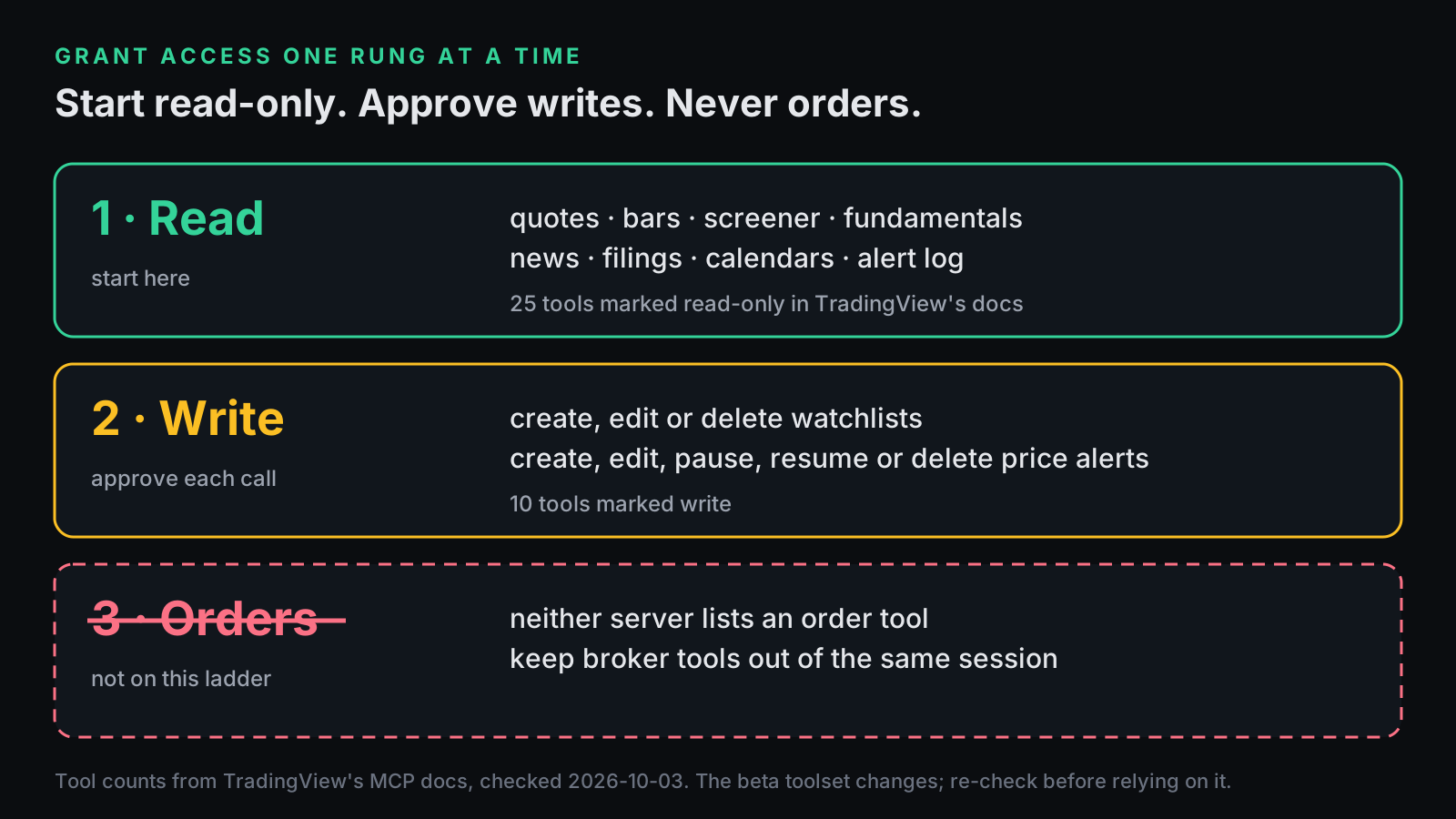
On 2026-10-03 the official docs listed 35 tools. Twenty-five are marked read-only and ten are marked write, and every write tool touches watchlists or alerts. TradingView says the toolset will grow, so ask your assistant to list the current tools before you trust this table.
Which TradingView plan do you need for MCP?
The official server needs Essential or higher, and TradingView's docs say trial plans don't include MCP access. Essential is listed at $12.95 a month billed annually, marked as a special price on TradingView's pricing page (checked 2026-10-03). Tool calls are rate-limited to about 100 a minute per user, and during the beta TradingView says it may also cap requests per day.
The community README asks for a valid TradingView subscription plus the Desktop app, and notes that real-time data needs a paid plan. We run it on the free Basic plan, inside Basic's own limits, such as two indicators per chart.
How do you connect Claude to the official TradingView MCP server?
In Claude's apps, add https://mcp.tradingview.com/mcp as a custom connector and sign in to TradingView. In Claude Code, add it with one command and authorize it through /mcp.
For Claude on the web, desktop or mobile, Claude's custom connector guide gives these steps:
- Open Customize → Connectors. TradingView's docs call the same page Settings → Connectors.
- Click + Add, then Add custom connector.
- Name it, paste
https://mcp.tradingview.com/mcp, continue, and click Add. - Sign in to TradingView and approve access.
A free Claude plan allows one custom connector. On Team and Enterprise plans an owner adds the connector first, then members connect to it. The same help page notes that the connection runs from Anthropic's cloud, not from your computer.
For Claude Code, this is the command from TradingView's docs:
claude mcp add --transport http mcp-tradingview https://mcp.tradingview.com/mcp
Then run /mcp inside Claude Code and authorize your TradingView account in the browser. Codex users get their own line in the same docs: codex mcp add tradingview --url https://mcp.tradingview.com/mcp.
How do you connect Claude to the community TradingView MCP server?
Install the server from GitHub, start TradingView Desktop with its debug port open, then register the server with Claude Code or Claude Desktop as a local command. You need Node.js 18 or newer and the TradingView Desktop app.
Install it. These are the README's three lines:
git clone https://github.com/tradesdontlie/tradingview-mcp.git
cd tradingview-mcp
npm install
Launch TradingView with the debug port. The repo ships scripts\launch_tv_debug.bat for Windows, plus launch_tv_debug_mac.sh and launch_tv_debug_linux.sh. By hand, the flag is --remote-debugging-port=9222.
Register it with Claude Code. This is Claude Code's documented syntax for a local stdio server, pointed at the README's entry file:
claude mcp add --transport stdio tradingview -- node /absolute/path/to/tradingview-mcp/src/server.js
Or register it with Claude Desktop. Settings → Developer → Edit Config opens claude_desktop_config.json. Add the entry below with an absolute path, then quit and restart Claude Desktop, as the MCP docs describe:
{
  "mcpServers": {
    "tradingview": {
      "command": "node",
      "args": ["/absolute/path/to/tradingview-mcp/src/server.js"]
    }
  }
}
Check the wire. Ask Claude to run tv_health_check. When it reports a connection, the agent can see your chart.
Is TradingView MCP safe?
It is safe enough for research if you start read-only, approve every write, and never give the same agent a way to place orders. The community server adds a risk of its own: it needs a debug port open on an app that is signed in to your account.
Start read-only
TradingView's docs mark every official tool read-only or write. Read-only tools never modify your account; write tools create, change or delete watchlists and alerts. In Claude Code you can deny the write tools until you trust the workflow. Deny rules use the server name you chose, mcp-tradingview in the command above. Put this in .claude/settings.json:
{
  "permissions": {
    "deny": [
      "mcp__mcp-tradingview__create_watchlist",
      "mcp__mcp-tradingview__delete_watchlist",
      "mcp__mcp-tradingview__add_to_watchlist",
      "mcp__mcp-tradingview__remove_from_watchlist",
      "mcp__mcp-tradingview__update_watchlist",
      "mcp__mcp-tradingview__create_alert",
      "mcp__mcp-tradingview__update_alert",
      "mcp__mcp-tradingview__delete_alert",
      "mcp__mcp-tradingview__stop_alerts",
      "mcp__mcp-tradingview__restart_alerts"
    ]
  }
}
In Claude's apps, switch off the tools you don't need for a conversation, and keep "Allow always" for tools you would let run unsupervised. Claude's connector guide gives the same advice. When the beta adds tools, check which new ones are marked write.
Never hand an agent order execution
Neither server lists a tool that places a real order, and the community README states it does not execute real trades. Keep it that way. Don't load a broker's MCP server into the same session, and don't wire alerts into an execution bridge on an agent's say-so.
TradingView's own Terms of Use back this up. Section 3 licenses its data for display-only use and lists automated trading, automated order generation and algorithmic decision-making as prohibited non-display usage.
There is a second reason. Headlines, filings and transcripts are text the model reads, and text can carry instructions; Claude's connector guide warns about prompt injection. We made the longer case in You Gave an AI Agent the Keys.
Let the agent read the market. Keep the order ticket in your own hands.The community server's CDP risks
- The debug port is a door. The server only works because you start TradingView Desktop with
--remote-debugging-port=9222, signed in to your account. In March 2025, Google's Chrome team wrote that infostealers increasingly use Chrome's remote-debugging port to extract cookies, and that from Chrome 136 Chrome ignores the switch on its default profile. TradingView Desktop isn't Chrome, but it is an Electron app and the port is the same kind of interface. Open it when you work, close the app when you're done, and don't run it on a machine you don't trust. - One tool runs arbitrary JavaScript. The server's own description of
ui_evaluateis "Execute JavaScript code in the TradingView page context". Whatever your agent can be talked into, that tool can do inside your signed-in app. - It depends on undocumented internals. The README warns that a TradingView update can break it at any time and suggests pinning your Desktop version.
- UI tools can overwrite work. On our install,
pine_newreplaced the text in the open editor tab instead of creating a new script. Save a copy of any script before an agent touches the Pine Editor, and run one agent per chart. - Compliance is on you. The README says programmatic use of TradingView data may conflict with TradingView's Terms of Use and that you alone are responsible. Our own Evolution Lab page says the same thing about automating your desktop app.
What is TradingView MCP actually good for?
The official server is good at research chores: briefings, screens saved to watchlists, earnings and macro prep, alert follow-ups, and pulling bars into code. The community server is good at Pine work: writing, compiling, fixing errors and reading the Strategy Tester without copy-paste.
TradingView's own examples include running a screen and saving the results as a watchlist, and asking which alerts fired and what price did next. For code, get_ohlcv returns up to 5,000 bars per call. On one-minute bars that is under four days of a market that trades around the clock, and the data is delayed. That is plenty for research. It is not a feed to time entries from.
The community server earns its place in our lab. We use it to compile Pine, and to read Strategy Tester reports and per-bar indicator output when we check that a Pine tool and its web version agree. It removes copy-paste mistakes. It doesn't make a strategy any better. A connection changes what the model can reach, not whether the idea works.
If you're connecting an agent to work on Pine, give it real source to start from. Our Pine v6 tools ship as full .pine source with an AI kit (an AGENTS.md, Pine skills and prompt files), so your agent reads the actual code and its rules instead of guessing. It's a one-time purchase. The kit makes a tool readable and extendable; it doesn't make it profitable.
If you'd rather not hand-wire the community route, Pine Evolution Lab bundles an MIT-licensed copy of this bridge with a one-shot installer and works on the free TradingView plan. Your agent builds Pine strategy variants, runs each one through your own Strategy Tester, and files a verdict against its kill gates. The best verdict it gives is "promising, validate further", never "profitable", and its page flags desktop automation as a Terms of Use gray area, as above.
Which TradingView MCP should you use?
Use the official server for data and research, the community server for Pine work, and neither one for orders.
- You want data, screens, research and alerts inside Claude, and you already pay for Essential or higher. Use the official server. It is TradingView's own route, and it never touches your chart.
- You write Pine and want the agent to compile it and read the tester. Use the community server, on a machine you control, and close the debug port when you're done.
- You want both. That works. Just never in a session that also holds a broker tool.
Sources, checked 2026-10-03: TradingView's MCP announcement, MCP docs, pricing and Terms of Use; the tradesdontlie/tradingview-mcp README; Claude's connector guide; Claude Code's MCP and permissions docs; and Chrome for Developers.