TradingView indicators come in three kinds: built-in indicators written by TradingView, community scripts published by its users (open-source or protected), and invite-only scripts that need the author's permission. To add any of them, click Indicators on the chart's top toolbar or press /, type a name and click the result. We read TradingView's help center and pricing page on 2026-10-18.
TradingView's 400+ most popular built-ins and the free community scripts are on every plan, Basic included; a few built-ins aren't (Volume Profile indicators need Essential or higher; TPO, Volume footprint and Auto chart patterns need Premium or higher), per the pricing page.
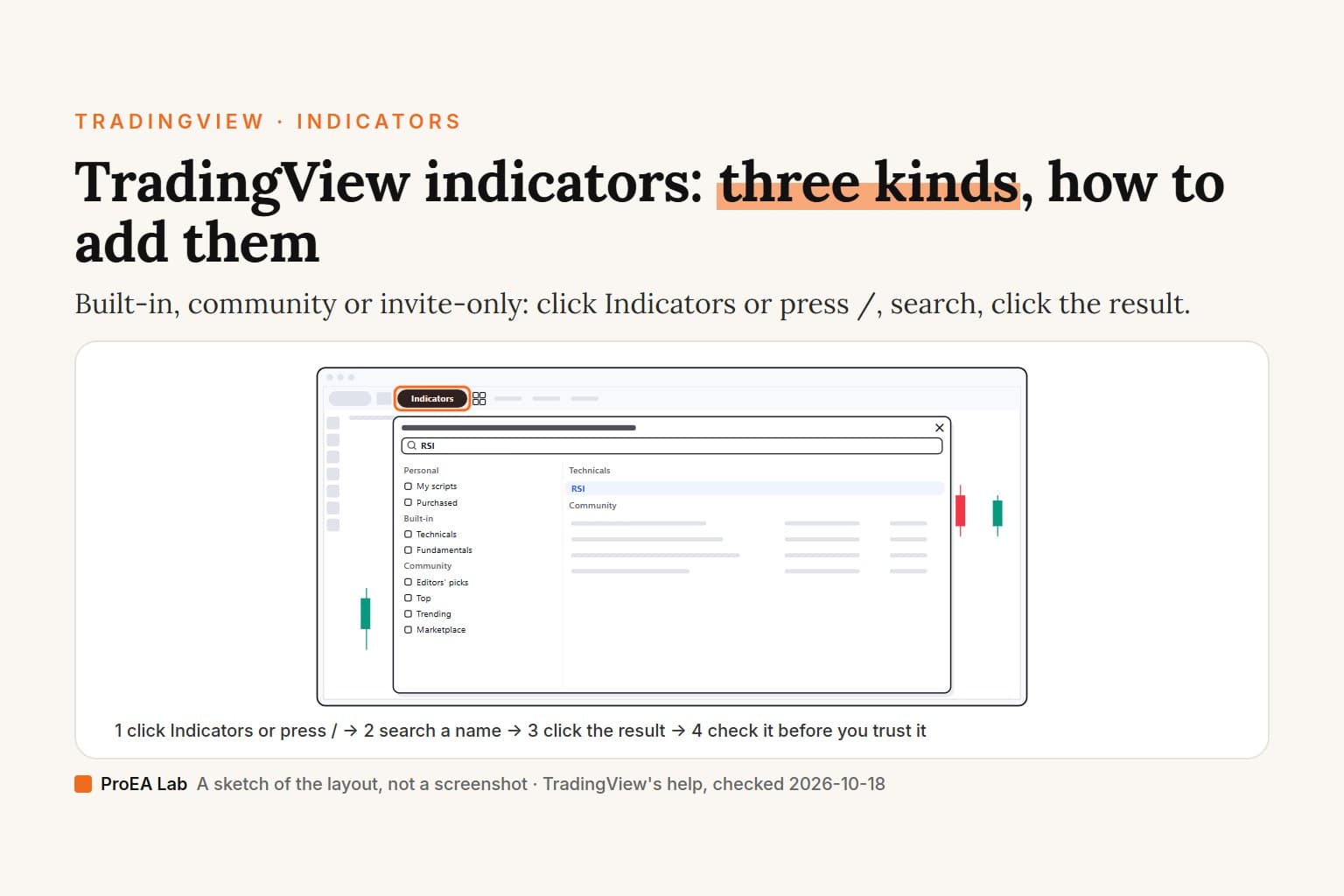
A simulated sketch of the layout, not a screenshot: no symbols, prices or script names. The Favorites and Invite-only sections follow TradingView's help, not a test: signed out, we had neither.
Read as text
- 1. Open Indicators: on the top toolbar, or press /.
- 2. Type its name: in Search, or browse Technicals.
- 3. Click the result: built-ins are listed under Technicals.
- 4. It's on the chart: an oscillator gets its own pane.
- Most built-ins are on every plan; a few need a paid plan. Sign in first: a free account is enough.
How this window was chosen: Places and section names from TradingView's help center and Pine docs on adding, favoriting and invite-only scripts, and our signed-out look at the Indicators dialog, all on 2026-10-18. TradingView moves its controls between versions.
What are the three kinds of TradingView indicators?
Built-in, community and invite-only; the difference is who wrote the script and whether you can read or freely add it. TradingView's pricing page lists "400+ pre-built most popular indicators" and "100K+ community-powered indicators" on all five plans, Basic included.
| Kind | Who writes it | Can you read the code? | Can anyone add it? | Where in the Indicators dialog |
|---|---|---|---|---|
| Built-in | TradingView | Most, read-only | Most on every plan; a few need a paid plan | Built-in: Technicals, Fundamentals |
| Community, open-source | A TradingView user | Yes | Yes | Community, or search |
| Community, protected | A TradingView user | No | Yes | Community, or search |
| Invite-only | A TradingView user | No | Only with the author's permission | Invite-only, once you have access |
Built-in scripts "are indicators or strategies written by TradingView; they are not published in the Community Scripts" (built-in source help). Most are in Pine Script, so you can open their code read-only. A few aren't: TradingView names its Volume Profiles and Chart Pattern scripts as ones whose source is unavailable.
Community scripts come in TradingView's three visibility types (script types help). Open: "Every user is able to see a source code of your script, apply it to the chart & add it to favorites". Protected: "Every user can add this script to the chart or favorites, but only the author can see the source code". The Pine docs count "more than 150,000 scripts, half of which are free and open-source" (First steps).
Invite-only scripts carry a lock icon next to their title. "Nobody can add it to a chart without explicit permission from the author", and access "is not included in any plan" (invite-only help). What changes when you pay for one is the subject of our page on buying TradingView indicators. TradingView's November 1, 2026 rule on selling invite-only access is covered further down.
How do I add an indicator on TradingView?
Click Indicators on the chart's top toolbar, then search for the one you want and click it. TradingView's help in one line: "Click the Indicators button in the top toolbar, start typing the name of the indicator and then click on the indicator on the right hand side of the dialog to enable it." On a computer:
- Open a chart (Supercharts, tradingview.com/chart).
- Click Indicators on the top toolbar, or press / (Pine docs). The dialog is called Indicators, metrics, and strategies.
- Type a name in Search, or browse a section on the left.
- Click the indicator. "Clicking on one of the listed indicators or strategies loads the script on your chart", say the Pine docs.
You need to be signed in, though a free account is enough. Signed out on 2026-10-18, the dialog opened and searched, but clicking a result brought up a box that read "You'll need a free account to access." A search splits its results into Technicals (the built-ins) and Community, with each community script's author and boosts beside it.
In that signed-out look, the dialog's left side had three groups: Personal (My scripts, Purchased), Built-in (Technicals, Fundamentals) and Community (Editors' picks, Top, Trending, Marketplace). Technicals splits into Indicators, Strategies, Profiles, Patterns and Options. TradingView documents two more sections we didn't see signed out: Favorites, for scripts you've starred, and Invite-only ("Invite-only scripts" in the help's words), which "appears as soon as a user is given access to an Invite-Only script" (help). Strategies sit in the same dialog, marked "by a special symbol that appears to the right of the script name".
TradingView's own pages name these sections differently. Its getting-started article says "Technicals, Fundamentals, or Community Scripts tabs", the Pine docs list Favorites, Personal, Technicals, Financials, Community and Invite-only, the Supercharts guide lists Technicals, Fundamentals, Strategies and Store, and the dialog we saw matched none of them exactly. The steps are the same either way.
From a script's page. Every published community script has its own page, which you can reach from the Community scripts feed at tradingview.com/scripts/. Click Use on chart, "and a new tab will open with your chart where the selected indicator or strategy will be automatically applied" (help). If the button is unavailable, the same help says, the script is invite-only.
Your own script goes on the chart from the Pine Editor, and afterwards from My scripts. How to add Pine Script to TradingView walks through the paste, save and Add to chart.
Once it's on the chart, hover over its name at the top left and its buttons appear. Settings opens three tabs: Inputs, Style and Visibility. The ? next to a built-in's name opens TradingView's article on it.
How do I add indicators on the TradingView app or a phone?
In a phone's browser, the same way as on a computer; for the iOS and Android apps, TradingView's help doesn't give the steps. We loaded tradingview.com/chart with an iPhone's screen size and browser (an emulator, signed out) on 2026-10-18. The top toolbar still had Indicators at its right end, and tapping it opened the same dialog, full screen, with the same Personal, Built-in and Community groups.
For the apps, TradingView documents what to do after an indicator is on the chart, not how it gets there:
- Remove or change one: "open the chart legend by clicking the arrow button under the symbol name", then the trash icon removes it and the gear icon opens its settings (help).
- Hide one: the eye icon in the legend, on iOS and Android.
- Read its values: "On mobile devices only Last and Daily Change values are displayed on the chart by default"; a long tap on a bar shows the indicator values (help).
We haven't tested the apps, so we won't give a tap path for adding one there. If you plan to subscribe to a paid indicator, do it on a computer: TradingView sells Paid Spaces on the web version only (below).
How do I favorite an indicator?
Click the star next to its name. TradingView's favorites help: "just click on the star symbol located next to the name or icon of this tool." In the Indicators dialog the star appears "to the left of the script name when you hover over it", and favorited scripts are listed under Favorites (Pine docs). The same help says analysis tools you favorite are "in the dropdown menu or in the Favorites tab". In our signed-out look, hovering a search result showed the star at the left of the row.
A favorite is a shortcut to the script, nothing more; the help pages and the pricing page give no limit on how many you can keep.
What are indicator templates?
A saved set of indicators you can load onto any chart at once. In TradingView's words, "a way of grouping several indicators together into a single package, which you can later apply to any chart".
- Put the indicators you want on a chart and set them up.
- Click Indicator templates on the top toolbar, next to Indicators.
- Choose Save indicator template and name it. You can "remember" the symbol and interval too, so they load with it (Supercharts guide).
- Later, open the same button on any chart and click the template.
Six templates come built in: Bill Williams' 3 Lines, Displaced EMA, MA Exp Ribbon, Oscillators, Swing Trading and Volume Based. Oscillators, for one, adds Volume, RSI, Stochastic RSI and CCI.
The free plan's catch is the count. The pricing page gives Basic 1 custom indicator template and the paid plans an unlimited number (∞), read 2026-10-18.
How many indicators can you add on the free plan?
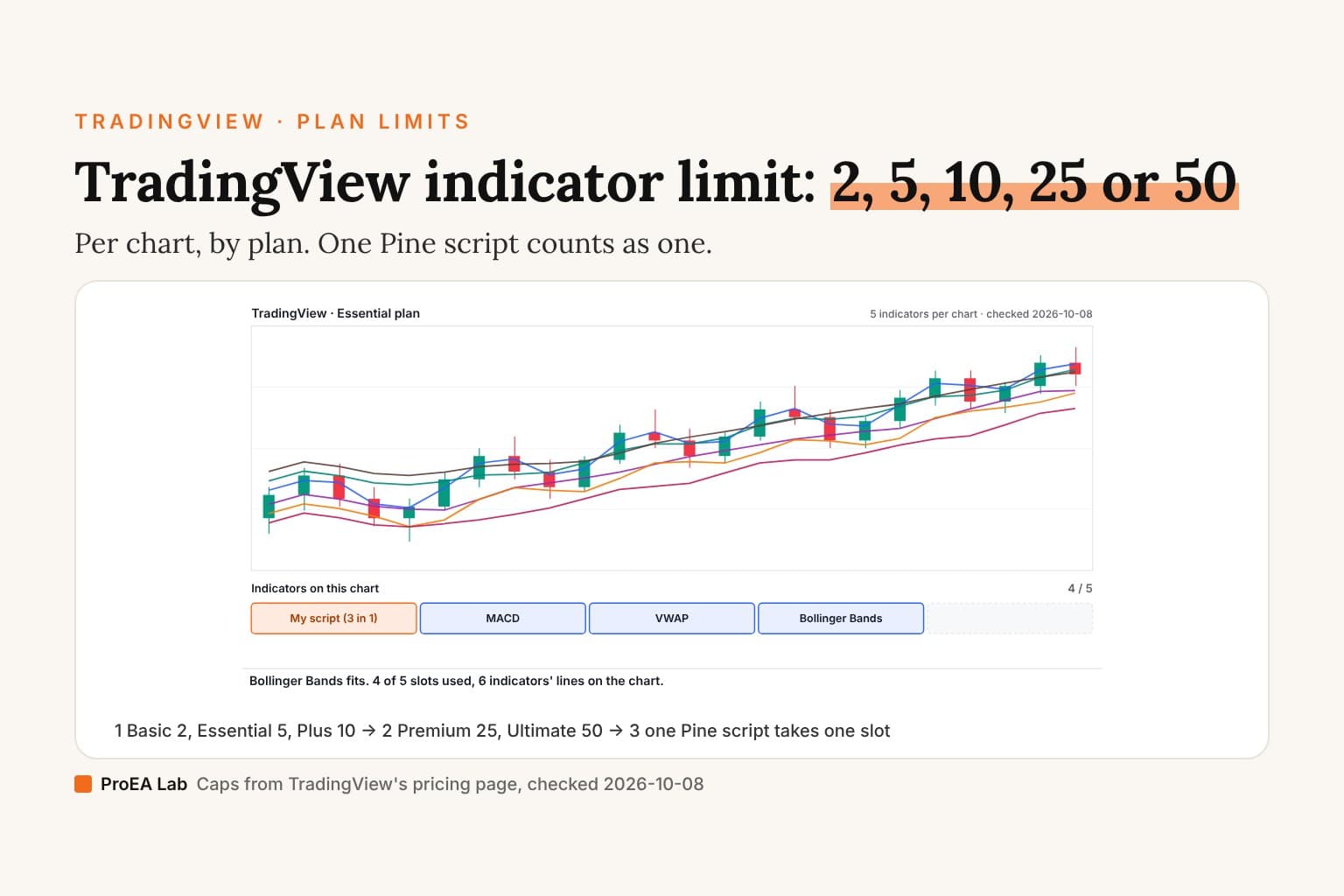
Two per chart on Basic; Essential 5, Plus 10, Premium 25, Ultimate 50, from TradingView's pricing page on 2026-10-18. What counts toward that cap, and the one way past it without a bigger plan, is on our indicator-limit page.
Which built-in indicators should you learn first?
The ones that cover different questions: trend, momentum, volatility and volume. This is our starting set from TradingView's built-in list, not a ranking, and the definitions are TradingView's. No indicator here tells you what price does next; TradingView's own getting-started article says "There are no universal indicators that work perfectly for all cases and all traders."
| Question | Built-in | TradingView's definition |
|---|---|---|
| Which way is price going? | Moving averages (SMA, EMA) | "a price based, lagging (or reactive) indicator that displays the average price of a security over a set period of time" |
| How fast is it moving? | Relative Strength Index (RSI) | "used to measure the speed (velocity) as well as the change (magnitude) of directional price movements" |
| Is momentum turning? | MACD | "a momentum indicator that measures the difference between two moving averages" |
| How wide is the range? | Bollinger Bands | a middle line "usually a Simple Moving Average (SMA) set to a period of 20 days", with bands typically two standard deviations either side |
| How far does it move? | Average True Range (ATR) | "a tool used in technical analysis to measure volatility"; "not used to indicate the direction of price" |
| How much is trading? | Volume | "used to measure how much of a given financial asset has traded in a specific period of time" |
| What's the average price, by volume? | VWAP | "used to measure the average price weighted by volume", "typically used with intraday charts" |
TradingView itself calls a moving average "not used as a predictive indicator but rather an interpretive one". That's a fair way to read the whole table.
What are the best free indicators on TradingView?
We haven't checked enough of them to rank them, so we won't. TradingView sorts its Community section three ways, and none of them measures how a script trades:
- Editors' picks "only shows open-source scripts hand-picked by our script moderators" (Pine docs). They are chosen from scripts "that are original, provide potential value to users, include a helpful description, and comply with our House Rules" (publishing docs).
- Top shows "the most popular scripts of all time".
- Trending shows "the most popular scripts that were published recently".
The dialog lists each script's author and its boosts. Where we did read the code, we published what we found: for smart money concepts tools, our repaint-checked comparison reads six of the most-boosted open-source scripts line by line, and our LuxAlgo pricing and feature review checks the biggest commercial suite. For anything else, the next section is the check we'd run before calling a free script good.
How do you check an indicator before you trust it?
Start with its settings and, if it's open source, its code; then watch how it behaves on bars you didn't choose. Four checks, cheapest first:
- Settings. Open Settings and read the Inputs tab. Defaults are the author's choice, and two people running "the same" indicator with different inputs are running different tools.
- The source, if it's open. An open-source script's page shows its code, and on the chart the Source code button (curly braces) opens it in the Pine Editor. No lock icon on a script's widget means open source, per the Pine docs. You also get its history: open-source Pine scripts keep a Version history, and "the most recent published version of the indicator is added" when you add one (help). Protected and invite-only scripts don't show their code, which leaves you their description and how they behave on the chart.
- Repainting. A script that decides on the bar still forming can show a cleaner history after a reload than it showed live. Our 20-minute repaint audit runs the reload, replay and alert checks; you don't need to read code for it.
- History you didn't choose. Step through old bars with Bar Replay, or try the indicator in paper trading, which TradingView's getting-started article also recommends. If it's a strategy, the Strategy Tester has settings to check before you believe its report.
For invite-only scripts, TradingView's own checklist is worth reading before you ask for access. It includes "Is there a track record of past trades on a real account?", "Was the script backtested?" and "Does the author offer a trial period?". TradingView's own advice on the same page: "we recommend that you do your own research before using any invite-only scripts."
An indicator describes the bars you already have. The checks above tell you whether it described them honestly.Where do paid indicators fit?
On TradingView itself, paid indicators are now sold as Paid Spaces in its Marketplace, by monthly subscription. A Paid Space is "a collection of invite-only indicators and strategies offered by an Author for a monthly fee" (Creator Program terms). The terms say "Free and paid TradingView users can subscribe", subscribing "is currently available only on the web version of TradingView", and you can cancel in account settings with access lasting "until the end of the billing period". TradingView's Terms of Use add that Paid Spaces subscriptions "are eligible for a refund if requested within 7 calendar days after the payment is made".
In the dialog we saw on 2026-10-18 that section is called Marketplace. TradingView's Supercharts guide still calls it the Store, and so does the empty Personal → Purchased section: "No scripts here yet — discover the Store".
The bigger change is to invite-only scripts sold elsewhere. A TradingView blog post of September 30, 2026 says that selling access to an invite-only script "will no longer be permitted starting November 1, 2026". Section 23 of the Terms of Use now reads: "Scripts available for Commercial Use are only permitted to be distributed via the Marketplace." The same post says people who already paid "can keep using it for the period already purchased, including lifetime access", but after that date vendors "may not take new payments outside the Marketplace to renew, extend, or maintain access".
TradingView's pages disagree on this for now. Its Pine publishing docs still describe invite-only sales as "strictly between users and vendors"; the Terms of Use and the September post describe the new rule. Our TradingView Marketplace guide quotes both, with what the rule does and doesn't cover.
If you pay for an invite-only script through a vendor's own site, ask the vendor before your next renewal whether it's moving to the Marketplace. Buying TradingView indicators covers what each access model lets you keep.
Where we stand
Our TradingView account is on the free Basic plan. For this page we opened the chart and the Indicators dialog signed out, on a computer and in an emulated iPhone browser, and took everything else from TradingView's help center, Pine docs, pricing page, terms and blog, read on 2026-10-18. We didn't sign in to favorite an indicator, save a template, ask for invite-only access or subscribe to a Paid Space, and we didn't test the iOS or Android apps.
We sell Pine indicators as source code: our Pine v6 stack ships each tool as a .pine file you paste into the Pine Editor and save, so it sits under My scripts like any script you wrote. That's our interest in this topic. It's also why we put the free routes first and rank no one's scripts here, ours included.
We aren't affiliated with TradingView.
Use this animation on your site.
Frequently asked questions
How do I add indicators on TradingView?
On the chart, click Indicators on the top toolbar or press /, type the indicator's name and click it in the results to load it on the chart. You need to be signed in, but a free account is enough. From a community script's own page, the Use on chart button opens your chart with it applied, in a new tab.
How many indicators can I use on TradingView for free?
Two per chart on the free Basic plan, per TradingView's pricing page read on 2026-10-18. Essential allows 5, Plus 10, Premium 25 and Ultimate 50.
Are TradingView indicators free?
TradingView's 400+ most popular built-ins and the community's open-source and protected scripts are free to add on every plan, Basic included; a few built-ins, such as the Volume Profile indicators, need a paid plan. Invite-only scripts need the author's permission. TradingView's own store for paid ones is its Marketplace, where they're sold as monthly Paid Spaces.
What is an invite-only indicator on TradingView?
A community script with a lock icon that nobody can add without the author's permission, and whose code only the author can see. Access isn't part of any TradingView plan. From November 1, 2026, TradingView's terms allow selling access to scripts only through its Marketplace.
How do I save my indicators on TradingView?
Two ways. Click the star next to an indicator's name to make it a favorite, or put several on a chart and save them as an indicator template from the Indicator templates button. Basic allows 1 custom template; the paid plans have no limit.
Can I add indicators in the TradingView mobile app?
TradingView's help covers removing, hiding and changing an indicator in the iOS and Android apps, but we found no help article with the steps to add one, and we haven't tested the apps. In a phone's browser, the chart's Indicators button opened the same dialog as on a computer in our check.
Do TradingView indicators repaint?
Some do. A script that draws on the bar still forming, or reads higher-timeframe data the wrong way, can show a different history after a reload than it showed live. Check the source if it's open, then run the reload and replay test before you trust its signals.