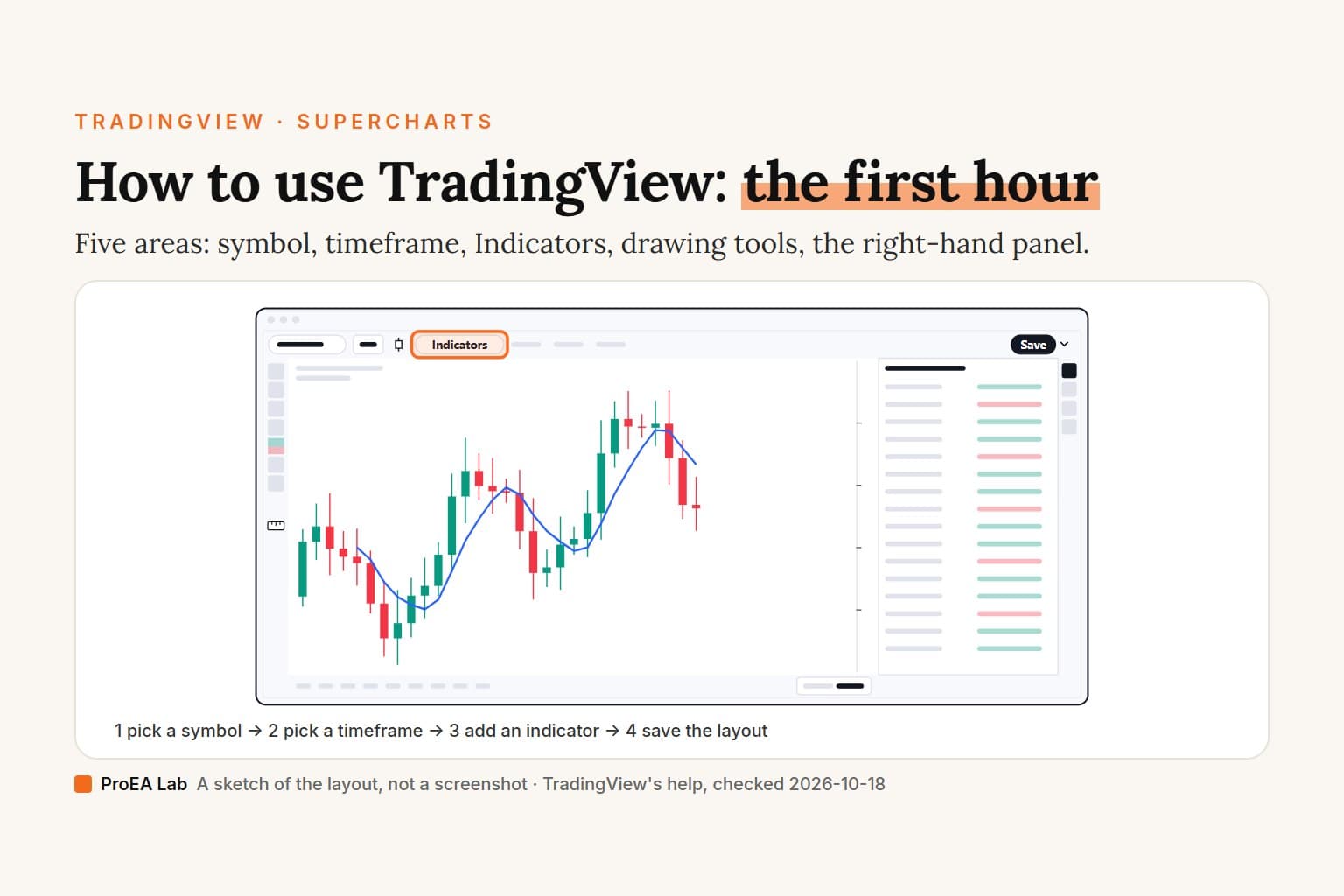
To use TradingView, open the chart at tradingview.com/chart, type a ticker to load a symbol, pick a timeframe from the button beside it, and add an indicator from Indicators, or press /. Then draw with the tools down the left edge and save the layout with Ctrl + S. Signed out, adding an indicator, drawing and saving each asked us to join for free. We read TradingView's help and checked the chart signed out on 2026-10-18.
A simulated sketch of the layout, not a screenshot: made-up candles, no tickers or prices, and only the controls this page names are labeled. Signed out, adding an indicator, drawing and saving asked us to join, so those steps follow TradingView's help, not a test.
Read as text
- 1. Symbol search: top left: click the name, or start typing.
- 2. Timeframe: the interval button beside it.
- 3. Indicators: the top toolbar, or press /.
- 4. Drawing toolbar: down the left edge.
- 5. Right-hand panel: watchlist, alerts, object tree and more.
- Two more for the first hour: the time zone clock under the chart, and Save, top right.
How this window was chosen: Places and control names from TradingView's help center on Supercharts, symbol search, intervals, indicators, time zones, drawing tools, the long and short position tools and layouts, and our signed-out look at the chart, all on 2026-10-18. TradingView moves its controls between versions.
What are the five areas of the TradingView chart?
The symbol and the timeframe sit at the top left, the Indicators button next to them, the drawing tools down the left edge and the watchlist panel on the right. TradingView calls this full chart Supercharts. Its getting-started guide splits the screen into a top toolbar, a left toolbar, a right toolbar and a bottom panel; the top toolbar is where "you can choose symbols, chart intervals and types, indicators, layouts".
| Area | Where it is | What you do there |
|---|---|---|
| Symbol search | Top left, on the ticker's name | Load a stock, pair, coin, index or future |
| Timeframe | The button right of the symbol | Set how much time one candle holds |
| Indicators | The top toolbar, or press / | Add moving averages, RSI and the rest |
| Drawing toolbar | Down the left edge | Lines, Fibonacci, the measure and position tools |
| Right-hand panel | The right edge | Watchlist, alerts, object tree, screeners, Pine Editor |
Two more controls come up in the first hour. The time zone is the clock near the right end of the bar under the chart, and Save is near the top right.
You can look without an account, but not do much. Signed out, the chart loaded and its menus opened for us. Clicking an indicator brought up "You'll need a free account to access", picking Long position offered to "Join for free to access long position and every other drawing tool", and Save asked us to join so the layout could be kept. The Basic account costs $0, "forever" with "No credit card needed", per TradingView's pricing page.
How do you change the symbol on TradingView?
Click the symbol's name at the top left, or just start typing on the chart, and pick the right row from the list. The steps on a computer, from TradingView's symbol search help:
- Click the symbol name in the top-left corner, or type any letter while the chart is focused.
- Type a ticker (NVDA), a name or keyword (gold, pound), or an ISIN or CUSIP code.
- Narrow the list with the tabs if you need to: Stocks, Funds, Futures, Forex, Crypto, Indices, Bonds, Economy and Options.
- Read the row before you click. It shows the symbol, the full name, the type and the exchange or data source, and "different instruments can share the same letters": MES is both a futures contract and a Morningstar index.
- Click the row. The chart switches and, per the layouts guide, keeps your indicators and style.
To point to one exact listing, TradingView puts the exchange in front: NASDAQ:AAPL. A future ending in 1!, such as ES1!, is a continuous contract that "always shows the nearest expiration".
One help page disagrees with the chart. The symbol search article says Ctrl + K (Cmd + K on a Mac) opens symbol search. On the chart, Ctrl + K opened Quick search ("Search tool or function") for us, which is what the Quick search help and the chart's own shortcut list say. On Supercharts, type a letter instead.
How do you change the timeframe?
Click the interval button right of the symbol and pick one, or click the chart and type a number of minutes, then press Enter. TradingView calls the timeframe the interval; ours read D for 1 day. From the time intervals help:
- Click the interval menu in the top toolbar.
- Pick from minutes (1 to 45), hours (1 to 4) or days, weeks and months. Seconds and ticks are in the menu too, but the pricing page gives seconds from Plus up and ticks to Ultimate only.
- Click the star next to the ones you use. "Favorite intervals appear right on the top toolbar, so you can switch with one click."
Typing is quicker once you know it. Type 45 and Enter for 45-minute candles; letters set longer units, so 1W is one week and 3M three months (quick-change help). A value that isn't in the menu, such as 12D or 205 minutes, is a custom interval, and the pricing page doesn't tick Custom time intervals for Basic.
The 1D, 5D … All buttons under the chart look like timeframes but set a date range. 1D shows one trading day "using one-minute intervals", and All shows all history "using monthly intervals" (getting-started guide), so they change the interval too.
How do you read a chart on TradingView?
Each candle holds four prices for its interval: where it opened, the high, the low and where it closed. On a 4-hour chart, each candle covers four hours of trading, says TradingView's interval help. Rest the cursor on a candle and its start time shows at the bottom of the chart; its open, high, low and close show next to the symbol's name at the top left (O, H, L and C in our check).
The right-most candle may still be forming. While the market is open it changes with every trade; after the close it holds the session's last prices "until the market opens again". TradingView's example is Nasdaq, open 9:30 to 16:00 New York time: 13:30 to 20:00 UTC and 14:30 to 21:00 London time while both countries are on summer time, as they were when we checked.
The chart type button, right of the interval, listed 21 types for us, from Bars, Candles and Line to Heikin Ashi, Renko and Point & figure; the pricing page gives Basic 17 of them. Renko and the other price-based types "don't factor in time" (chart types help), so start on candles.
How do you change the time zone on TradingView?
Click the clock near the right end of the bar under the chart and pick a city, UTC or Exchange. Ours read UTC signed out. TradingView's time zone help gives two routes:
- Click the clock in the bottom bar and choose a zone.
- Or open the chart settings (the gear on the top toolbar, or double-click the price line or a bar), go to the Symbol tab and set Timezone.
The menu lists cities with their offsets. On 2026-10-18 it showed (UTC-4) New York, (UTC-5) Chicago, (UTC+1) London, (UTC+8) Singapore and (UTC+11) Sydney among them. With Exchange, "the chart will automatically switch to this exchange's time" (settings help).
The setting moves the chart's clock; it doesn't affect alerts. Alert pop-ups, the alert manager and the alerts log show your computer's time zone (alerts time zone help). To see the main sessions side by side on your own clock, our forex market hours page lays them out.
How do you add indicators on TradingView?
Click Indicators on the top toolbar, or press /, search for the indicator and click it. Signed out, that click asked us to join for free. The steps on a computer, from TradingView's indicators help and our look at the dialog:
- Click Indicators, or press / with the chart focused. The dialog is called Indicators, metrics, and strategies.
- Type the indicator's name in the search box.
- Click the result to add it.
- Find its name at the top left of the chart, under the symbol. On the Volume line already there, we saw buttons to hide it, open its settings and remove it.
Basic holds 2 indicators per chart. The three kinds of indicator, favorites, templates and how to check a script before you trust it are in our TradingView indicators guide.
How do you use the measure tool on TradingView?
Hold Shift and click on the chart where a move starts, then pick the point where it ends. That's the chart's own shortcut: the tooltip on the Measure button reads "Shift + Click on the chart". Or click Measure, the ruler icon on the left toolbar, first. TradingView's drawing tools help says it measures "the distance between bars in either direction" and shows the price change.
For a measurement you can keep, style and move, use the measurers in the Forecasting and measurement tools group on the left toolbar (range tools help):
| Tool | You place | Its label shows |
|---|---|---|
| Price range | Two points, one above the other | The move in price, percent and pips (ticks) |
| Date range | Two points, side by side | Bars, time elapsed and, optionally, volume |
| Date and price range | Two points, corner to corner | Both in one label |
If every click starts a new drawing, Keep drawing is on; the pencil icon on the left toolbar turns it off (help).
How do you use the long and short position tools?
Pick Long position or Short position from the Forecasting and measurement tools group, place it on the chart and enter your account size and risk. In our check, Long position was the group's default icon on the left toolbar. The tool estimates "how an order will go" without placing one. From TradingView's long and short position help:
- Open the Forecasting and measurement tools group and choose Long position (a buy) or Short position (a sell).
- Place it on the chart. The help doesn't describe this click, and signed out we couldn't try it.
- In its properties dialog, enter your account size and the risk, as an amount or a percentage of the account. Lot size, leverage and the entry, target and stop prices are there too. Click OK.
- Read the tags: the position size, the balance if the target or the stop is hit, the risk/reward ratio and the profit and loss.
An invented example shows what the tags compute. Say a long at 100.00, a stop at 98.00 and a target at 104.00 on a stock, with a 10,000 account and 1% risk. The risk/reward ratio is (104 − 100) ÷ (100 − 98) = 2. The risk is 100, and 100 ÷ 2 per share is 50 shares: the size TradingView's formula gives with a point value and a lot size of 1, unless the leverage setting caps it lower. Our risk/reward calculator does the same sum away from the chart.
The tool can carry an alert: right-click it and choose "Add alert on long/short position…", and it tells you when price reaches the entry, then the target or the stop. That's a technical alert, and the pricing page gives Basic none (Essential has 20). To place simulated orders instead of drawing them, use Paper Trading (below).
How do you save a layout on TradingView?
Sign in, then click Save near the top right or press Ctrl + S (Cmd + S on a Mac). A layout is "your saved workspace", says TradingView's layouts guide: it keeps "the symbol, interval, chart type, indicators, drawings, colors, and settings". The steps:
- Sign in or create a free account. Signed out, Save asked us to join first.
- Click Save, or press Ctrl + S (Cmd + S).
- To stop thinking about it, open Manage layouts (the arrow beside Save) and turn on Autosave.
- On a paid plan, a second setup is Manage layouts → Create new layout, named and saved.
Basic keeps 1 saved chart layout, Essential 5 and Plus 10; Premium and Ultimate show an infinity sign on the pricing page. On Basic, one layout whose symbol you change is the practical route: "When you change a symbol in a layout, it keeps your indicators and style."
Three things catch beginners. A blue "Save" sign under the layout's name means unsaved changes, and if the same layout is open in two tabs, TradingView recommends saving in each (help). Drawings belong to a symbol: switch from TSLA to NVDA and they disappear, switch back and they return. And watchlists and alerts aren't stored in layouts; if you delete a layout, "restoring it will not be possible" (interaction help).
What can you do on the free plan?
On Basic, TradingView's pricing page allows 2 indicators per chart, 1 saved layout and 1 chart per tab, and every plan gets the 110+ drawing tools (read 2026-10-18). The counts on each paid plan are in our indicator limit guide and, for alerts, how to set alerts on TradingView. We haven't run these steps signed in, on Basic or any other plan.
Which TradingView hotkeys should you learn first?
Press Ctrl + / on the chart for the full list; these are the ones a first hour uses. We read them from that list on Windows on 2026-10-18. For a Mac, TradingView's help gives Cmd + S to save, Cmd + K for Quick search and ⌥ + A for an alert; a 2023 TradingView blog post gave Cmd + / for the list. We didn't check other Mac keys.
| Action | Windows shortcut |
|---|---|
| Show every shortcut | Ctrl + / |
| Change symbol | Any letter key |
| Change interval | Any number key, or comma |
| Open indicators | / |
| Quick search | Ctrl + K |
| Measure | Shift + click |
| Trendline | Alt + T |
| Horizontal line | Alt + H |
| Fib retracement | Alt + F |
| Add alert | Alt + A |
| Undo, redo | Ctrl + Z, Ctrl + Y |
| Reset chart view | Alt + R |
| Save layout | Ctrl + S |
TradingView Desktop adds its own window shortcuts, such as Ctrl + T for a new tab (desktop shortcuts help).
Does TradingView work the same on a phone or tablet?
It's the same account and the same layouts, but TradingView's help documents few of these steps for the apps, and we haven't tested them. What the help does say:
- The iOS app opens "the last chart you viewed in either the web browser or on the TradingView Desktop app", and you load another layout from the bottom menu (app chart help).
- In the iOS app, an indicator is hidden or shown with the eye icon "in the legend under the ticker name" (iOS help). In the Android app, the Analysis Hub sits "near Drawings icon" in the lower toolbar (Android help).
So the practical order is to set the layout up on a computer, save it, and open it on the phone. In a phone's browser, our Pine Editor guide found a phone layout without the right toolbar (in an emulator), and covers the desktop-site workaround.
What should you learn after the first hour?
Each of these has its own guide; here is one line on where it lives on the chart, and the link.
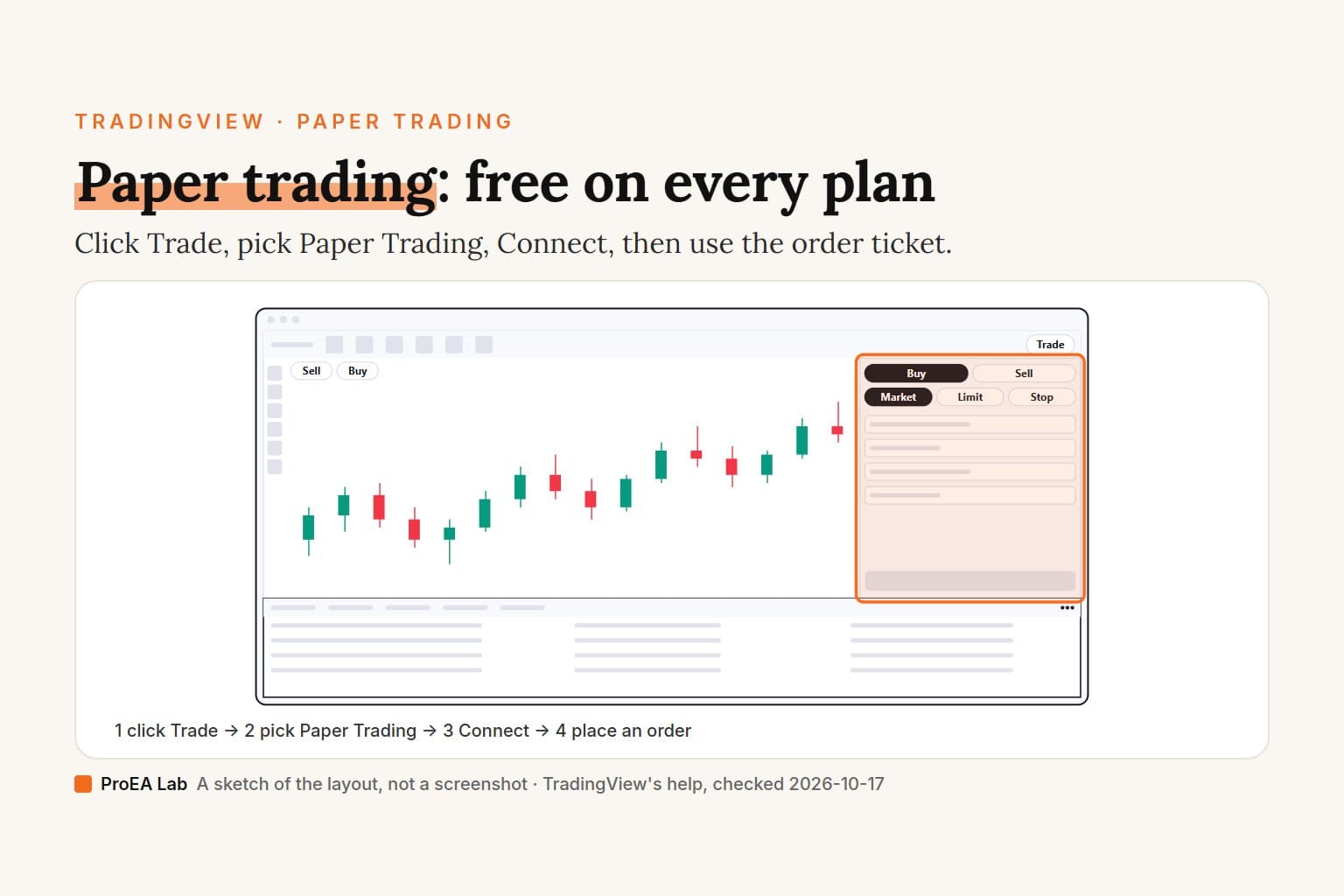
- Paper Trading. Trade, at the top right, is where "you can connect to Paper Trading and the integrated brokers". Setup, reset and where it isn't realistic: TradingView paper trading.
- Bar Replay. Replay, on the top toolbar, lets you "go back in time" and practice decisions on past bars: TradingView Bar Replay.
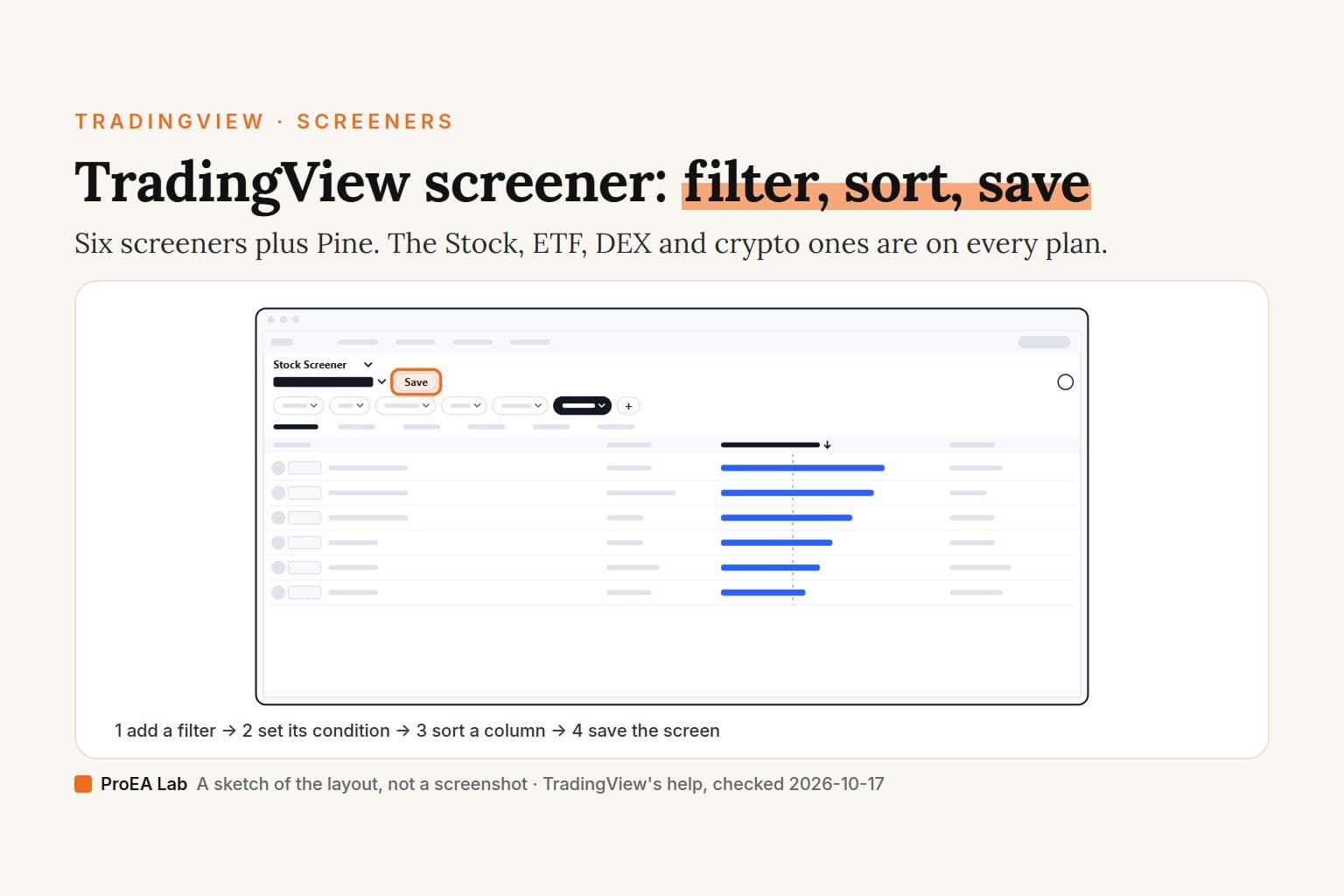
- Screeners. On the right toolbar, they let you "browse markets without leaving your chart": TradingView screener.
- Alerts. Alert on the top toolbar (its tooltip says Create alert), or Alt + A, watches a price, an indicator, a strategy or a drawing: how to set alerts on TradingView. When one stays silent: TradingView alert not triggering.
- Desktop app. The same chart in its own window: TradingView Desktop.
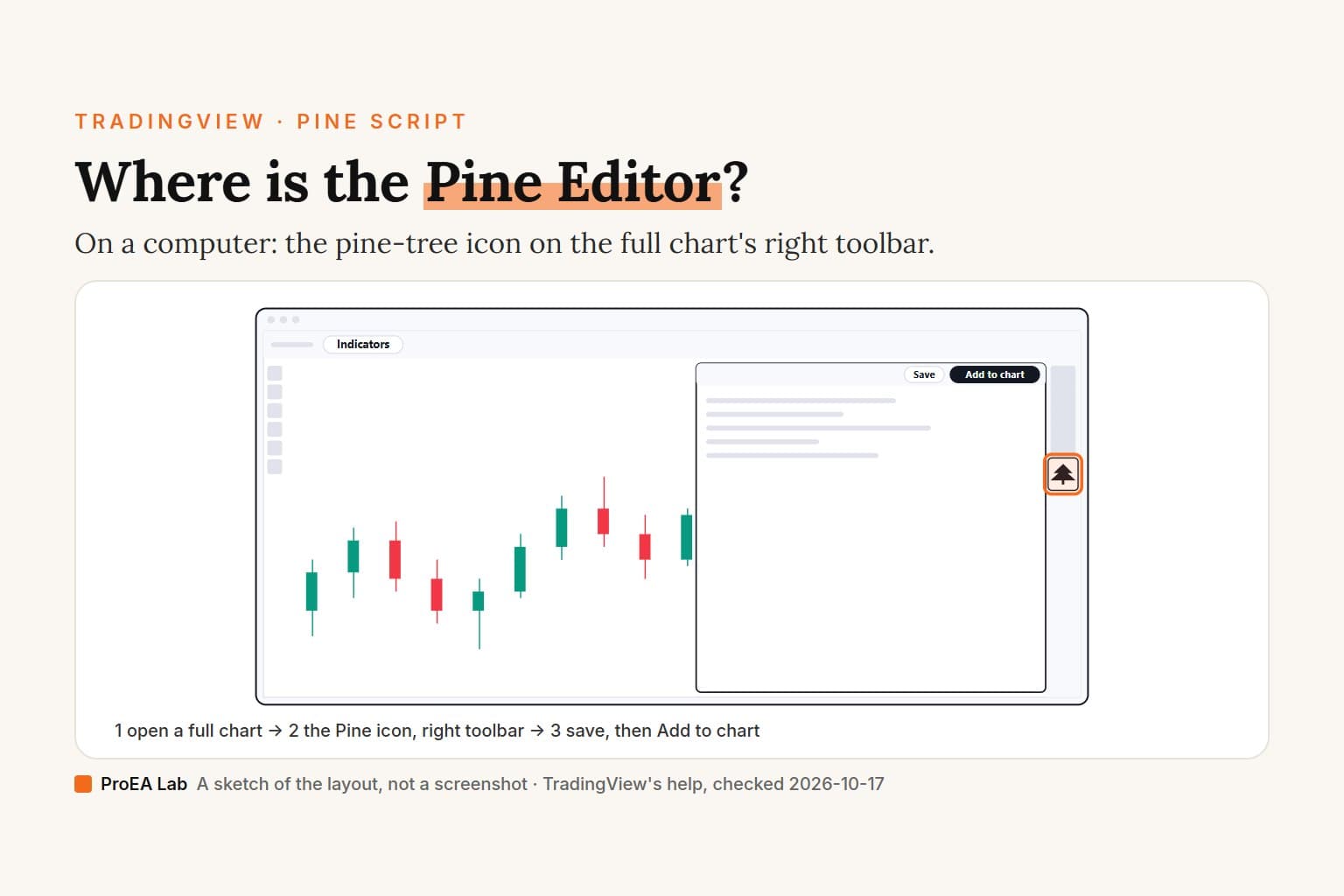
- Pine Editor. The Pine Editor button on the right toolbar opens TradingView's script editor: where the Pine Editor is, and adding a Pine script.
- Backtesting. A strategy simulates its orders on the chart and reports the trades. On Basic it uses only the bars the chart has loaded, which we see on our own account: how to backtest on TradingView.
Where we stand
Our TradingView account is on the free Basic plan. For this guide we opened tradingview.com/chart signed out in Chrome on Windows on 2026-10-18 and opened its symbol search, interval, chart type, Indicators, time zone and Manage layouts menus and its shortcut list. Signed out we couldn't add an indicator, draw or save, so those steps, the chart settings, the long position tool's properties dialog and the iPhone, iPad and Android apps come from TradingView's help as quoted, not from our own test. TradingView changes its toolbars between versions; if a button has moved, the help pages linked above are the place to check.
We sell Pine Script indicators as .pine source, so this chart is where every tool in our Pine v6 stack ends up: pasted into the Pine Editor, saved and added to the chart.
We aren't affiliated with TradingView.
Use this animation on your site.
Frequently asked questions
How do I use TradingView for the first time?
Open the chart at tradingview.com/chart, type a ticker to load a symbol, pick a timeframe from the button beside it, and add an indicator from Indicators or by pressing /. Then draw with the tools on the left edge and save the layout with Ctrl + S. Signed out, adding an indicator, drawing and saving each asked us to join for free.
Is TradingView free to use?
Yes. The Basic plan is $0 with no credit card, per TradingView's pricing page on 2026-10-18. Basic allows 2 indicators per chart, 1 chart per tab and 1 saved chart layout, and every plan gets the 110+ drawing tools. Signed out, we could look at the chart, but adding an indicator, drawing and saving each asked us to join for free.
How do I change the time zone on TradingView?
Click the clock near the right end of the bar under the chart and pick a city, UTC or Exchange. Or open the chart settings (the gear, or double-click the chart's price line) and set Timezone on the Symbol tab. The setting doesn't affect alerts: alert pop-ups show your computer's time zone.
How do I add indicators on TradingView?
Click Indicators on the top toolbar, or press / on the chart, search for the indicator in the dialog TradingView calls Indicators, metrics, and strategies, and click it. Signed out, that click asked us to join for free. Basic holds 2 indicators per chart.
Where is the measure tool on TradingView?
On the drawing toolbar down the left edge: the ruler icon called Measure. The quicker way is to hold Shift and click on the chart where a move starts, then pick the point where it ends. It shows the distance in bars and the change in price.
How do I use the long position tool on TradingView?
Open the Forecasting and measurement tools group on the left toolbar, pick Long position (Short position for a sell), place it on the chart and enter your account size and risk in its properties dialog. Its tags then show the position size, the risk/reward ratio and the balance at the target and at the stop. It places no order.
What are the most useful TradingView hotkeys?
Ctrl + / shows the full list. Start with any letter key to change the symbol, any number key to change the interval, / for indicators, Shift + click to measure, Alt + T for a trendline, Alt + H for a horizontal line, Alt + A for an alert and Ctrl + S to save. For a Mac, TradingView's help gives Cmd + S and Option + A.