New

Complete Suite: all 11 tools. 5 new Premium desks inside.All 11 tools $557.98 one by one

$557.98 one by one $97 once Save $460.98Get the SuiteGet it
ProEA Lab · MT5, TradingView and trading research · Evidence standards

TradingView Keyboard Shortcuts: The Full List, Searchable

Ctrl + / on the chart opens TradingView's own list. Search all 172 here:

All 172 shortcuts

Chart

Quick search
Ctrl+K
Open indicators
/
Open data window
Alt+D
Load Chart Layout
.
Save Chart Layout
Ctrl+S
Change symbol
Any letter key
Change interval
Any number keyor,
Switch between sessions
Alt+Shift+E
Move chart 1 bar to the left
Arrow left
Move chart 1 bar to the right
Arrow right
Zoom in
Ctrl+Arrow up
Zoom out
Ctrl+Arrow down
Move chart to left/right
Shift+Mouse wheel
Focused zoom
Ctrl+Mouse wheel
Replay play/pause
Shift+Arrow down
Replay step forward
Shift+Arrow right
Move further to the left
Ctrl+Arrow left
Move further to the right
Ctrl+Arrow right
Move chart to the first bar
Alt+Shift+Arrow left
Move chart to the last bar
Alt+Shift+Arrow right
Undo
Ctrl+Z
Redo
Ctrl+Y
Switching between charts in multi-charts layout
TaborShift+Tab
Toggle maximize chart
Alt+EnterorAlt+Click
Toggle maximize pane
DoubleClick
Toggle collapse pane
Ctrl+DoubleClick
Add alert
Alt+A
Go to date
Alt+G
Add text note for symbol
Alt+N
Save chart image
Alt+Ctrl+S
Copy chart image
Shift+Ctrl+S
Copy link to the chart image
Alt+S
Reset chart view
Alt+R
Invert series scale
Alt+I
Enable/disable logarithmic series scale
Alt+L
Enable/disable percent series scale
Alt+P
Add symbol to active watchlist
Alt+W
Add symbol to watchlist…
Ctrl+Alt+W
Fullscreen mode
Shift+F
Reset layout grid
DoubleClick
Adjust multiple charts' edges
Shift+Drag

Indicators and drawings

Draw with demonstration cursor
Hold Alt+Draw
Partially erase
Ctrl+Eraser
Gann box fixed increments
Hold Shift
Measure tool
Hold Shift+Click
Copy selected object
Ctrl+C
Paste object
Ctrl+V
Remove object
DeleteorBackspaceorMouse wheel click
Temporary turn on/off magnet mode
Ctrl+Move a point
Hide all drawings
Ctrl+Alt+H
Clone a drawing
Ctrl+Drag
Drawings multiselect
Hold Ctrl+Click
Move a drawing horizontally or vertically
Drag+Shift
Move selected drawing left
Arrow left
Move selected drawing right
Arrow right
Move selected drawing up
Arrow up
Move selected drawing down
Arrow down
Trendline
Alt+T
Horizontal line
Alt+H
Horizontal ray
Alt+J
Vertical line
Alt+V
Crossline
Alt+C
Fib retracement
Alt+F
Rectangle
Shift+Alt+R
Square
Rectangle+Shift
Circle
Ellipse+Shift
45 degrees angle or horizontal
Trendlineorchannel+Shift
Switch between cells in table drawing object
TaborShift+Tab

Watchlist

Change watchlist
Shift+W
Next symbol
Arrow downorSpace
Previous symbol
Arrow uporShift+Space
Flag/unflag symbol
Alt+Enter
Select all symbols
Ctrl+A
Select next symbol
Shift+Arrow down
Select previous symbol
Shift+Arrow up

Screener

Next symbol
Arrow downorSpace
Previous symbol
Arrow uporShift+Space
Flag/unflag symbol
Alt+Enter
Select all symbols
Ctrl+A
Select next symbol
Shift+Arrow down
Select previous symbol
Shift+Arrow up
Create new screen
Shift+N
Save screen
Ctrl+S
Load screen
.
Add new filter
Shift+F
Add new column
Shift+C
Maximize screener
Shift+M
Undo
Ctrl+Z
Redo
Ctrl+Y

Pine Script Editor

General

Add to chart/Update on chart
Ctrl+Enter
New indicator
Ctrl+KthenCtrl+I
New strategy
Ctrl+KthenCtrl+S
New tab
Shift+Alt+T
New window
Shift+Alt+W
Open Pine Script reference
Ctrl+Click
Open script
Ctrl+O
Save script
Ctrl+S
Show Command Palette
F1
Show Command Palette (alias)
Ctrl+Shift+P
Toggle console
Ctrl+`

Basic Editing

Add line comment
Ctrl+KthenCtrl+C
Copy line (empty selection)
Ctrl+C
Copy line up/down
Shift+Alt+Arrow up/Arrow down
Copy selected
Ctrl+C
Cut line (empty selection)
Ctrl+X
Cut selected
Ctrl+X
Delete all right (alias)
Alt+Delete
Delete line
Ctrl+Shift+K
Fold (collapse) all block
Ctrl+KthenCtrl+0
Fold all inner blocks
Ctrl+KthenCtrl+[
Fold block
Ctrl+Shift+[
Go to beginning of file
Ctrl+Home
Go to beginning/end of line
Home/End
Go to end of file
Ctrl+End
Indent/out-dent line
Ctrl+]/[
Insert line above
Ctrl+Shift+Enter
Jump to matching bracket
Ctrl+Shift+\
Move line up/down
Alt+Arrow up/Arrow down
Redo
Ctrl+Shift+Z
Remove line comment
Ctrl+KthenCtrl+U
Scroll line up/down
Ctrl+Arrow up/Arrow down
Scroll page up/down
Alt+PgUp/PgDn
Toggle line comment
Ctrl+/
Toggle line comment (alias)
Ctrl+NumPad_Divide
Undo
Ctrl+Z
Unfold (uncollapse) all block
Ctrl+KthenCtrl+J
Unfold all inner blocks
Ctrl+KthenCtrl+]
Unfold block
Ctrl+Shift+]

Navigation

Go to line
Ctrl+G

Search And Replace

Add selection to next Find match
Ctrl+D
Find
Ctrl+F
Find next/previous
F3/Shift+F3
Find/Replace
Ctrl+F
Move last selection to next Find match
Ctrl+KthenCtrl+D
Replace
Ctrl+H
Select all occurrences of Find match
Alt+Enter
Toggle case-sensitive / regex / whole word
Alt+C/R/W

Multi-Cursor And Selection

Column (box) selection
Shift+Alt+drag mouse
Column (box) selection
Ctrl+Alt+Shift+arrow key
Column (box) selection up/down
Ctrl+Shift+Alt+PgUp/PgDn
Expand selection
Shift+Alt+Arrow right
Insert cursor
Alt+Click
Insert cursor above / below
Ctrl+Alt+Arrow up/Arrow down
Insert cursor at end of each line selected
Shift+Alt+I
Select all occurrences of current selection
Ctrl+Shift+L
Select all occurrences of current word
Ctrl+F2
Select current line
Ctrl+L
Shrink selection
Shift+Alt+Arrow left
Undo last cursor operation
Ctrl+U

Rich Languages Editing

Trigger parameter hints
Ctrl+Shift+Space
Trigger suggest
Ctrl+SpaceorCtrl+I
Trim trailing whitespace
Ctrl+KthenCtrl+X

Trading

Open/close order ticket
Shift+T
Place order to buy
Shift+B
Place order to sell
Shift+S
Place limit order to buy
Shift+Alt+B
Place limit order to sell
Shift+Alt+S
Drag the entire trading group
Shift+Drag
Show Plus button on cursor
Alt+Ctrl

DOM

Open/close DOM
Shift+D
Place limit order
Click in the DOM cell
Place stop order
Ctrl+Click in the DOM cell

Alerts

Add alert
Alt+A
Open Edit alert dialog
DoubleClick
Save changes in the Edit alert dialog
Ctrl+Enter
Next alert/event
Arrow downorSpace
Previous alert/event
Arrow uporShift+Space
Select alert/event
Ctrl+Click
Select all alerts/events
Ctrl+A
Select next alert/event
Shift+Arrow down
Select previous alert/event
Shift+Arrow up
Remove alert without confirmation
Shift+BackspaceorShift+Delete
From TradingView's own Keyboard shortcuts dialog (Ctrl + / on the chart), read 2026-10-23. Mac keys: ⌘ for Ctrl, ⌥ for Alt, ⇧ for Shift.
PL · 5 min read

Click the chart and press Ctrl+/ to open TradingView's own list of keyboard shortcuts. It has seven tabs and 172 shortcuts, all in the finder above, with the Mac keys a click away. The ones that save the most time are Alt+A for an alert, / for the indicator search, Alt+G to jump to a date and the Alt+letter drawing tools.

How do I see all TradingView shortcuts?

Press Ctrl+/ with the chart in focus. TradingView opens a Keyboard shortcuts dialog from its help center, which says the shortcuts are "designed to save your time" across watchlists, alerts and Supercharts. We opened it on tradingview.com/chart on 2026-10-23, signed out, on Windows, and read every tab.

The tabs are Chart, Indicators and drawings, Watchlist, Screener, Pine Script Editor, Trading and Alerts. The finder above holds all of them, word for word, so you can search by what you want to do ("zoom", "alert") or by the key ("Alt + H").

One detail worth knowing: Ctrl+/ means two things. On the chart it opens this dialog. Inside the Pine Editor it is Toggle line comment, the same as in VS Code.

The shortcuts worth learning first

A dozen cover most of a charting day. These are straight from the dialog's Chart and Indicators and drawings tabs:

To do thisPress
Add an alertAlt + A
Open the indicator search/
Quick searchCtrl + K
Change the timeframeAny number key, or ,
Change the symbolAny letter key
Go to a dateAlt + G
TrendlineAlt + T
Horizontal lineAlt + H
Fib retracementAlt + F
Hide all drawingsCtrl + Alt + H
Save the chart layoutCtrl + S
FullscreenShift + F

The alert guide covers what to fill in once Alt+A opens the dialog, and how many alerts your plan holds.

Drawing tool shortcuts

Seven drawing tools have a key of their own, and Shift changes how several of them behave. Alt+T is the trendline, Alt+H the horizontal line, Alt+J the horizontal ray, Alt+V the vertical line, Alt+C the crossline, Alt+F the Fib retracement and Shift+Alt+R the rectangle.

Holding Shift while you draw a rectangle makes a square, an ellipse becomes a circle, and a trendline or channel snaps to 45 degrees or flat. Hold Shift and click for the measure tool. Ctrl while you move a point turns magnet mode on or off for that move.

For tidying up: Ctrl+Alt+H hides every drawing, Ctrl+Drag clones one, Ctrl+Click selects several, and Delete, Backspace or a middle-click removes the selected one.

Bar Replay and chart navigation

Shift+Down plays or pauses a replay and Shift+Right steps it forward. The arrow keys move the chart one bar at a time, Ctrl+Arrow moves further, and Alt+Shift+Left or Right jumps to the first or last bar. Ctrl+Up and Ctrl+Down zoom; Alt+R resets the chart view.

How far back a replay can start depends on your plan, which the Bar Replay guide works out per interval.

Pine Script Editor shortcuts

The Pine Editor's keys follow VS Code's, plus a few of its own. Ctrl+Enter adds the script to the chart or updates it, Ctrl+K then Ctrl+I starts a new indicator, and Ctrl+K then Ctrl+S a new strategy. F1 or Ctrl+Shift+P opens the command palette, Ctrl+` toggles the console, and Ctrl+Click opens the Pine Script reference.

The editing keys are the familiar ones: Ctrl+D adds the next match to the selection, Alt+Click adds a cursor, Ctrl+Shift+K deletes a line and Alt+Up or Down moves it. The finder's Pine Script Editor tab has all 63 of them, grouped as the dialog groups them.

Opening a script from a file first? The .pine file opener reads it in your browser and copies it ready to paste.

TradingView shortcuts on a Mac

Swap Ctrl for ⌘, Alt for ⌥ (Option) and Shift for ⇧. That is the substitution TradingView's charting documentation gives for macOS, and the finder's Mac button applies it to every row: Option+A adds an alert, ⌘+K opens quick search, ⌘+⌥+H hides all drawings.

We read the dialog on Windows. If a key on your Mac doesn't match, the dialog on your own machine is the authority.

The trading shortcuts place orders

Shift+B and Shift+S place a buy or a sell order on whatever account the trading panel is connected to. That could be Paper Trading or a real broker, so know which one is active before you lean on them. Shift+T opens or closes the order ticket, and Shift+Alt+B or Shift+Alt+S places a limit order.

With the depth of market open (Shift+D), a click in a price cell places a limit order there and Ctrl+Click a stop order.

If a shortcut does nothing

Click inside the chart first, then press the key. The chart's shortcuts work when the chart has the keyboard's focus: that is how we opened the dialog, with a click on the chart and then Ctrl+/. A key pressed while the cursor is in a search box or a text field types into that field instead.

The screener and the watchlist have their own keys, such as Shift+N for a new screen and Shift+W to change the watchlist. Those work while you're working in that panel. The screener guide covers what each plan's screener can do.

Where we stand

We read TradingView's dialog, signed out, on Windows, on 2026-10-23, and copied it into the finder above as it was. TradingView can add or change shortcuts at any time; when it does, its own dialog (Ctrl+/) is right and this page is out of date until we read it again.

Frequently asked questions

How do I see all keyboard shortcuts in TradingView?

Click the chart and press Ctrl+/ on Windows. TradingView opens its Keyboard shortcuts dialog, with seven tabs: Chart, Indicators and drawings, Watchlist, Screener, Pine Script Editor, Trading and Alerts. We opened it on tradingview.com/chart, signed out, on 2026-10-23.

What is the TradingView shortcut to add an alert?

Alt+A on the chart. In the alerts list, a double-click opens the Edit alert dialog, Ctrl+Enter saves your changes, and Shift+Backspace or Shift+Delete removes an alert without asking first.

What are the TradingView shortcuts for drawing tools?

Alt+T draws a trendline, Alt+H a horizontal line, Alt+J a horizontal ray, Alt+V a vertical line, Alt+C a crossline, Alt+F a Fib retracement and Shift+Alt+R a rectangle. Ctrl+Alt+H hides all drawings, and Ctrl+Drag clones one.

What are TradingView's keyboard shortcuts on a Mac?

The same keys, with ⌘ for Ctrl, ⌥ (Option) for Alt and ⇧ for Shift: that is the substitution TradingView's charting documentation gives. So Option+A adds an alert and ⌘+K opens quick search. We read the dialog on Windows, not on a Mac.

How do I change the timeframe or symbol with the keyboard?

Type on the chart. The dialog lists any number key, or a comma, for Change interval, and any letter key for Change symbol: start typing a number to change the timeframe, or a ticker to change the symbol.

What are the Bar Replay shortcuts in TradingView?

Shift+Down plays or pauses the replay, and Shift+Right steps forward one bar. Both are on the dialog's Chart tab.
Continue reading

How to Export TradingView Chart Data to CSV (and Which Plans Can)

The arrow next to Save opens Download chart data…, which saves the chart's symbol and indicators to a CSV, with the time in UTC. The free plan can't: signed out, Download asked us to upgrade, and the pricing table starts it at Plus.

Oct 23 · ProEA Lab

How to Set Alerts on TradingView: Price, Indicator, Strategy

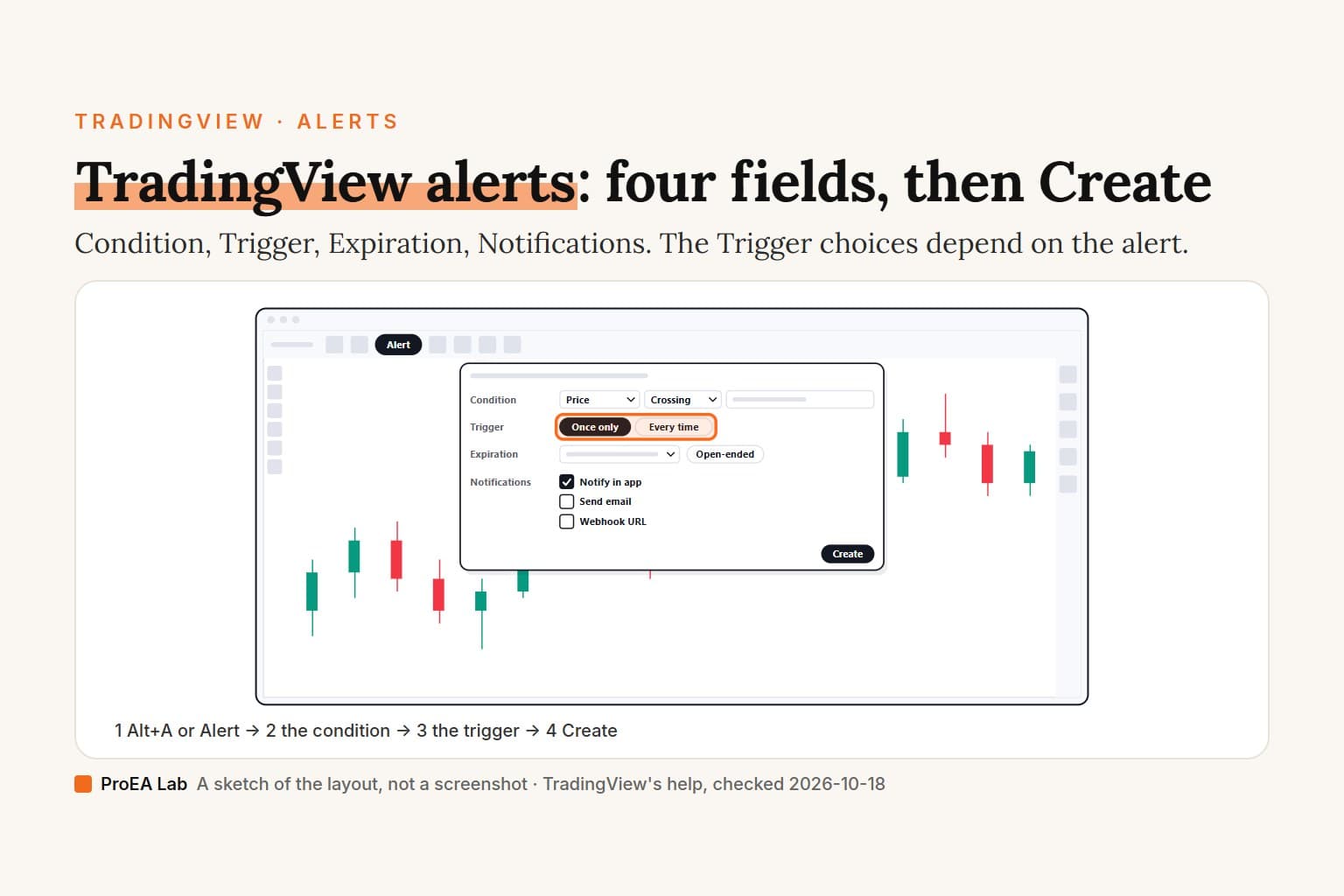
Press Alt+A on TradingView's chart or click Alert, then set the Condition, Trigger, Expiration and Notifications and click Create. Which alerts count against which limit, what each trigger does, how long an alert lasts on each plan, and how to get it on your phone, from TradingView's help read on 2026-10-18.

Oct 18 · ProEA Lab

Explainer cover titled TradingView alerts: four fields, then Create. A sketch of TradingView's chart with the Create alert dialog open: Condition, Trigger with Once only and Every time, Expiration with Open-ended, and Notifications, the Trigger row ringed in orange. Steps underneath: Alt+A or Alert, the condition, the trigger, then Create.

How to Use TradingView: Your First Hour on the Chart

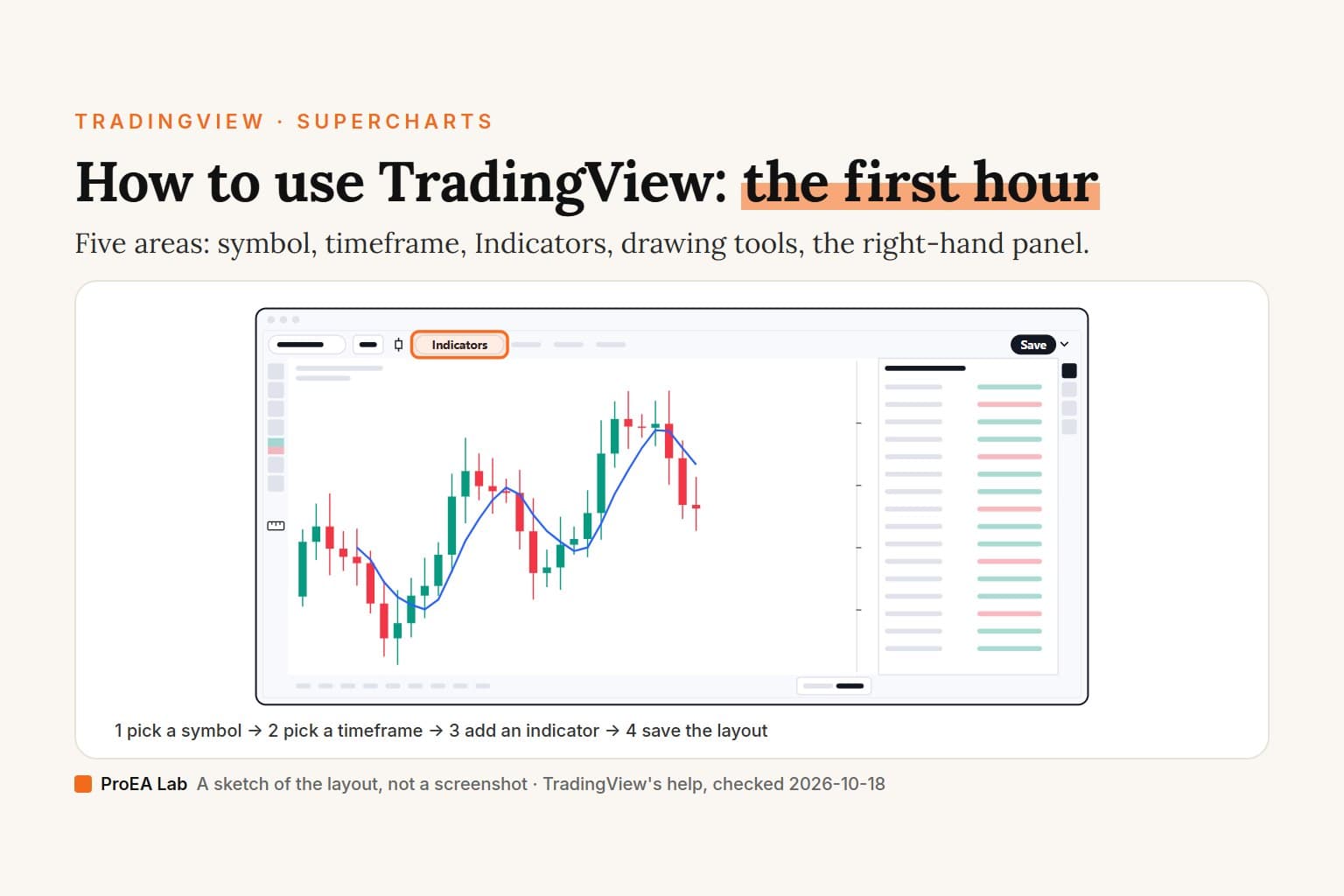
Open the chart, type a ticker, pick a timeframe and add one indicator. Then measure a move, plan a trade with the long position tool and save the layout. The five areas of TradingView's chart, what we couldn't do signed out, and the steps for each, from TradingView's help and our signed-out look at the chart on 2026-10-18.

Oct 18 · ProEA Lab

Explainer cover titled How to use TradingView: the first hour, under the kicker TradingView, Supercharts, with the line: five areas: symbol, timeframe, Indicators, drawing tools, the right-hand panel. A sketch of the TradingView chart on a computer: the symbol and timeframe at the top left, the Indicators button beside them ringed in orange, Save at the top right, the drawing toolbar down the left edge, the watchlist panel on the right and a moving average drawn over the candles. Steps underneath: pick a symbol, pick a timeframe, add an indicator, save the layout.