TradingView Paper Trading is a simulator built into TradingView's chart: you trade simulated money in what TradingView calls "close-to-real market conditions", and every plan has it, the free Basic one included. To start, click Trade at the top right of the chart, pick Paper Trading from the broker list and click Connect. You need a free TradingView account. We read TradingView's help and checked the chart signed out on 2026-10-17. The helper above gives the clicks for a reset, a second account or a first session, and what a commission would have cost; we re-read TradingView's commission, reset, download and fill help on 2026-10-24.
A simulated sketch of the layout, not a screenshot: orders, prices and balances are blank bars, only the controls this page names are labeled, and the app case follows TradingView's help, not a test.
Read as text
- 1. Click Trade: top right of the chart.
- 2. Pick Paper Trading: the broker list.
- 3. Connect: signed in to a free account.
- 4. Place an order: the order ticket: Market, Limit or Stop.
- Positions, orders and history sit in the Account Manager under the chart. Every plan, Basic included, has paper trading.
How this window was chosen: Places and control names from TradingView's help center on Paper Trading, the order ticket and mobile trading, and our signed-out check of the chart, all on 2026-10-17. TradingView moves its controls between versions.
Desktop walkthrough, 2026-10-18 (Bangkok): we signed in through Chrome, connected an existing Paper Trading account, and opened its account settings, reset preview, new-account form and export selector. We cancelled the previews and disconnected afterwards. No orders, resets, new accounts or settings changes were submitted, and no trade history was downloaded. The phone app and simulated fills were not tested.
Is TradingView paper trading free?
Yes, on every plan. TradingView's pricing page ticks "Simulated (paper) trading" for all five plans on 2026-10-17, and its Paper Trading help says it "is available globally for all users", a simulator "with no fees or catches".
What you do need is an account. Signed out, we clicked Trade, then the Paper Trading card, and TradingView answered with a sign-up box: "hone your skills with our paper trading engine. Join for free".
The plans differ in what surrounds paper trading, not in paper trading itself. From the same pricing table:
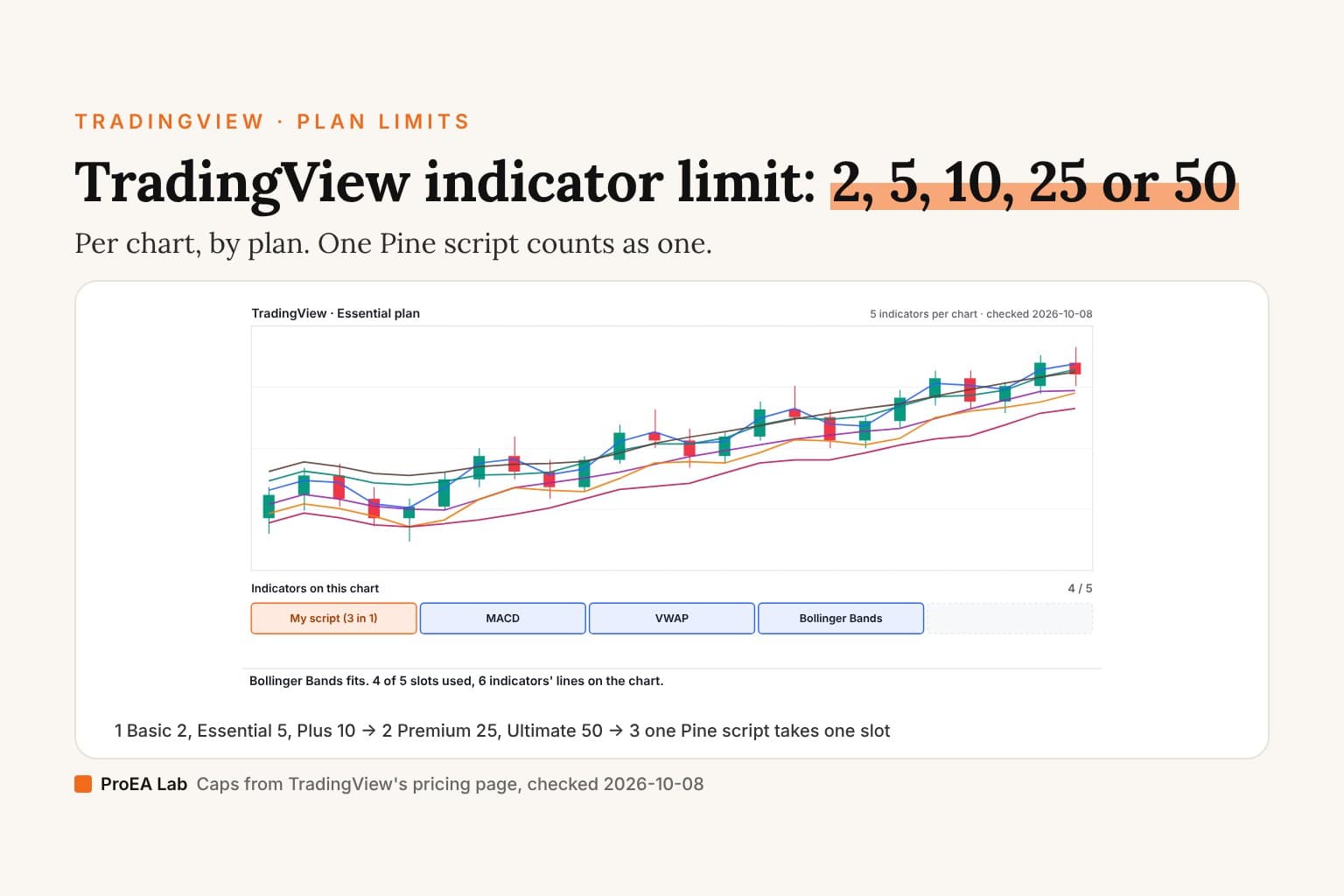
| Plan | Simulated (paper) trading | Indicators per chart | Historical bars |
|---|---|---|---|
| Basic (free) | Yes | 2 | 5K |
| Essential | Yes | 5 | 10K |
| Plus | Yes | 10 | 10K |
| Premium | Yes | 25 | 20K |
| Ultimate | Yes | 50 | 40K |
Real-time data from most stock and futures exchanges is a separate purchase, whatever the plan. TradingView says its paid plans "don't cover those fees" (market data help), which matters for paper trading, as the realism section below explains.
How do I start paper trading on TradingView?
Click Trade, pick Paper Trading, click Connect. The steps on a computer, from TradingView's help and our own check of the chart:
- Open the full chart, Supercharts, at tradingview.com/chart, and sign in.
- Click Trade at the right end of the chart's top toolbar.
- In the broker list, pick Paper Trading. On 2026-10-17 it was the first card, labeled "Brokerage simulator by TradingView".
- Click Connect. The order ticket opens on the right. To check the account first, open Paper Trading at the bottom of the chart, then Open account manager.
- When you are ready to practice, the order ticket lets you choose Buy or Sell, then Market, Limit or Stop, the quantity, and a stop loss and take profit (order ticket help). Our walkthrough stopped before submitting an order.
The Account Manager under the chart showed Positions, Orders, Order history, Balance history, Activity log, Trade history and Analytics in our signed-in check. Those are the labels to look for in the desktop interface we inspected.
Some older instructions start in the bottom Trading Panel. The current main help and our signed-in check both put Trade at the top right. To disconnect after our check, we opened the dropdown beside Paper Trading at the bottom and chose Log out.
A forex trap: quantities are units, not lots. "You must specify 1,000, 2,000, and so on", says the help on position updates, and too small a position may not show its profit or loss moving at all.
TradingView paper trading on mobile
TradingView documents connecting a broker in its phone app, but those steps don't name Paper Trading, and we haven't tested the app. What its mobile help says, for any broker:
- Open the chart tab.
- Tap the trade button in the toolbar to open the brokers list.
- Tap the broker's card. If it isn't there, tap Show All or search for it.
- To see positions, orders and the account balance, tap the broker's icon on the chart (positions in the app).
Check one setting before you tap Buy on a phone. With One-tap trading on, "Taps on Buy/Sell buttons will send an order immediately", and by default they "place market orders" (one-tap help). The app runs on iOS 16.0 or later and Android 8.0 or later (downloads). TradingView also notes that "not all brokers are available in mobile apps or on the mobile web"; it doesn't say whether Paper Trading is one of them.
How do I reset paper trading on TradingView?
Open the account name dropdown in Account Manager, click the Account settings gear, then Reset account. The desktop reset preview contains Balance and Currency fields. TradingView's currency help warns: "Resetting the account will delete the transaction history, active orders, and open positions."
- Connect Paper Trading and open its Account Manager below the chart.
- Click the account name/currency dropdown at the upper left of the manager.
- Click the Account settings gear beside that account, then Reset account in the settings dialog.
- Review Balance, Currency and the leverage settings in the reset preview.
- Click the final Reset only if you intend to erase that account's record. Cancel returns without resetting it.
We followed this path on 2026-10-18 and clicked Cancel. The preview warned that the reset cannot be undone. The separate Trading settings entry in the bottom Paper Trading menu is not the account-settings gear used above.
Download the history before a reset
Click the Download data icon at the upper right of Account Manager. In our paper account it opened a CSV export dialog with these choices: All tabs, Positions, Orders, Order history, Balance history, Activity log and Trade history. Select the tab you need, then use the dialog's Download button. TradingView's download help confirms selected-tab CSV export.
We inspected the selector without downloading private history, so we have not checked the CSV columns or how All tabs packages its files. Save and check your own export before resetting if you need to preserve the record.
To keep the old account and start separately, use Create account… in the account-name dropdown. TradingView's currency help supports multiple accounts and switching between them. Opening that form does not create an account; it has a separate Create button.
How much money do you start with?
The untouched Create account form showed a balance preset of 100,000.00 USD in our desktop check on 2026-10-18. We opened it from the account-name dropdown, without typing a name or changing any field, and cancelled without creating an account. This is the new-account form's displayed preset in that session, not an existing account balance or a guarantee for every account type.
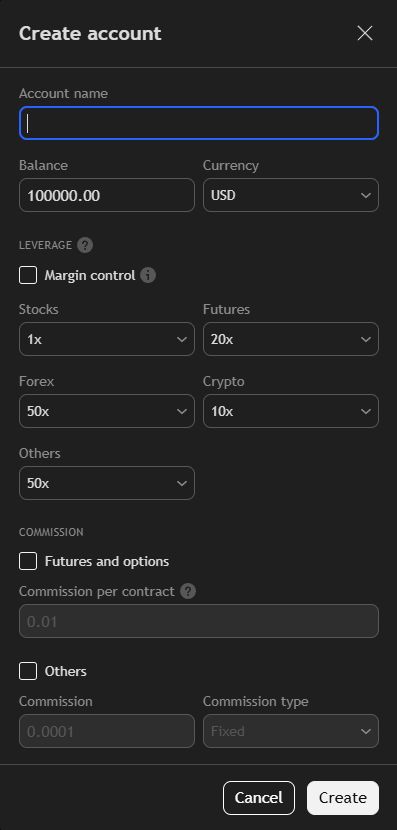
Both the Create account form and the Reset account preview let you enter a balance and select a currency. Use the creation form if you want to retain the old account's history; resetting deletes it. USD is the default currency in TradingView's currency help, rechecked on 2026-10-18.
The same untouched creation form displayed leverage presets of 1x for stocks, 20x for futures, 50x for forex, 10x for crypto and 50x for others, with Margin control unchecked. These are the controls and values we saw, not recommended leverage or a test of margin-call execution.
Two numbers TradingView does publish, so you don't mix them up:
- The Leap, TradingView's paper trading competition, presets its competition accounts at 100,000 virtual USD, and they "cannot be reset to its initial state" (rules of the edition running Oct 5–23, 2026).
- A strategy's backtest starts from Initial capital, 1,000,000 by default, in the chart symbol's currency (initial capital help). That's the Strategy Tester, not your paper account.
The paper account's currency is USD by default. You choose another when you create an account or reset one, and "all transactions, including profit and commission calculations" then run in it.
Can you set commission and slippage?
Commission is configurable; we found no slippage control in the inspected account settings. Open the account-name dropdown, then its Account settings gear, and look for Commission. The Futures and options and Others checkboxes were both unchecked in the untouched creation form. Numbers shown in disabled inputs are not active fees.
TradingView's commission help, rechecked on 2026-10-18, confirms that commission is inactive by default. Enable the relevant checkbox, set the fee and save it to apply a charge. Futures and options use a per-contract fee on both entry and exit; other instruments support fixed or percentage fees, all in the account currency. Its example is 3 contracts × $1.25 = $3.75 for one transaction. We inspected these controls without enabling or saving them, so this walkthrough does not validate an actual commission charge.
TradingView's 2019 post on commissions described a fixed amount "in US dollars" and said the paper account is "always set to USD". The 2024 currency change replaced that, so trust the newer pages.
No Paper Trading article mentions slippage. The Strategy Tester has a slippage setting, ticks added to market and stop fills (strategy properties), but that only touches backtests. A paper order does pay the spread, because of where it fills (see the realism section below); beyond that, commission is the only cost TradingView documents for a paper account.
Which order types does it support?
Market, limit and stop orders, with stop loss and take profit attached. TradingView's order ticket help, which "covers the order ticket for TradingView paper trading", lists those three; stop orders are stop-market orders. The rest of the rule book, all from its help center:
- No Good 'Til Cancelled orders, "to prevent the stacking of orders that would never be executed" (GTC). The ticket does have a time-in-force setting.
- One position per symbol. "All new orders are merged into a single position" (positions).
- Up to 4 exit levels, each a take profit paired with a stop loss (exit levels).
- Leverage is preset per asset class, and you can change it. The example: a 5% margin on E-mini S&P 500 futures, which is 20x. An order whose margin exceeds what's available "will not be executed" (leverage).
- Extended hours work for limit orders on stocks, ETFs, bonds and depositary receipts (extended hours).
- Some symbols can't be traded: indices such as NASDAQ:NDX, TradingView's own synthetic symbols, and symbols on Indian exchanges (non-tradable).
- Futures are all cash-settled, and expired positions close at the final settlement price.
The ticket can also size an order by risk: "Risk, % balance" sets the quantity from the share of your balance you'd lose at the stop. That one is worth using; more on it below.
Is TradingView paper trading realistic?
Only up to a point, and TradingView's own wording says as much: "close-to-real market conditions". The same help page also calls the execution experience "identical to real trading". Its other pages pin down part of the gap and leave the rest open:
- Where orders fill. "In most cases, buy orders are executed at the ask price, and sell orders at the bid price. The last price on the chart does not affect the calculation" (profit and loss help). So you pay the spread, and the candle you're watching isn't what your order is matched against.
- Delayed data. Many exchanges' data comes delayed unless you buy it; CME Group's is "available for free on TradingView with a 10-minute delay" (CME page), while crypto exchanges are real-time. TradingView's Paper Trading pages don't say what a paper order fills at on a symbol that's delayed on your account, and we didn't test it. Look for "Data is delayed" in the chart's status line before you practice on a symbol.
- Costs. No commission unless you set it. We found no slippage control in the desktop account settings or in the Paper Trading help we read.
- Size and liquidity. We found nothing on whether a large paper order fills in part or moves the price.
No help page covers the other gap. With nothing at stake, skipping a stop or doubling size costs nothing, and that's the habit a real account punishes first.
Paper Trading vs a broker demo account
A broker's demo runs on that broker's server; TradingView's paper account runs on TradingView. In TradingView's words: "TradingView does not provide real margin trading or brokerage services. We only simulate the mechanics of real brokers" (leverage help). For the comparison we used MetaTrader 5, whose help we could quote.
| TradingView Paper Trading | A broker demo in MT5 | |
|---|---|---|
| Who runs it | TradingView, simulating a broker | The broker: the demo is "created on a selected server" (MT5 help) |
| Prices it fills at | The bid and ask on TradingView's Buy and Sell buttons | The broker's server the demo is opened on |
| What it can do | Market, limit, stop; one position per symbol | MetaQuotes: "all the same functionality as the live ones" |
| Automation | Pine strategies can't trade it | Expert Advisors, as on a live account |
| Lifespan | We found no expiry in TradingView's help | An expired MT5 demo is deleted on the broker's server, with its history (account help) |
Our take: practice the method on TradingView if that's where you chart, and run a demo at the broker you'll actually use before the first real trade, because that's the broker, platform and symbol list your real account will use.
Can a strategy or an alert trade it?
No, a Pine strategy can't place paper trades. TradingView's Pine Script FAQ is direct: "Pine Script does not support placing orders using the brokers integrated via the Trading Panel, or using TradingView's built-in paper trading account." Its suggestion is the strategy report, which "closely mimics a paper trading account". To forward-test a strategy, the FAQ points to order fill alerts that carry the strategy's results, with a date filter set to today so old trades don't mix in.
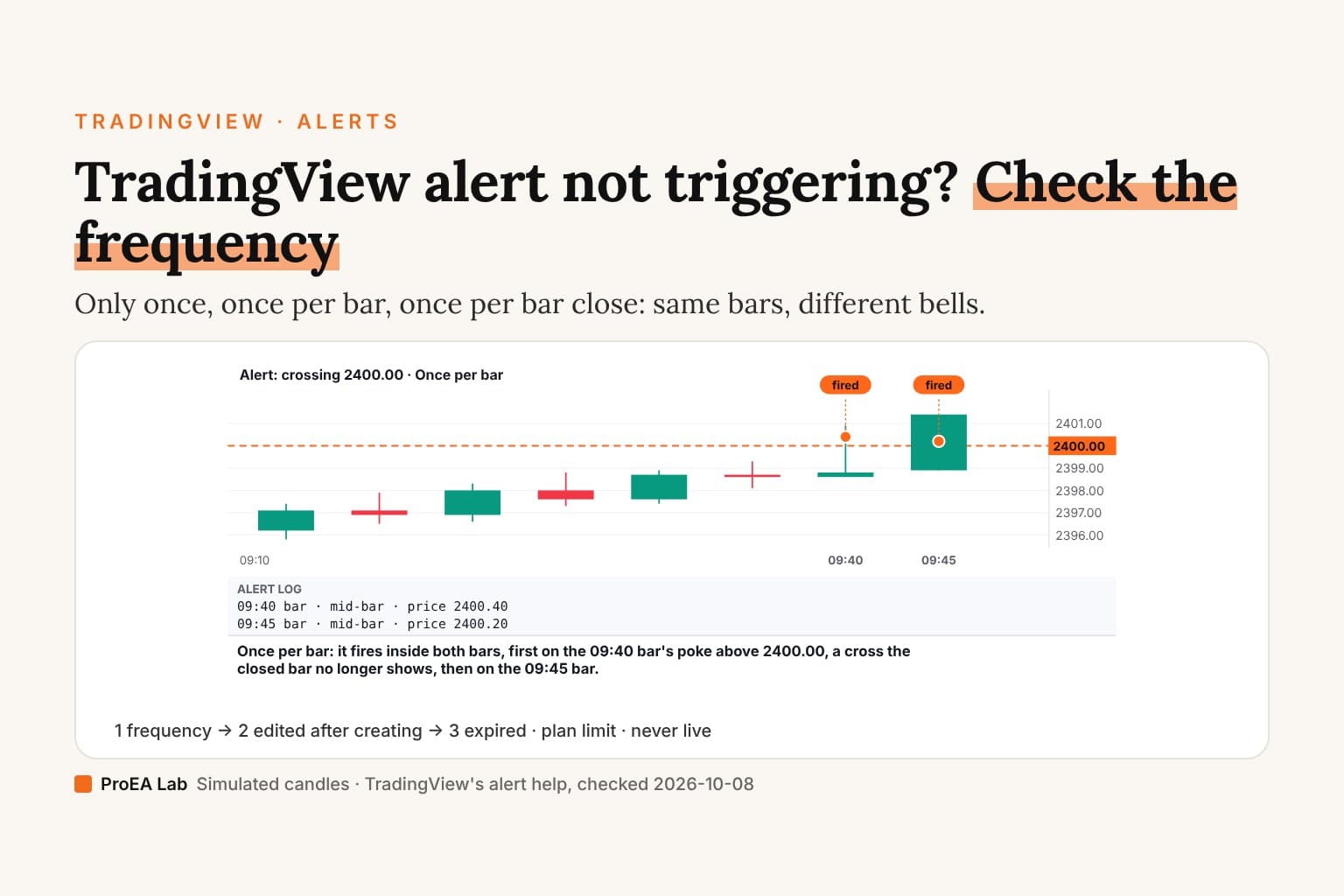
An alert can still tell you when to act: you get the notification and place the paper trade by hand. If one stays silent, our alert troubleshooting covers the usual five causes.
Trading inside Bar Replay is a different thing. TradingView calls it "a separate trading mode from Paper Trading", and its trades "are not saved anywhere" once the session ends (replay trading help).
How to take a paper session seriously
Decide the plan before the trade, size by risk, and count the result in R. Simulated dollars mean nothing on their own; a result divided by the risk you planned is comparable from one account to the next.
- Turn on commission at roughly what your broker charges, so the costs aren't zero.
- Size every order by risk. Put the stop in, then choose "Risk, % balance" on the order ticket, and keep the percentage you'd use with real money.
- Write one line before you click. The setup's name and why now. Afterwards, note whether you followed the plan.
- Log the result in R. Risk $100, make $196, and the trade is +1.96R. The free trading journal template does this sum for you and adds up expectancy on its Summary sheet; why R beats dollars explains the unit.
- Read it after enough trades. A handful of trades says little about a win rate; how many trades it takes shows how wide the uncertainty stays. Then put your numbers through the expectancy calculator.
And skip the reset after a bad week. Open a new account if you want a clean slate; the old record is the useful one.
Where we stand
We built ProEA Practice for a narrower job than TradingView's simulator. It replays past gold and Bitcoin days bar by bar, from recorded five-minute data, as a prop-style challenge with the daily loss and drawdown rules switched on, and reports each day's habits in R. Its fills are simulated with modelled spread and commission, so it doesn't reproduce a broker's execution either. One challenge day, on gold, is free; the rest is paid. If you want to practice on today's market for free, TradingView's Paper Trading is the place, and the journal template works for both.
We aren't affiliated with TradingView or MetaQuotes.
Use this animation on your site.
Frequently asked questions
Is TradingView paper trading free?
Yes. TradingView's pricing page ticks Simulated (paper) trading on all five plans, Basic included, checked 2026-10-17. You do need a TradingView account: signed out, the Paper Trading card asks you to join for free.
How do I reset paper trading on TradingView?
In the Account Manager under the chart, open the account name dropdown and click its Account settings gear. Choose Reset account, then review Balance and Currency. Confirming Reset deletes history, orders and positions; Cancel leaves the account intact. We inspected the desktop dialog on 2026-10-18 without confirming a reset.
How much money do you start with in TradingView paper trading?
The untouched Create account form showed a 100,000.00 USD balance preset in our signed-in desktop check on 2026-10-18. Balance and Currency are editable fields. We cancelled without creating an account; this is a dated form observation, not a claim about every existing or competition account.
Is TradingView paper trading realistic?
TradingView describes it as close-to-real market conditions, and the gaps are specific. Buys fill at the ask and sells at the bid, commission is off until you set it, we found no slippage control in the desktop account settings, you get one position per symbol and no Good 'Til Cancelled orders. And no money is at risk, which changes how people trade.
Can I paper trade in the TradingView app?
TradingView's mobile help connects a broker from the chart tab: tap the trade button, then the broker's card. On a computer, Paper Trading is in that broker list. We haven't tested the app, and its help doesn't name Paper Trading in those steps.
Can a Pine Script strategy trade my paper account?
No. TradingView's Pine Script FAQ says Pine can't place orders with the brokers in the Trading Panel or with the built-in paper trading account. An alert can tell you when to place the trade yourself.
Why can't I paper trade an index like NDX?
TradingView lists indices, its own synthetic symbols and symbols on Indian exchanges as non-tradable in Paper Trading. Pick an instrument that tracks the index instead.