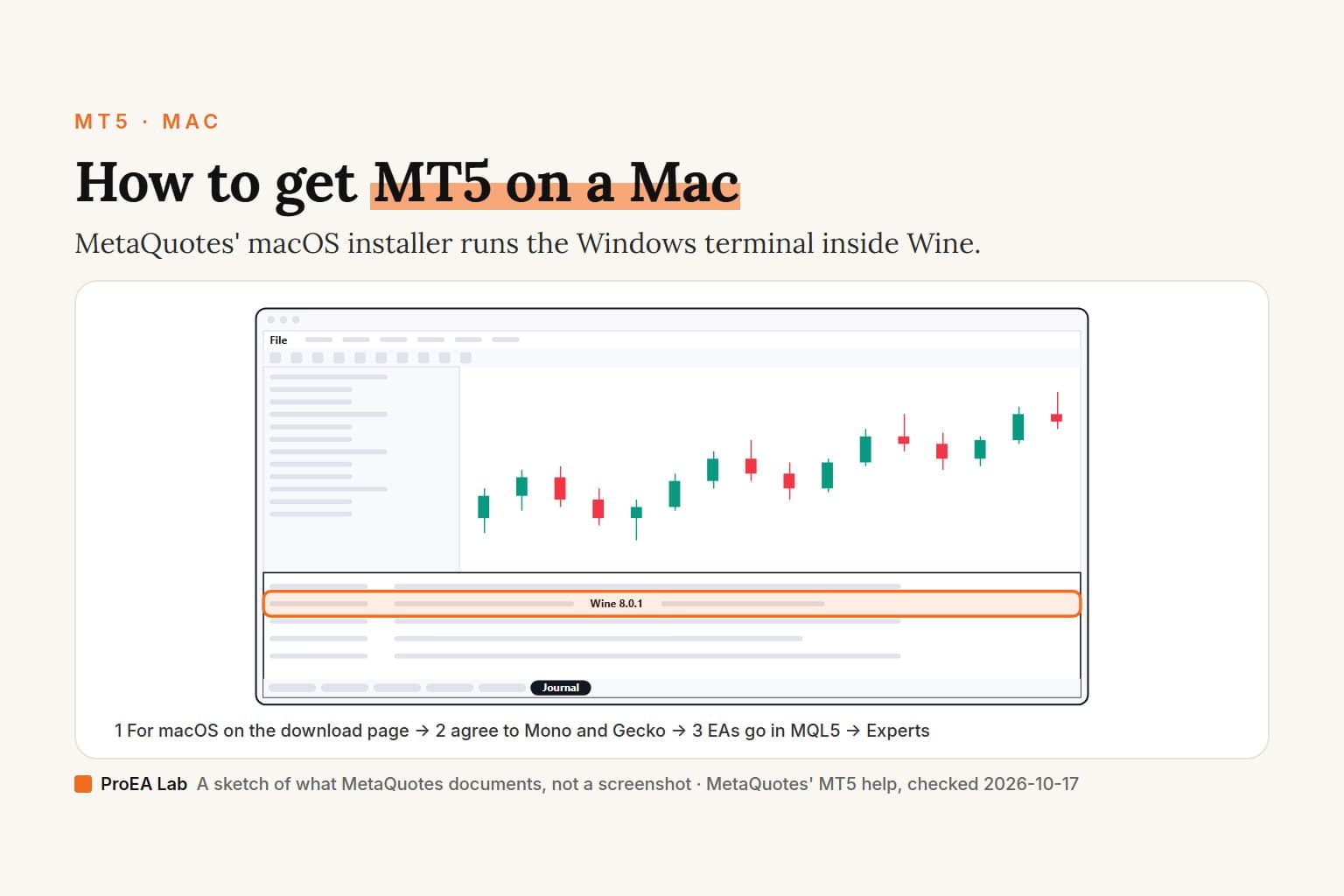
A word on where this comes from. We build and test MT5 EAs on Windows and have never installed MT5 on a Mac, so nothing below is a screen we saw. Every step is from MetaQuotes' own help pages, read on 2026-10-17. Where those pages say nothing, we say so.
A simulated sketch of what MetaQuotes documents, not a screenshot: text is drawn as blank bars, and only the controls, files and folders this page names are labeled.
Read as text
- 1. Download the macOS installer: metatrader5.com/en/download → For macOS.
- 2. Run it; agree to Mono and Gecko: it installs Wine, then MT5 inside.
- 3. Open MetaTrader 5: Applications.
- 4. Check the Wine version: Toolbox → Journal: 8.0.1 or later.
- Needs macOS Catalina (10.15.7) or later. MetaQuotes supports Apple chips from M1 on.
How this window was chosen: Places and control names from MetaQuotes' MetaTrader 5 help for macOS, logging in and Expert Advisors, checked 2026-10-17. We have not run it on a Mac; menus can differ slightly between builds and brokers.
Is MT5 available for Mac?
Yes, through MetaQuotes' macOS installer, which runs the Windows terminal in Wine. The macOS installation help calls it "a full-fledged wizard" that "identifies your system, downloads and installs the latest Wine version, configures it, and then installs MetaTrader within it." MetaQuotes says this installs the app "natively", meaning it installs like any Mac application. The program that starts is still the Windows one: the start-up line in MetaQuotes' own example log reads "Windows 10 build 18362 on Wine 8.0.1".
So if you've used MT5 on Windows, the rest of this page will look familiar. Menus, the MQL5 folders, Navigator and MetaEditor all belong to the same program. The paths around it are Mac paths.
MetaQuotes documents three ways to use MT5 from a Mac:
| Route | What it is | EAs and custom indicators | MetaQuotes source |
|---|---|---|---|
| macOS installer | The Windows terminal inside Wine, set up for you | Yes, from the MQL5 folders | Installation on Mac OS |
| Web terminal | MT5 in Safari, Chrome or another browser | No way to add one is documented | Web platform |
| Virtual Hosting | A MetaQuotes server that runs your EAs around the clock | Yes, moved from the desktop terminal; no DLLs | Virtual Hosting |
What Mac do I need for MT5?
macOS Catalina (10.15.7) or later. That's the minimum on MetaQuotes' current help page, which adds that the platform "runs on all modern versions of macOS and supports all Apple processors, from M1 to the latest released versions." The Mac installers with M1 and M2 support arrived with build 3950 on 14 September 2023, along with the move to Wine 8.0.1.
Two MetaQuotes pages disagree on the floor. A news post from 9 November 2023 says "Mojave for MetaTrader 5", which is an older macOS than Catalina. We go by the help page, whose text MetaQuotes also published on 15 January 2025 as MetaTrader 5 on macOS, and treat Catalina as the minimum.
Intel Macs don't get a line of their own. MetaQuotes' example log, though, comes from a Mac with an Intel Core i7, so the help doesn't rule them out.
How do I install MT5 on a Mac?
Download the installer, run it, agree to the Wine packages it asks for, then open MetaTrader 5. From MetaQuotes' help:
- On metatrader5.com/en/download, click For macOS. The file is
MetaTrader5.pkg.zip, a zipped macOS installer package. If MT5 already runs on your Mac, its Help menu links to the same installer. - Run the downloaded file and follow the instructions. In MetaQuotes' words, "The platform is installed like a standard macOS application."
- When it asks to install the Wine packages Mono and Gecko, agree. MetaQuotes says "they are necessary for the platform functioning."
- Open MetaTrader 5 from Applications.
- Check the Wine version once. Open the Toolbox's Journal tab and find the start-up line that names Wine: it should say 8.0.1 or later.
The terminal's language comes from macOS's at install time. For MT5 in a different language, MetaQuotes' route is to switch macOS to that language, restart, install, then switch macOS back.
Had MT5 on this Mac before? If the Journal shows Wine below 8.0.1, MetaQuotes "strongly recommend[s]" removing the old platform along with its Wine prefix and installing again. Save your templates, EAs and indicators first. Then move MetaTrader 5 from Applications to the Trash, choose Go → Go to Folder in Finder, enter ~/Library/Application Support/, and delete the folders Metatrader 5 and net.metaquotes.wine.metatrader5. The data folder lives inside that second one, which is why the backup comes first.
How do I log in to my broker on MT5 for Mac?
File → Login to Trade Account, then your account number, your password and your broker's server. The same window opens from Navigator. From MetaQuotes' login help:
- Choose File → Login to Trade Account.
- Under Login, type your account number. Under Password, the master password lets you trade; the investor password lets you "see the account status, analyze prices, and work with your own Expert Advisors, but not trade."
- Pick your broker's Server and click OK.
Your broker's server isn't in the list? Use File → Open an Account instead. Type the broker's name and click Find your broker, or type the server's address, then select the company, click Next and choose to connect to an existing trading account (Open an Account). The login window's Server box also takes an address and port typed by hand, in MetaQuotes' example 192.168.0.1:443. If nothing finds it, ask your broker's support for the exact server name; MetaQuotes sends registration problems there too.
Where is the MT5 data folder on a Mac?
By default it's on Wine's own C: drive, inside your Mac's Library folder:
~/Library/Application Support/net.metaquotes.wine.metatrader5/drive_c/Program Files/MetaTrader 5
That's the path MetaQuotes gives. Wine creates "a separate virtual logical drive" for the platform, which is where drive_c comes from. To open it in Finder, choose Go → Go to Folder and paste the path; the ~ stands for your home folder.
From inside the terminal, File → Open Data Folder gets you there too: MetaQuotes' Files and Folders help gives it as the quick route to the platform's storage location. MetaQuotes doesn't say whether that opens Finder or a Wine file window on a Mac, and we haven't seen it.
Inside the data folder are the folders an EA needs: MQL5/Experts for Expert Advisors (both .ex5 and .mq5), MQL5/Indicators for custom indicators, MQL5/Scripts, and MQL5/Presets for saved input settings.
How do I install an EA or indicator on MT5 for Mac?
Copy the file into MQL5 → Experts (or Indicators) in the data folder, then drag it from Navigator onto a chart. An EA file on a Mac is the same file it is on Windows, an .ex5 (compiled) or an .mq5 (source code). Only the folder's location changes.
- Open the data folder: File → Open Data Folder, or the Finder path above.
- Go to MQL5 → Experts for an EA, or MQL5 → Indicators for an indicator. Subfolders inside them are fine.
- Copy the
.ex5file in. Got.mq5source instead? Put it in the same folder, open MetaEditor with F4, open the file and press F7 to compile it into an.ex5. Source files never show in Navigator (MetaQuotes). - In Navigator, find it under Expert Advisors, drag it onto a chart (or double-click it) and click OK in its properties. Copied it in while the terminal was open? Use Refresh in Navigator's right-click menu, a command MetaQuotes added in build 269.
- For an EA to place trades, automated trading must be on in two places: the toolbar button and the EA's own properties. MetaQuotes' help calls them AutoTrading and Allow Auto Trading; the terminal we run on Windows labels them Algo Trading and Allow Algo Trading. Once the EA runs, its name and icon sit at the chart's upper right (running an EA).
F4 and F7 (and Ctrl+T for the Toolbox) are MetaQuotes' Windows shortcuts. Its Mac page doesn't say how they map to a Mac keyboard, and we haven't checked. Each step has a mouse route as well: Modify in an EA's Navigator menu, for one, opens its source in MetaEditor.
For presets, Market purchases and the full checklist, see how to install an EA on MT5. If the EA sits on the chart and never trades, MT5 EA not taking trades decodes the Journal's messages.
Can I use the MT5 web terminal on a Mac instead?
For trading by hand, yes: it runs in Safari or Chrome with nothing to install. MetaQuotes documents no way to run an EA in it. MetaQuotes pitches its web platform as "a universal trading solution for macOS, Linux and Windows users". For a real account, open your broker's copy. MetaQuotes' own at web.metatrader.app runs demo accounts only, and "each web terminal is assigned to a specific broker and is located on its domain" (how to connect).
| Desktop terminal (macOS installer) | Web terminal | |
|---|---|---|
| Install | The macOS installer | None, it runs in a browser |
| Real account | Yes | Through your broker's web terminal |
| EAs and custom indicators | Yes, from the MQL5 folders | None documented |
| Built-in tools | Over 80 indicators and analytical tools | 30 indicators and 24 graphical objects |
| Timeframes | 21 | 9 |
Figures from MetaQuotes' download page and web platform page, checked 2026-10-17.
One MetaQuotes line muddies the EA question. Its web features page lists "algorithmic trading" among the platform's opportunities, yet nothing on it says how you'd load an EA. So on 2026-10-17 we read the code of MetaQuotes' own web terminal (build 6272, dated 16 Oct 2026). Its English interface text has no Navigator, no Expert Advisors list and nothing that opens an .ex5 or .mq5 file. We checked MetaQuotes' copy, not any broker's.
What works differently on a Mac?
Very little that MetaQuotes documents, since it's the same Windows terminal; the differences sit in Wine. What its pages do say:
- Wine's version matters. Below 8.0.1, MetaQuotes recommends the clean reinstall above, and since build 3950 the terminal's log warns when Wine is older than 8.0.0.
- Wine has had its own bugs, fixed in updates. Build 3950 fixed "display of internal mail messages when working on MacOS" and "display of the Signals window when working in Wine". Build 2860, in March 2021, stopped the Navigator and Toolbox windows being dragged beyond the terminal's borders under Wine. MT5 checks for updates when it connects to a trade server, and that can't be switched off (Live Update).
- The language is set at install, from macOS's, as above.
- Python is set up the Windows way. MetaQuotes' Python integration guide sends you to Python's Windows download and describes no Mac setup.
Some things no MetaQuotes page answers, and we haven't tested them: how fast the Strategy Tester runs under Wine, whether an EA's DLL imports work there, and the keyboard question above. If an EA depends on a DLL, try it on a demo account before anything else.
How do I keep an EA running when my Mac is off?
MetaQuotes' answer is Virtual Hosting, a server you rent from inside the terminal that runs your EAs around the clock. Log in to the trading account, open Navigator's context menu and choose Register a Virtual Server. You'll need an MQL5.community account (Register a Server). Then you migrate your charts and EAs to it; our MT5 VPS guide walks through each step.
Read the migration rules before paying:
- "DLL calls are completely forbidden in the virtual platform."
- Automated trading is always allowed on the server, whatever your local settings say, and moving EAs switches automated trading off in your own terminal.
- Scripts don't move. Accounts that log in with one-time passwords can't use it.
None of these pages mentions the Mac, and we haven't rented one from a Mac. The help pages don't list a price, but mql5.com/en/vps does, with figures that differ from MetaQuotes' own plans page, and the MT5 VPS guide above shows both. MetaQuotes contrasts the service with renting an ordinary VPS from another company: with its own, you can pick the server closest to your broker.
What about Parallels or CrossOver?
We don't cover them, because MetaQuotes doesn't. Its current Mac pages describe only its own installer. The one CrossOver mention we found is a line in build 2815's notes from February 2021, "Improved operation under Wine and MacOS/Crossover", and none of the MetaQuotes pages we read mentions Parallels. With no current official steps and no Mac to test on, we'd only be repeating other people's guides.
MT5 not working on a Mac? Fixes MetaQuotes documents
- The Mac is too old. Catalina (10.15.7) is the minimum on the current help page.
- The installer asks about Mono and Gecko. Agree to both; the platform needs them.
- An older install misbehaves. Find the Wine version in the Journal. Below 8.0.1, back up, remove the app and both folders in
~/Library/Application Support/, and install again. - The menus are in the wrong language. Reinstall with macOS set to the language you want.
- Your broker's server is missing. File → Open an Account → Find your broker, or type the server's address. Your broker's support has the name.
- The EA isn't in Navigator. It's in another folder, or it's
.mq5source that hasn't been compiled. Open the folder with File → Open Data Folder, and compile with F7. - The EA is on the chart but never trades. Check both automated-trading switches, then the Journal and Experts tabs; the six checks walk through each message.
Two Windows questions follow you to the Mac unchanged. Trade times hours off? They're on your broker's server clock: convert MT5 server time. Can't find past trades? Where MT5 trade history is covers the Toolbox's History tab, which the Mac terminal, being the same program, should have too. With a statement saved from that tab, the MT5 report analyzer reads it in a browser on the Mac; the file isn't uploaded.
Where we stand
We sell MT5 EAs as .mq5 source, built and tested on Windows. On a Mac they'd go in the same MQL5 → Experts folder as above, but we haven't run them under Wine, so start on a demo account and read the Experts tab before you trust one. The catalog lists what each one ships with.
Use this animation on your site.
Frequently asked questions
Is MT5 available for Mac?
Yes. MetaQuotes' download page has a For macOS installer. It installs Wine and runs the Windows MetaTrader 5 terminal inside it, on macOS Catalina (10.15.7) or later, Apple M1 chips included.
Does MT5 work on Apple M1 and newer Macs?
MetaQuotes says the platform supports all Apple processors from M1 to the latest ones. Its Mac installers with M1 and M2 support came with build 3950 in September 2023. We haven't tested one ourselves.
Where is the MT5 data folder on a Mac?
By default it's ~/Library/Application Support/net.metaquotes.wine.metatrader5/drive_c/Program Files/MetaTrader 5. In the terminal, File then Open Data Folder is MetaQuotes' quick route to it.
How do I install an EA on MT5 for Mac?
Copy the .ex5 file into MQL5, then Experts, inside the data folder (an indicator goes in MQL5, then Indicators). Find it in Navigator under Expert Advisors, drag it onto a chart, and turn on automated trading.
Can I run an EA in the MT5 web terminal?
MetaQuotes documents no way to, and on 2026-10-17 we found no Navigator or Expert Advisors list in the code of its web terminal. Use the desktop terminal, or MetaQuotes' Virtual Hosting to keep an EA running.
Why can't I find my broker's server in MT5 on a Mac?
Use File, then Open an Account, type the broker's name and click Find your broker, or type the server's address. If it still isn't listed, ask your broker's support for the server name.
Do I need Parallels to run MT5 on a Mac?
MetaQuotes' own route is its macOS installer, which runs the terminal in Wine. MetaQuotes documents no Parallels setup, and we don't cover one.