MT5 opens most of its windows with one key: Ctrl+N for the Navigator, Ctrl+T for the Toolbox, Ctrl+R for the Strategy Tester, Ctrl+M for Market Watch and F4 for MetaEditor. The Algo Trading button sits on the top toolbar, and Ctrl+E switches it. The finder above covers 19 places traders look for, from MetaQuotes' MT5 help, read on 2026-10-24, for MT5 on Windows.
Where is Algo Trading in MT5?
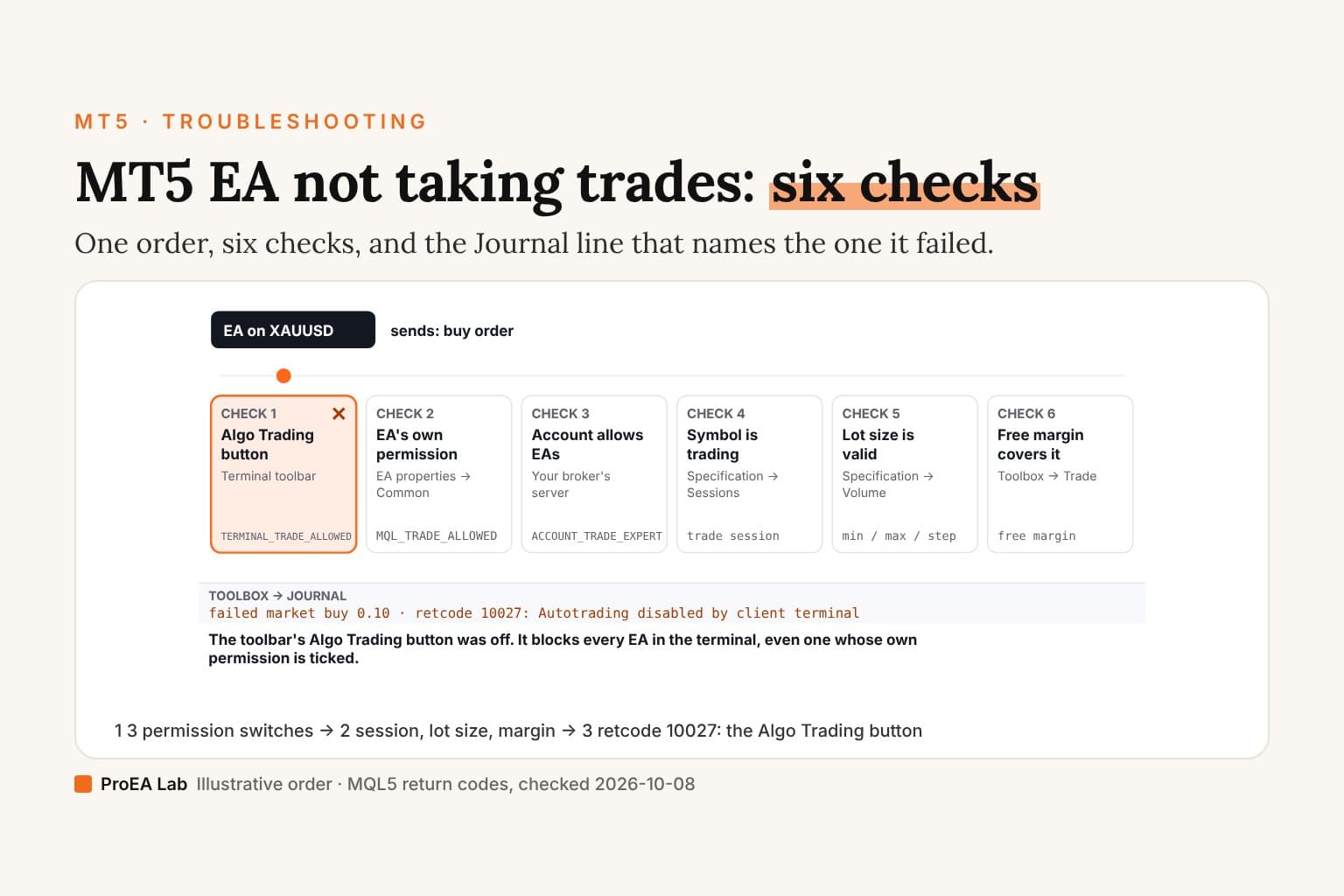
On the top toolbar: the Algo Trading button, and Ctrl+E switches it. MetaQuotes' Expert Advisors help still calls it AutoTrading, as older builds did. Turned off, it stops automated trading for every EA in the terminal, even one whose own permission is on.
There are three switches in all. The toolbar button. The EA's own permission, on the Common tab of its properties (F7): Allow Algo Trading. And Settings (Ctrl+O), Expert Advisors, Allow Auto Trading, which is the toolbar button's setting under another name. If all three are on and the EA still doesn't trade, MT5 EA not taking trades reads the Journal line.
Where is the Strategy Tester in MT5?
Ctrl+R opens and closes it; F6 opens it for the EA on the current chart. It docks at the bottom of the terminal. Backtesting an EA in MT5 walks through its settings.
Where is the History Center in MT5?
MT5 doesn't have one by that name: F2, MT4's key for it, opens MT5's Task Manager. Price history is in the symbol dialog from Market Watch's right-click menu. Its Bars and Ticks tabs download a symbol's history from your broker's server with Request, and Export saves it as a file, per MetaQuotes' Market Watch help. Exporting MT5 chart data covers what comes out.
Your own trades are elsewhere: the Toolbox (Ctrl+T), History tab. Right-click a trade there and choose Show on Chart to plot its entries and exits (Executing Trades help).
Where is the Toolbox, MT4's Terminal window?
Along the bottom, opened and closed with Ctrl+T. It's the window MT4 called Terminal. Its tabs include Trade, for open positions and orders, History, Alerts, and the two logs: Experts, with messages from running EAs and indicators, and Journal, with platform and trade operations.
Where is the MT5 data folder?
File menu, Open data folder. MetaQuotes' Files and Folders help points to that command for "quick access". Inside is the MQL5 folder, with Experts, Indicators, Scripts, Presets and Profiles, plus Logs and Tester. EA, indicator and preset files go there, not in the folder MT5 was installed to. Not sure which folder a file belongs in? The MT5 file opener reads it and says.
Where do I find my MT5 account number?
In the Navigator (Ctrl+N), under Accounts. MetaQuotes' account help says the accounts you've used are listed there, "grouped based on the name of the server they are open on". MT5's login is your account number, and double-clicking another account switches to it.
Why is a symbol not showing in MT5?
Because it isn't in Market Watch yet, or your broker calls it something else. Click the + below the Market Watch list and type the name; MT5 suggests matches as you type. Brokers name their own symbols, so gold or an index may not be called what you expect. The full list for your account is in the symbol dialog from Market Watch's right-click menu, and a symbol your broker doesn't offer can't be added at all.
Where is it in the MT5 app on a phone?
Switch the finder above to Android or iPhone: the two apps are laid out differently. From MetaQuotes' Android and iPhone help:
- Android opens History, Journal and Settings from the side panel, which also shows your account number.
- iPhone switches between tabs such as Quotes, Chart, History and Settings from a bottom panel; your account is at the top of Settings.
- On both, indicators are a button at the top of a chart, the timeframe is the button showing the current one, and One Click Trading sends orders at once only when it's switched on in the app's settings.
The keys, from MetaQuotes' table
| Key | Opens or does |
|---|---|
| Ctrl+N | Navigator |
| Ctrl+T | Toolbox |
| Ctrl+M | Market Watch |
| Ctrl+D | Data Window |
| Ctrl+R | Strategy Tester |
| F6 | Strategy Tester for the EA on the chart |
| F4 | MetaEditor |
| F9 | New Order window |
| Ctrl+E | Allow or stop Expert Advisors |
| Ctrl+O | Settings |
| Ctrl+Y | Period separators on the chart |
From MetaQuotes' Hot Keys page, read 2026-10-24. A key you assign to a Navigator item in MT5 takes priority over these defaults.
Where we stand
Everything here is from MetaQuotes' MT5 help pages, read signed out on 2026-10-24: the Windows terminal's, and the Android and iPhone apps'. Neither phone help set describes Expert Advisors, so the finder says nothing about what EAs do on a phone.
Frequently asked questions
Where is Algo Trading in MT5?
On the terminal's top toolbar: the Algo Trading button, called AutoTrading in older builds and in MetaQuotes' help. Ctrl+E switches it. Off, it stops every EA in the terminal; each EA also needs Allow Algo Trading ticked on the Common tab of its properties.
Where is the Strategy Tester in MT5?
Ctrl+R opens and closes it, docked at the bottom of the terminal. F6 opens it for the EA attached to the current chart.
Where is the History Center in MT5?
MT5 has no window by that name; F2 opens the Task Manager. Price history lives in the symbol dialog from Market Watch's right-click menu: its Bars and Ticks tabs download a symbol's history with Request and save it with Export. Your own closed trades are in the Toolbox's History tab.
Where is the MT5 data folder?
File menu, Open data folder. It holds the MQL5 folder, with Experts, Indicators, Scripts, Presets and Profiles inside, plus Logs and Tester. EAs and indicators go there, not in the folder MT5 was installed to.
Where do I find my MT5 account number?
In the Navigator (Ctrl+N), under Accounts, grouped by your broker's server. MT5's login is that account number; double-click another account there to switch to it.
How do I add an indicator in MT5 on my phone?
Open a chart and tap the indicators button at the top. On Android, a tap on the chart also opens a radial menu with indicators in it; on iPhone, the chart's context menu has an Indicators command. That's from MetaQuotes' Android and iPhone help.
Why is a symbol not showing in MT5?
It isn't in Market Watch yet, or your broker names it differently. Click the + below the Market Watch list and type the name your broker uses; the full list for your account is in the symbol dialog in Market Watch's right-click menu. A symbol your broker doesn't offer can't be added.