Short answer: a daily loss limit is the most you let yourself lose in one trading day. When the day's loss reaches it, you stop until tomorrow. Some brokers enforce it for you: Dhan's P&L Exit squares off your intraday positions at a loss you set, and its Kill Switch blocks new orders. Zerodha's support page describes a manual Kill switch that turns off a segment. TradingView has no account-wide setting that we could find. On a chart, the limit becomes a lock line: once the day's net reaches it, no new entries.
This post defines the limit, separates it from max drawdown, then goes through each platform in its own words (every page read on 29 October 2026). After that comes a lock line on one simulated day, where you can move the line and see which trades it stops. Prop-firm daily loss limits are contract rules with their own pages; they're linked at the end.
What is a daily loss limit?
A daily loss limit is a cap on one day's losses, set before the day starts. Three different things go by the name:
- A broker's exit. The broker watches your day's profit and loss and squares off your positions when it reaches the number. Dhan's P&L Exit is one.
- A lock. New orders are blocked for a set time, and the brokers' pages leave open orders and positions to you. Dhan, with P&L Exit: "you will not be able to place any more orders for the day", and "pending positions must be cancelled for the Kill Switch to work." Zerodha: "you can re-enable it only after 12 hours", and "Before you disable a segment, ensure you have no open orders or positions." Dhan's Kill Switch and Zerodha's Kill switch are locks; Zerodha's support page, as we read it, describes a manual one.
- A rule you keep. You decide the number and stop when you reach it. A lock line on the chart makes the rule visible. A trading tool can enforce it on its own signals, though not on your broker account.
Most limits are set in money. Setting yours in R, as a number of full stop-outs, keeps it the same size as your trades: a 2R limit is two full losses, whatever each trade risked.
How does a daily loss limit work?
Four details decide what a limit actually does, and they differ from one platform to the next:
- What it counts. Closed trades only, or open positions too. Dhan's P&L Exit counts the day's intraday positions; a lock line on closed trades, like the one below, ignores what's still open.
- What happens when it trips. An exit closes positions at market; a lock stops new orders; a rule stops you. Dhan offers the first two together.
- How exact it is. A limit can be passed. Market exits slip: Dhan's page says "actual P&L may differ from set values. In volatile conditions, this difference could be more than usual." A lock on closed trades trips after the trade that crosses the line, so the day can end beyond it.
- Whether you can loosen it mid-day. On Dhan, "you can edit your values anytime until one of them is triggered." A limit you can raise while you're losing is easier to break than one that can't be undone that day.
Daily loss limit vs max drawdown
A daily loss limit measures one day and starts again the next. Max drawdown measures the fall from a peak, across as many days as it takes. A run of small losing days can reach your max drawdown without ever touching the daily limit, and one bad day can hit the daily limit while the account is still near its high.
Prop firms use both, and they measure them differently: some take the daily loss from the day's starting balance, some include open trades, and their drawdowns may trail the peak or stay fixed. Trailing vs static drawdown explains the difference, and drawdown recovery shows why a deep fall takes a bigger gain to climb back.
How to set daily loss limit in Dhan
Dhan has the two pieces in one place. Its help page "How does Set P&L Exit work?":
"P&L Exit lets you set a maximum profit and maximum loss on all your intraday positions for the day. Once either limit is hit, your positions will be auto-exited at market price and the other condition will be cancelled."
The same page lists four things to remember, in Dhan's words:
- "P&L Exit will only be valid for the day until commodities market is open."
- "Once set P&L is reached, open positions other than Delivery & MTF will be exited."
- "Exit or Square-off orders are placed at Market Price and actual P&L may differ from set values. In volatile conditions, this difference could be more than usual."
- "You can also activate Kill Switch while setting P&L Exit to limit your maximum profit/loss for the day. If this is activated, you will not be able to place any more orders for the day after achieving the desired profit or loss. Remember, pending positions must be cancelled for the Kill Switch to work."
Where to set it. "You can set it using the “Set P&L Exit” button in the Positions screen on your app/web."
Pending orders. "If P&L Exit gets triggered, open F&O/intraday positions will get exited. Additionally any pending corresponding order for the same scrip will get squared off. Any other pending positions will need to be cancelled manually."
Editing. "Yes, you can edit your values anytime until one of them is triggered. However, if you enter values less than or equal to your current profit/loss, the system will not allow you to enter those values."
The Kill Switch on its own. Dhan also has a standalone Kill Switch, under Trader's Control:
- "App: Login > Profile > Settings > Trader's Control > Kill Switch for Over-Trading > Activate Kill Switch"
- "Web: Login to web.dhan.co > Money > Trader's Control > Kill Switch for Over-Trading > Activate Kill Switch"
- "Note: If the Kill Switch is activated twice on the same day, it cannot be deactivated manually. It will remain active for the rest of the day and will be automatically deactivated by the end of the day. You will be able to place orders again from the next working day."
Put together: P&L Exit with the Kill Switch ticked is a broker-enforced daily loss limit. It closes the intraday positions at market when the loss is reached and blocks new orders for the rest of the day.
Does Zerodha have a daily loss limit?
Zerodha has a Kill switch. Its support page "What is Kill switch?" says: "You can use the Kill switch feature to disable a specific trading segment or take a break from trading. This feature is part of the nudge initiative, which aims to prevent you from experiencing burnout due to excessive trading."
How it works, from the same page:
- On the web: visit account.zerodha.com, click Kill switch, click the toggle switch for the segment, then Apply changes and Confirm.
- In the Kite app: tap your user ID, then Profile, then Segments, and the toggle for the segment, then Continue.
- The wait: "Once you disable a segment, you can re-enable it only after 12 hours."
- Before you flip it: "Your segment will be deactivated within 5 minutes. Before you disable a segment, ensure you have no open orders or positions."
So, as we read it, Zerodha's support page describes a manual Kill switch, a lock you trigger yourself; it doesn't describe a loss amount that trips it. Zerodha's own post introducing it, dated June 9, 2021, said: "We are now working on setting up Kill Switch to automatically trigger based on a predefined loss or drawdown level set by you." The support page we read on 29 October 2026 describes only the switch you flip by hand, so we can't say whether that trigger shipped. If you trade with Zerodha, the daily limit, as we read its pages, is a number you keep, with the Kill switch as the way to stop once you've reached it.
How to set daily loss limit on TradingView
We found no TradingView help page for an account-wide daily loss limit on manual trades (searched 29 October 2026). If you trade through a broker connected to TradingView, the broker's own limits are the ones that apply. Three things TradingView does offer come close:
- Risk per order. The order panel can size a trade from the money you risk. From TradingView's help: "The $ Risk, % Risk fields are duplicated in Quantity and Stop Loss. Using these fields, you can specify the risk for automatic calculation of the amount, or for automatic calculation of the Stop Loss level of the order." That caps each trade, not the day.
- A strategy's daily loss. Pine strategies have
strategy.risk.max_intraday_loss(). The Pine manual: "This command controls the maximum allowed loss per trading day (or per chart bar if the chart’s timeframe is higher than “1D”). If the strategy’s losses reach the specified threshold, the command cancels all pending orders, closes the open market position, and stops all trading activity until the end of the current session." It works on a strategy's simulated trades in the Strategy Tester, not on your broker account. - A line on the chart. An indicator can draw the day's limit and say when it's reached. That's the lock line below. Like any indicator, it can't stop a broker order.
A lock line on the chart
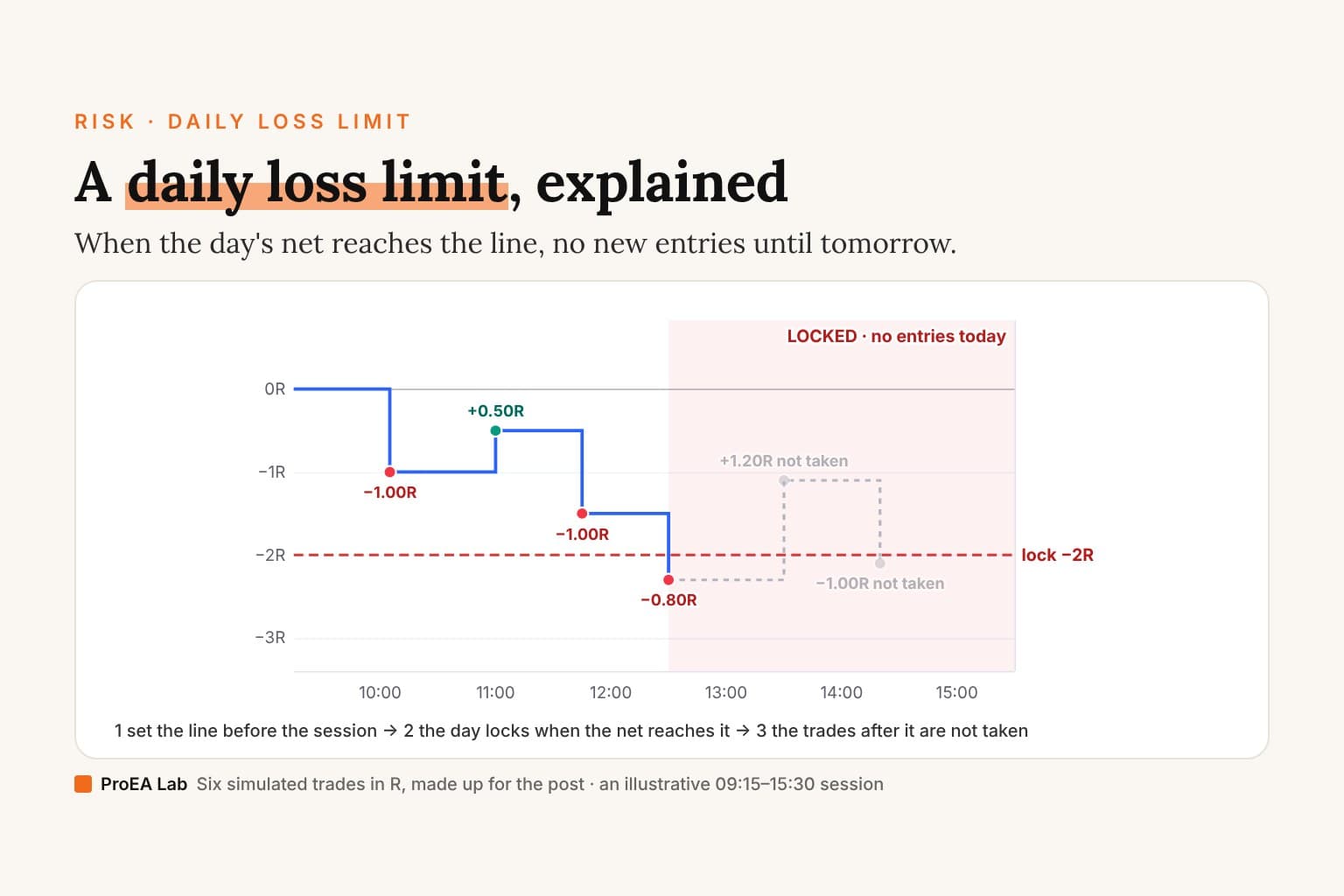
A lock line is the daily limit drawn where you'll see it: a horizontal line at, say, −2R under the day's running net. When the net reaches the line, the day is locked and no new entries are taken until the next exchange day.
The figure below is one simulated day of six trades, in R, on an illustrative 09:15–15:30 session. They are made up to show the arithmetic, not taken from a market. The line starts at −2R, Signal Desk Premium's default; move it and see which trades are left.
Lock at −2R: locked after trade 4, the day ends −2.30R.
Trade 4 crossed the line, so the day closed 0.30R past it: a lock on closed trades trips after the trade that crosses it. 2 trades after it are not taken; on this day that cost 0.20R against no lock, because a winner came later.
Simulated and illustrative: six made-up trades in R on an illustrative 09:15–15:30 session, not market data and not a result. The line counts closed trades only; a broker's limit or a prop firm's may count open trades too.
| Trade | Closes at | Result | Running net |
|---|---|---|---|
| 1 | 10:05 | −1.00R | −1.00R |
| 2 | 11:00 | +0.50R | −0.50R |
| 3 | 11:45 | −1.00R | −1.50R |
| 4 | 12:30 | −0.80R | −2.30R |
| 5 | 13:30 | +1.20R | −1.10R |
| 6 | 14:20 | −1.00R | −2.10R |
What the lock does on this day:
- At −2R: trade 4 takes the net from −1.50R to −2.30R, past the line, and the day locks there. Trades 5 and 6 are not taken. The day ends at −2.30R, 0.30R beyond the line, because a lock on closed trades trips after the trade that crosses it.
- With no lock: all six are taken and the day ends at −2.10R. Here the lock cost 0.20R, because a winner came after it.
- At −1R: the day locks after the first trade and ends at −1.00R, 1.10R better than no lock on this day.
- At −3R: the line is never reached. The lowest the net went was −2.30R.
The lock isn't there to improve any one day; on this one it cost 0.20R. It's there to bound the bad days: whatever trades 5, 6 and the ones after would have done, the day stops near the line. Two lessons from the overshoot: keep each trade's risk small next to the limit, so the trade that crosses it can't go far past; and count costs, since the line can only be as exact as the net it reads.
How much should your daily loss limit be?
No source we read names a right size, and none could: it depends on how much you risk per trade, how many trades your plan takes, and what your account can absorb. Three ways to set it:
- In R. Two or three full stop-outs is easy to count and keep. Signal Desk Premium's default lock is −2R net.
- As a share of the account. The daily loss limit calculator starts with a percentage allowance, subtracts the day's negative net P&L, realized and floating, and shows what remains.
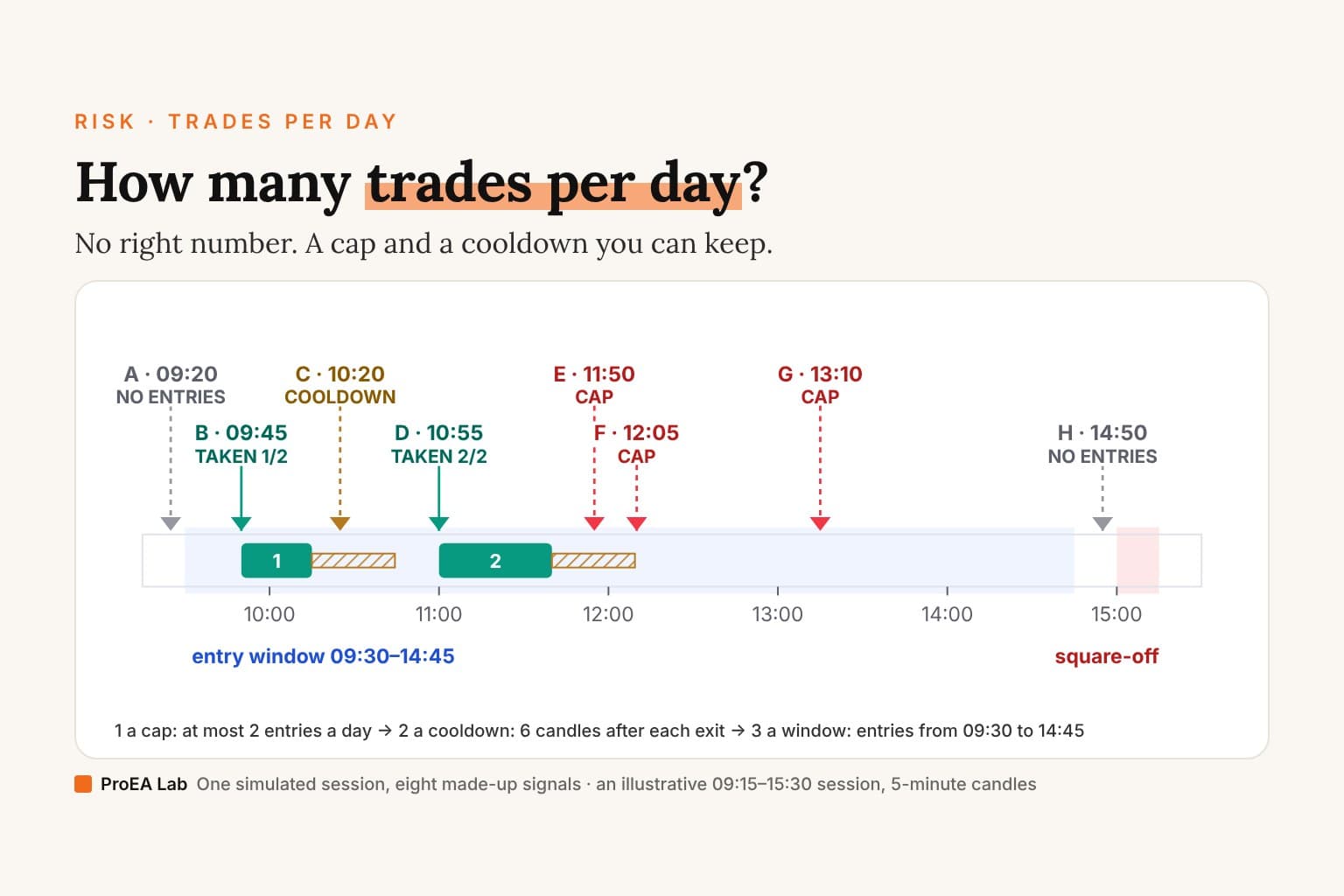
- From your plan's count. If your plan allows two entries a day, a 2R limit is both of them stopped out. How many trades per day covers that cap.
Whatever you pick, decide it before the session and don't raise it during one.
Prop firm daily loss limits
A prop firm's daily loss limit is a contract rule, not a habit: it's measured the firm's way, at the firm's reset time, and breaking it can end the day or the account. Those rules have their own pages, read from each firm's help center:
- Topstep's daily loss limit: optional on the Combine, and hitting it ends the day, not the account.
- FTMO's rules, the firm's daily and overall loss limits in one place.
- Prop firm rules, decoded, and every firm we've read in the prop firm hub.
- The Prop Firm Challenge Toolkit draws a firm's daily limit and drawdown as dollar buffers on your TradingView chart.
Signal Desk Premium: the daily lock
Signal Desk Premium puts the lock line inside the desk. In its own words:
- "By default the day locks at −2R net. Set a money amount instead, or 0 to switch it off."
- "A second lock trips after 3 losses in a row today, whatever the net."
- Locked means "No entries until the next exchange day. The dashboard reads LOCKED, and Ticket-text and JSON alerts say so."
It also sizes each trade from the money you risk, so a 2R day is the amount you chose. The lock stops the desk's own entries; it can't stop you from trading at your broker. Pair it with the broker's own limit, such as Dhan's P&L Exit and Kill Switch. Its alerts need a paid TradingView plan: TradingView's pricing row "Active technical alerts on indicators, strategies, and drawings" reads ✗ on Basic, 20 on Essential, 100 on Plus, 400 on Premium and 1,000 on Ultimate (read 29 October 2026).
Premium uses the same entries as the library desk. It does not promise better results; it makes the same signals easier to prepare for, size, manage, filter and act on.
Sources
- Dhan support: How does Set P&L Exit work?, Where can I set P&L Exit from?, What happens to my pending orders if P&L exit gets triggered?, Can I edit my P&L Exit values after setting? and How can I activate the Kill Switch?, read 29 October 2026.
- Zerodha: What is Kill switch? and Introducing Kill Switch (June 9, 2021), read 29 October 2026.
- TradingView: the help page on Take Profit and Stop Loss in dollar terms and as a percentage, the Pine Script manual's Strategies page (risk management) and the pricing page's alert rows, read 29 October 2026.
- The lock line:
src/components/blog/daily-loss-limit/lock-day.ts, six made-up trades in R.
Disclosure
We, ProEA Lab, build Signal Desk Premium and sell it. The code is AI-assisted. The six trades are simulated and illustrative, made up in R to show how a lock line works; they are not a market and not a result. Dhan's, Zerodha's and TradingView's features are quoted from their own pages as read on 29 October 2026 and can change. Nothing here is advice. Trading involves risk.
Frequently asked questions
What is a daily loss limit?
A cap on how much you let yourself lose in one trading day. When the day's loss reaches it, you stop: a broker can exit your positions or block new orders, a prop firm can end your day or your account, or your own rule stops new entries until tomorrow.
What is the difference between a daily loss limit and max drawdown?
A daily loss limit measures one day and starts again the next. Max drawdown measures the fall from a peak across many days, so a run of small losing days can reach it without ever touching the daily limit.
How do I set a daily loss limit in Dhan?
Use the Set P&L Exit button on the Positions screen to set a maximum loss and a maximum profit for the day's intraday positions. When one is hit, Dhan exits them at market price. Turn on the Kill Switch with it to block new orders for the rest of the day.
Does Zerodha have a daily loss limit?
Zerodha's Kill switch turns off a trading segment, and you can turn it back on only after 12 hours. Its support page, as we read it, describes a switch you flip yourself, not one that trips at a loss amount.
Can I set a daily loss limit on TradingView?
We found no TradingView help page for an account-wide daily loss limit on manual trades. Pine strategies have strategy.risk.max_intraday_loss(), which stops a strategy's simulated trading until the session ends, and an indicator can draw your limit on the chart as a lock line.
How much should my daily loss limit be?
No source we read names a right size. Setting it in R, as a number of full stop-outs, makes it easy to check and keep. Signal Desk Premium locks the day at 2R net by default, two full losses.